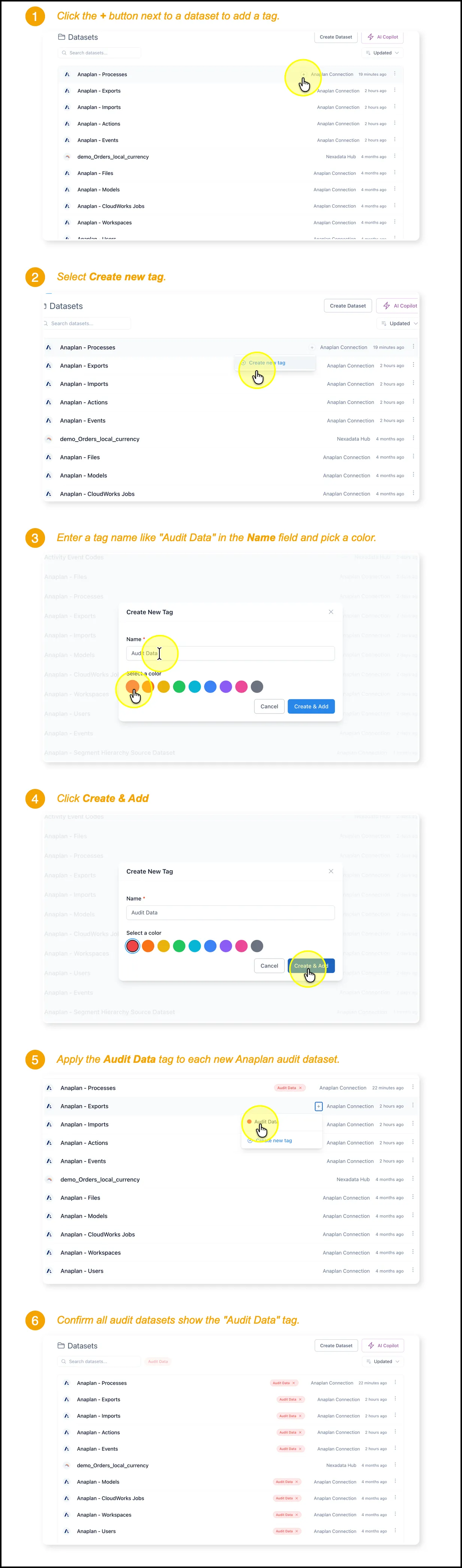
Step 2 - Tag the Anaplan Audit Datasets
🔍 What You’re Doing
Section titled “🔍 What You’re Doing”You’re applying a shared Audit Data tag to each of the datasets that feed the Anaplan audit log workflow. Tags are how Nexadata groups related datasets so you can filter the Datasets list, identify what belongs to a workflow at a glance, and keep your environment organized as it grows. This is a one-time setup step that pays off every time you return to maintain or extend the audit pipeline.
The following datasets should all carry the Audit Data tag:
-
Anaplan - Events
-
Anaplan - Users
-
Anaplan - Workspaces
-
Anaplan - CloudWorks Jobs
-
Anaplan - Models
-
Anaplan - Imports
-
Anaplan - Exports
-
Anaplan - Processes
-
Anaplan - Actions
If you created Imports, Exports, Processes, and Actions datasets for more than one workspace and model combination, tag every one of them, not just the first set.
✅ Summary of Steps
Section titled “✅ Summary of Steps”-
From the Datasets list, click the + button on a dataset row.
-
Select Create new tag.
-
Enter Audit Data in the Name field and choose a color.
-
Click Create & Add to create the tag and apply it to the first dataset.
-
Apply the Audit Data tag to each remaining audit dataset listed above.
-
Confirm every audit dataset displays the Audit Data tag in the Datasets list.