

Workflow Pipelines
Once one or more Datasets have been added to a Workflow, the next step is to create Pipelines to process, transform, and prepare the data for output. Pipelines are where your business logic, mapping, and data harmonization take place.
The Pipelines tab is divided into two sections: Output Pipelines and Supporting Pipelines.
Adding an Output Pipeline
Section titled “Adding an Output Pipeline”You must create at least one Output Pipeline before your Workflow can be executed. When no Output Pipelines have been created yet, the tab displays a “No Output Pipelines yet” empty state with a warning prompting you to add one.
To get started, navigate to the Pipelines tab. If you are coming from the Data tab, click Go to Pipelines in the next step prompt at the bottom of the page, or select Pipelines from the top navigation within the Workflow.
Click the Add button in the upper right of the Output Pipelines section to create your first Output Pipeline.
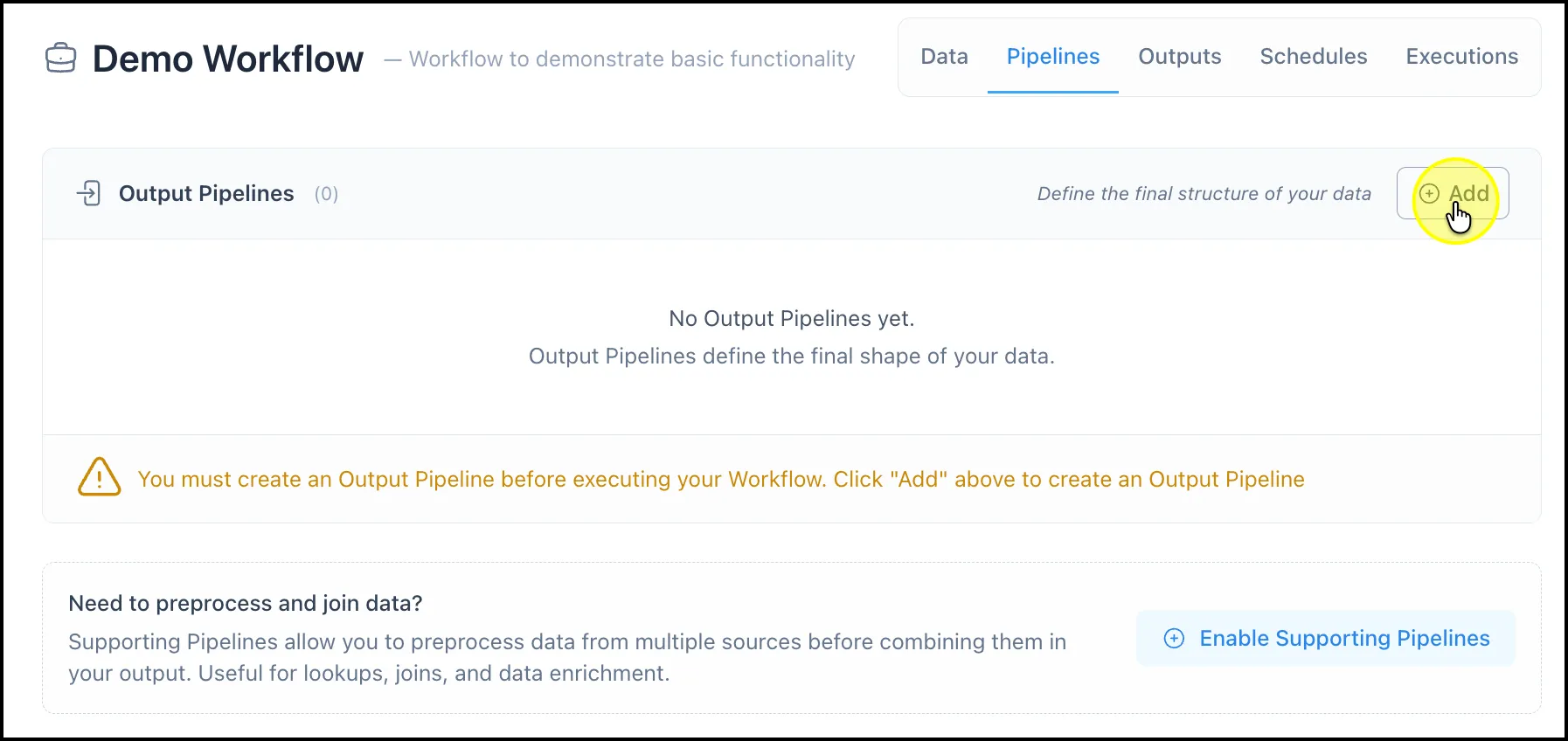
The Pipelines tab in its empty state, showing the “No Output Pipelines yet” warning, the Add button, and the option to enable Supporting Pipelines
Setting Up a Pipeline
Section titled “Setting Up a Pipeline”After clicking Add, a Pipeline setup panel will open. Enter a name for your Pipeline and configure it according to your data transformation requirements. Use the AI Copilot to build your transformation logic using natural language.
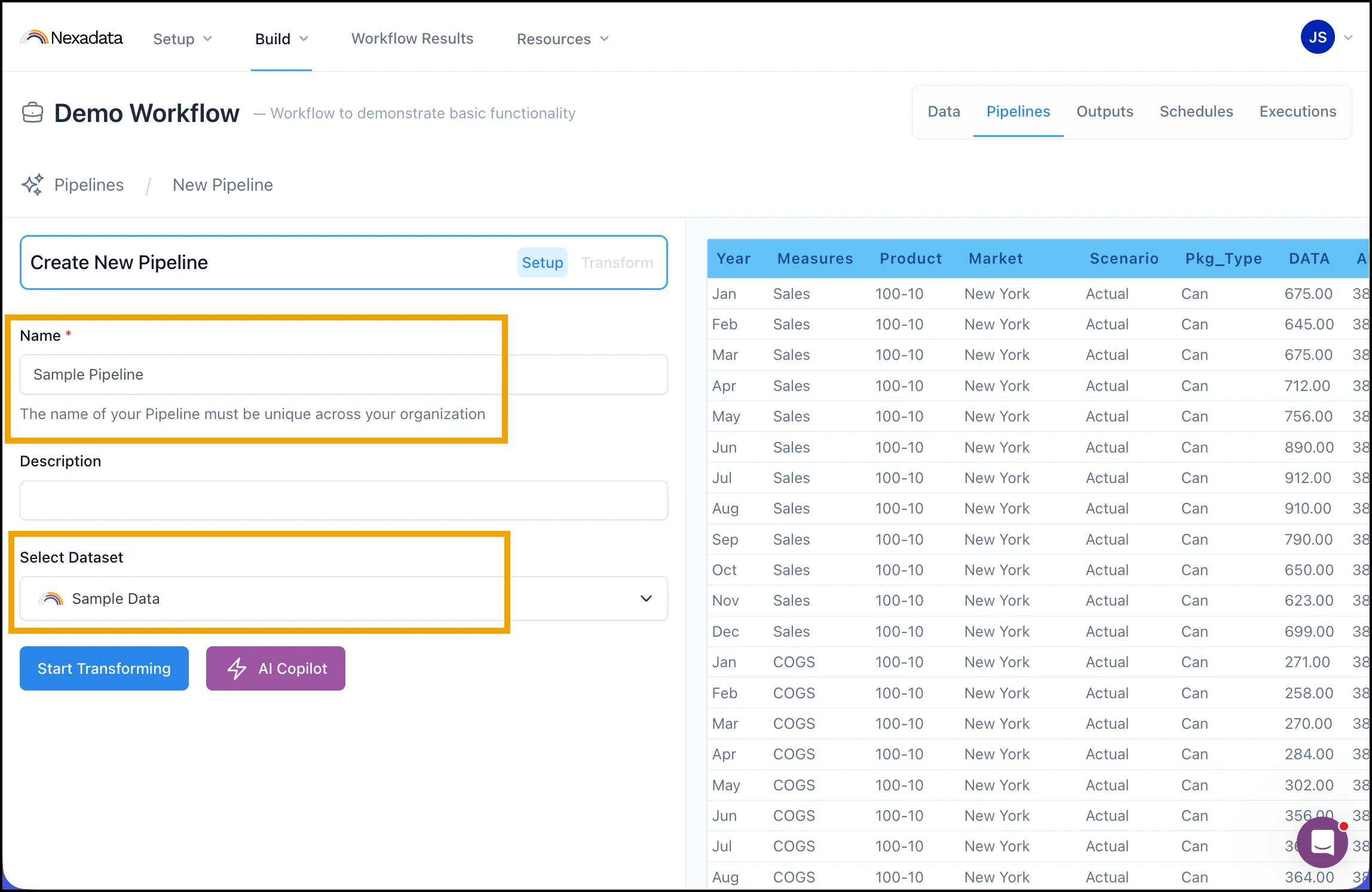
The Pipeline setup panel
Once your Pipeline is configured, save it to return to the Pipeline overview. Your new Output Pipeline will appear in the list with its name, last edited timestamp, and column match status.
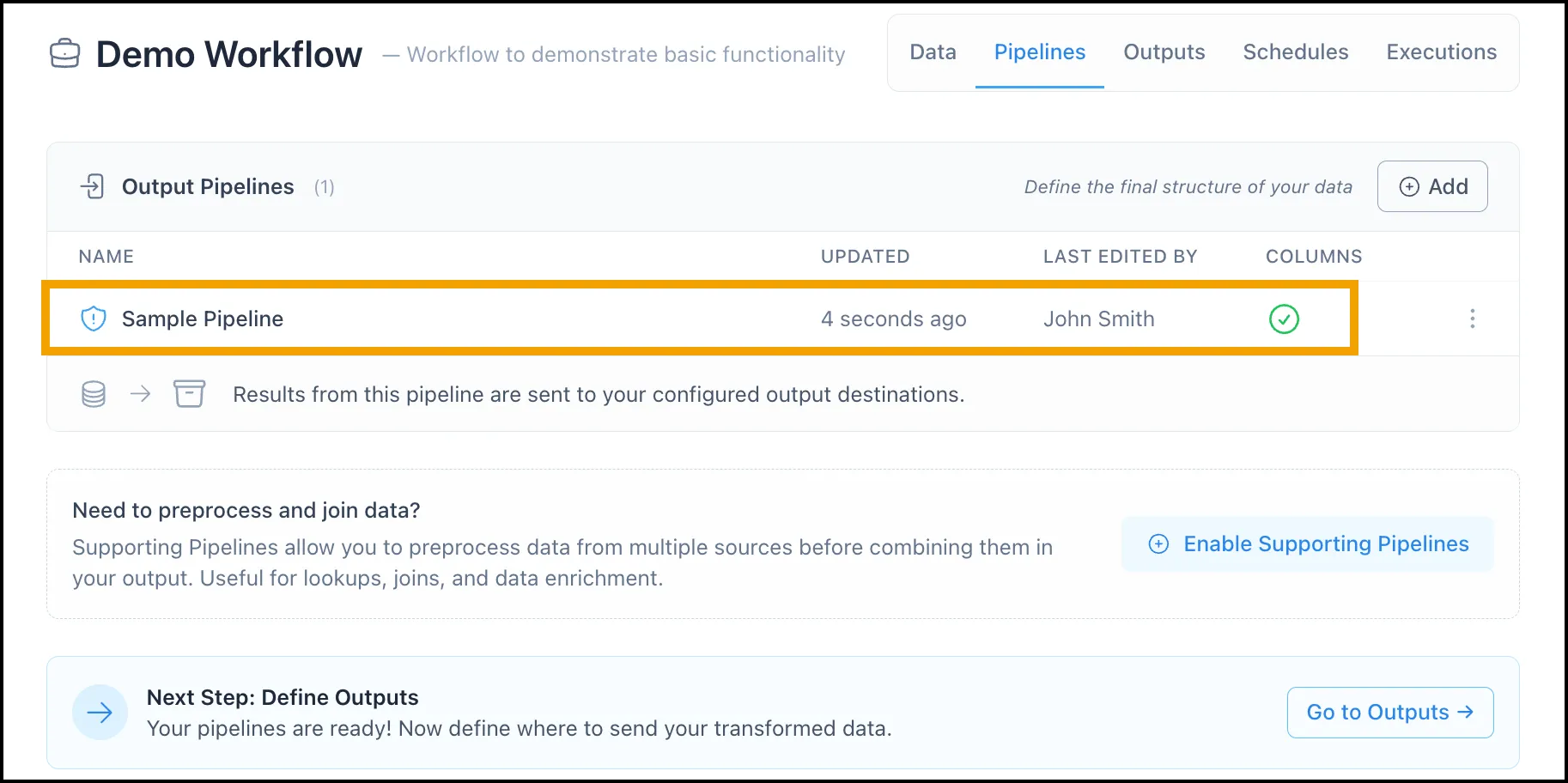
The Pipeline overview showing a configured Output Pipeline
The Primary Output Pipeline
Section titled “The Primary Output Pipeline”When you have more than one Output Pipeline, one must be designated as Primary. The Primary Output Pipeline is the source of truth for your Workflow’s output structure. It defines:
-
The column names that all other Output Pipelines must match
-
The number of columns expected in the output
-
The overall schema that downstream systems or reports will consume
All other Output Pipelines are stacked on top of the Primary, meaning their rows are combined into a single unified output at execution time. Only Output Pipelines are stacked; Supporting Pipelines are not included in this behavior.
Changing the Primary Output Pipeline
Section titled “Changing the Primary Output Pipeline”You can change which Output Pipeline is designated as Primary at any time. To do so, click the actions icon (⋮) to the right of the Pipeline you want to promote, then select Mark as Primary from the dropdown.
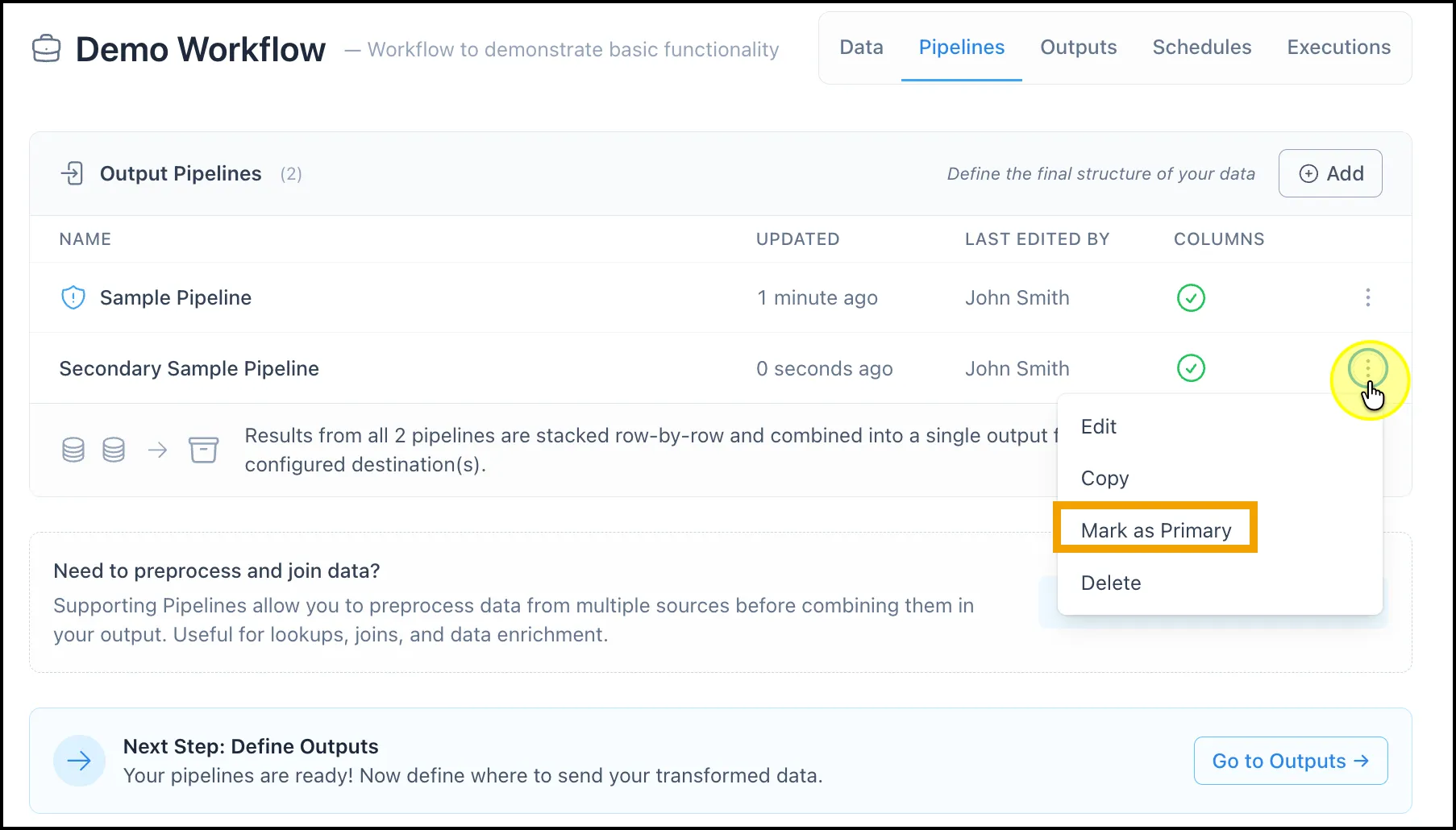
The actions menu shows the Mark as Primary option
Once marked as Primary, that Pipeline’s column structure becomes the new standard for all other Output Pipelines.
Column Conformance and Warning Messages
Section titled “Column Conformance and Warning Messages”The Columns column in the Output Pipelines list gives you an at-a-glance status for each Pipeline:
-
A green checkmark indicates the Pipeline’s columns conform to the Primary Output Pipeline’s schema.
-
A red X indicates the Pipeline’s columns do not match the Primary and needs to be resolved before the Workflow can execute correctly.
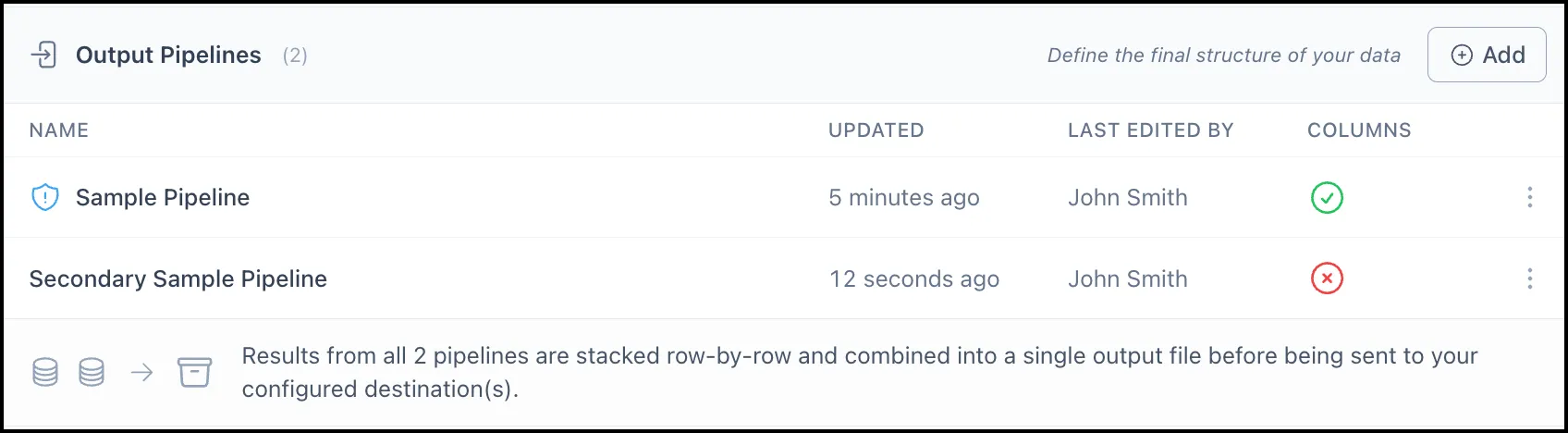
The Output Pipelines list shows a conforming Pipeline (green checkmark) and a non-conforming Pipeline (red X) side by side
When you open a non-conforming Pipeline, a warning banner appears in the Transformations panel that identifies the specific issue. For example, if a non-Primary Pipeline contains an extra column that does not exist in the Primary, the warning will display:
-
“Output Columns do not match Workflow”
-
A list of Extra Columns that need to be removed or reconciled before the Pipeline can conform
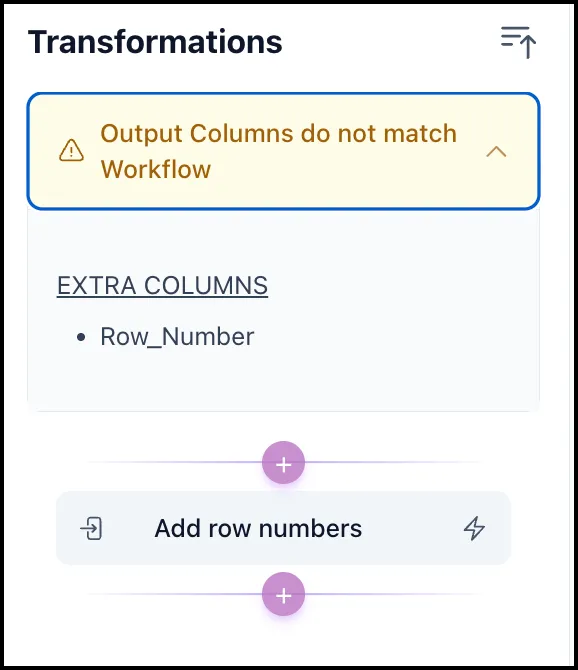
A warning in the Transformations panel showing an extra column that does not match the Primary Output Pipeline
To resolve the warning, update the non-conforming Pipeline to align its columns with the Primary, either by removing extra columns or adjusting the transformation logic.
Alternatively, if the non-conforming Pipeline’s structure is correct, use Mark as Primary to promote it and redefine the expected schema for all other Output Pipelines.
Enabling Supporting Pipelines
Section titled “Enabling Supporting Pipelines”Supporting Pipelines are optional and must be explicitly enabled. From the Pipelines tab, click Enable Supporting Pipelines in the prompt at the bottom of the page.
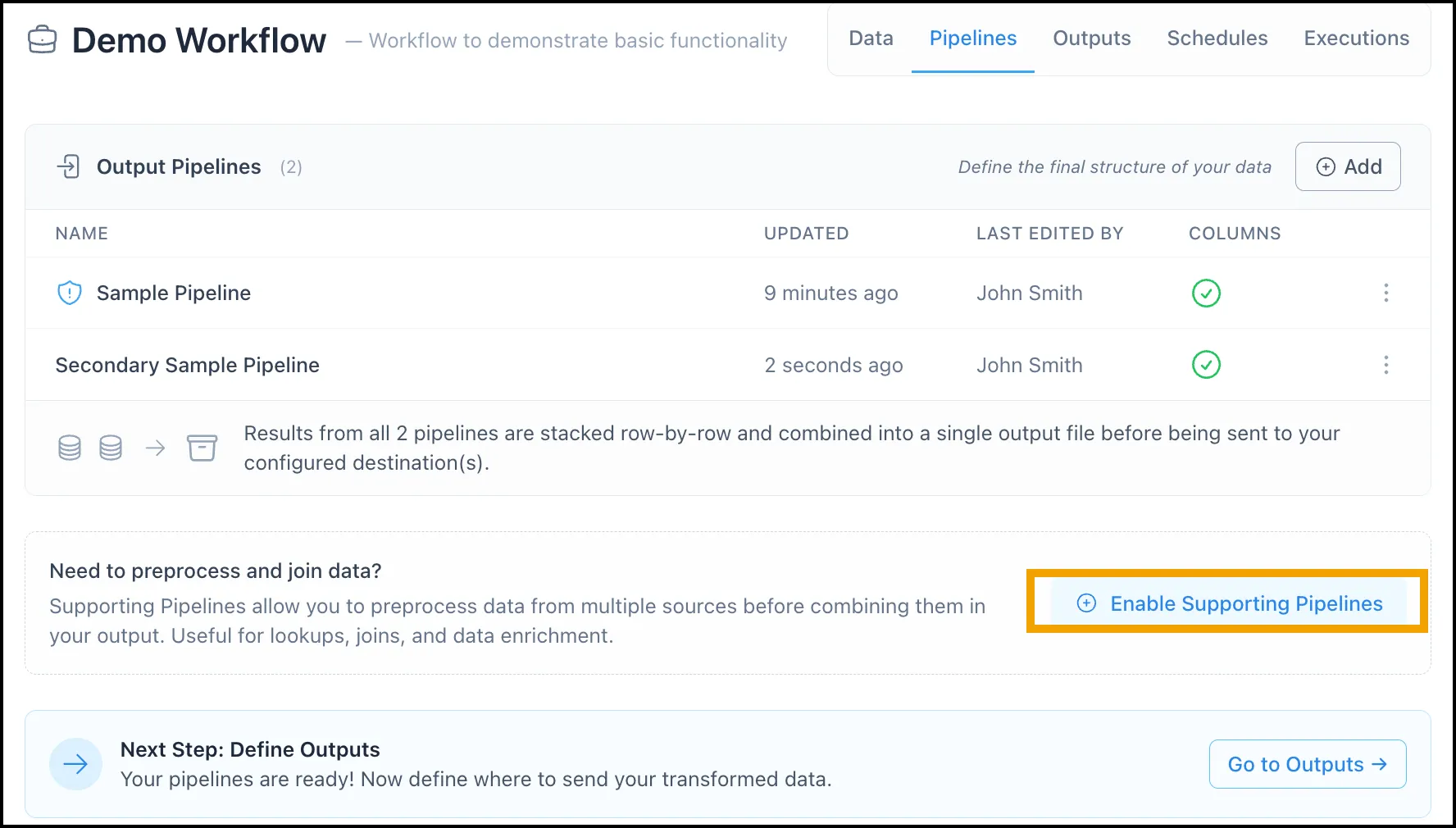
Clicking Enable Supporting Pipelines
Once enabled, a Supporting Pipelines section will appear above the Output Pipelines list. Click Add in that section to create your first Supporting Pipeline.
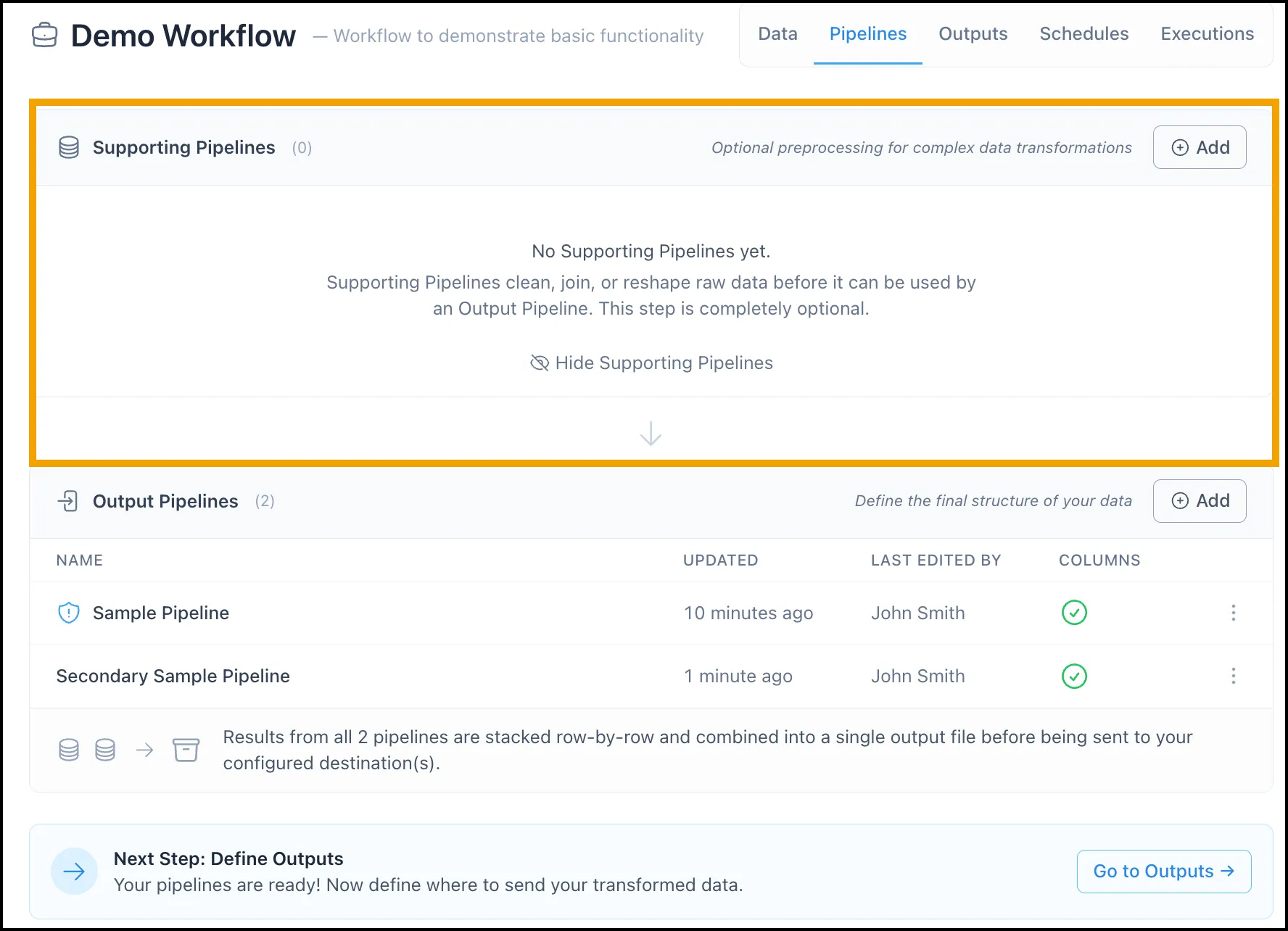
The Supporting Pipelines section, after being enabled
Setting Up a Supporting Pipeline
Section titled “Setting Up a Supporting Pipeline”After clicking Add in the Supporting Pipelines section, a Pipeline setup panel will open. The setup experience is the same as creating an Output Pipeline (see Setting Up a Pipeline above). Unlike Output Pipelines, Supporting Pipelines do not need to conform to the Workflow’s Output Column schema, giving you flexibility to shape intermediate data however your transformation logic requires.
Once saved, return to the Pipeline overview. Your Supporting Pipeline will appear at the top of the Pipelines tab, above your Output Pipelines, reflecting its earlier execution order in the Workflow.
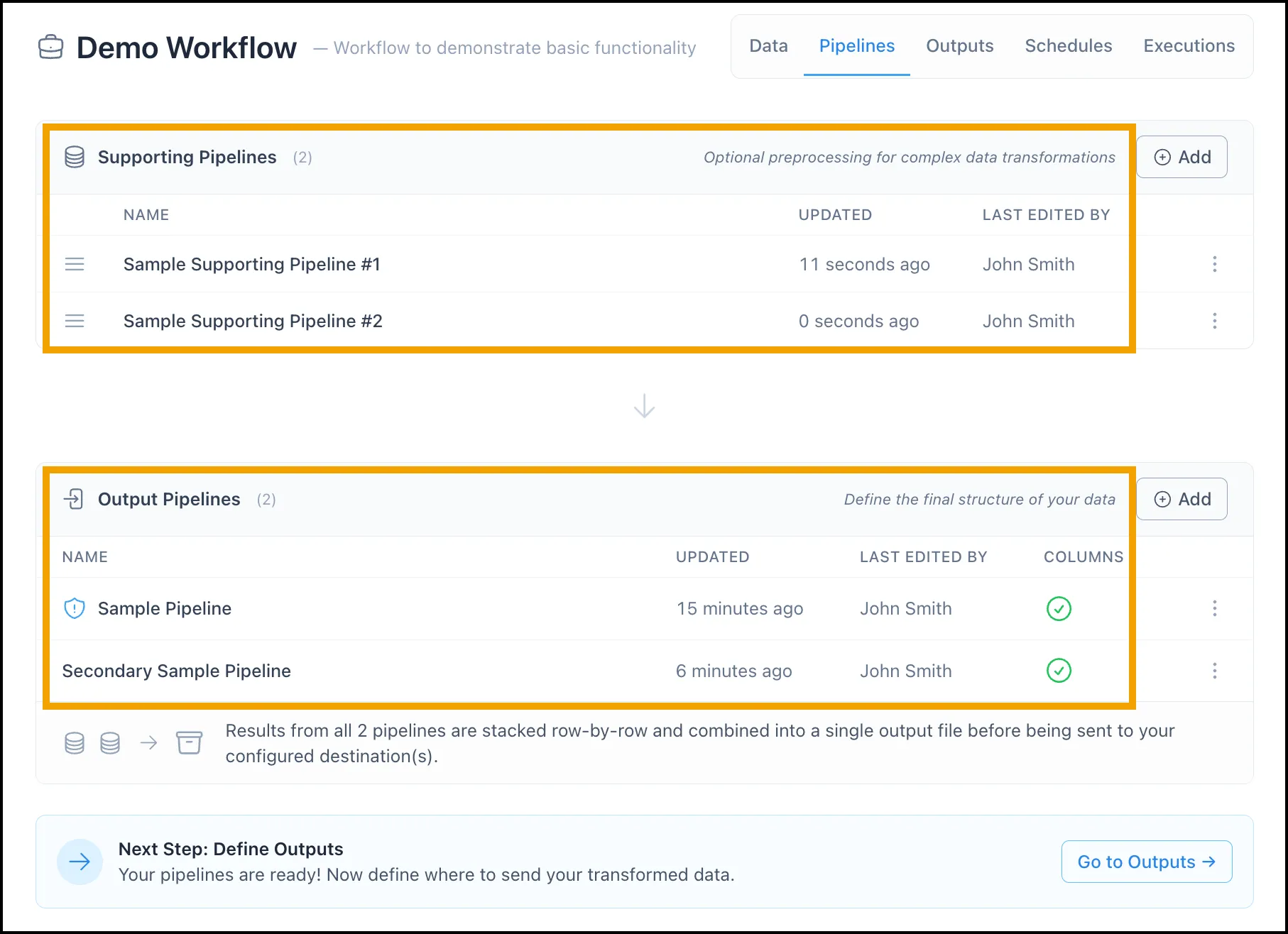
The Pipeline overview showing both the Supporting and Output Pipelines
Key Features of Supporting Pipelines
Section titled “Key Features of Supporting Pipelines”-
Reusability: Their outputs can be referenced by other Supporting Pipelines or Output Pipelines.
-
Independent Schema: They do not need to match the final Workflow Output Columns.
-
Flexible Order: You can change their execution order, allowing one Supporting Pipeline to rely on the output of another.
-
Joins: The output of a Supporting Pipeline is joinable. You can use it as an input to a subsequent Supporting Pipeline or Output Pipeline and apply Join transformations, making it possible to combine and enrich data across multiple staged steps. See Chaining Supporting Pipelines below for more details.
Use Supporting Pipelines to organize complex transformations into manageable stages, especially when working with multiple input formats or enrichment layers.
Reordering Supporting Pipelines
Section titled “Reordering Supporting Pipelines”Because Supporting Pipelines execute in order, sequence matters. A Supporting Pipeline that appears earlier in the list runs first, and its output can be used as an input by any Pipeline that follows it.
To reorder Supporting Pipelines, grab the drag handle (the equals icon on the left side of any Supporting Pipeline row) and drag it to the desired position.
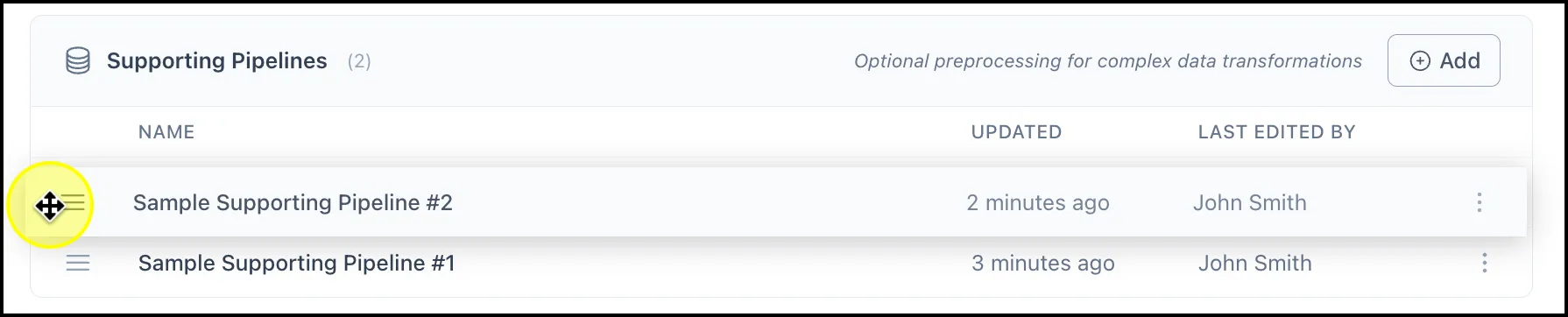
Dragging a Supporting Pipeline to reorder it using the drag handle
Chaining Supporting Pipelines
Section titled “Chaining Supporting Pipelines”One of the most powerful features of Supporting Pipelines is the ability to chain them together. There are two ways to use the output of a prior Supporting Pipeline in a subsequent Pipeline: as the primary input Dataset, or as the target of a Join transformation.
Using a Prior Supporting Pipeline as the Input Dataset
Section titled “Using a Prior Supporting Pipeline as the Input Dataset”When creating or editing a Pipeline, the Select Dataset dropdown includes not only your source Datasets but also the outputs of any Supporting Pipelines that are ordered earlier in the list. Simply select the prior Supporting Pipeline’s output as your starting Dataset and build your transformation logic from there.
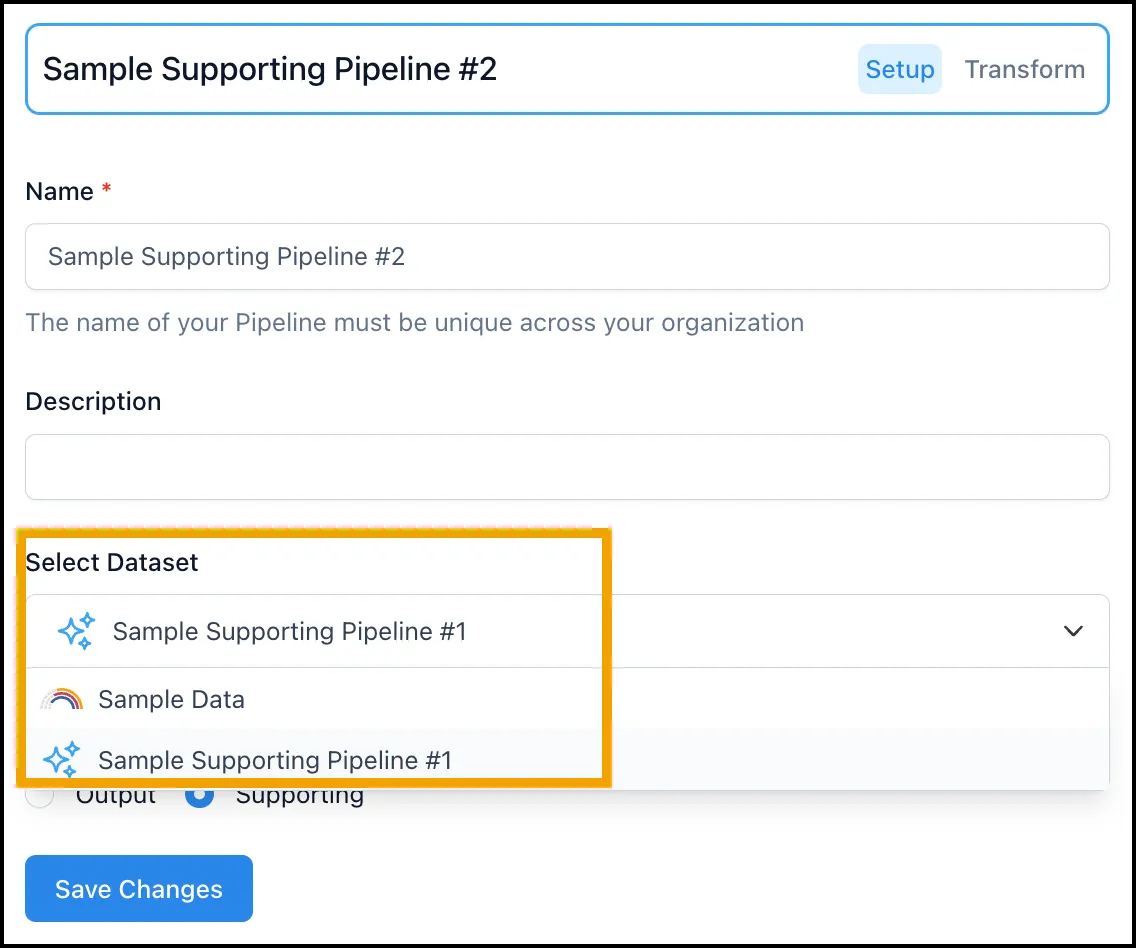
The Select Dataset dropdown showing source Datasets and Sample Supporting Pipeline #1 as a selectable input for a subsequent Supporting Pipeline
Joining a Prior Supporting Pipeline Output
Section titled “Joining a Prior Supporting Pipeline Output”You can also reference a prior Supporting Pipeline’s output in a Join transformation within any subsequent Pipeline. When adding a Join transformation, the Dataset to Join dropdown will include both your source Datasets and the outputs of any Supporting Pipelines that precede the current one in the execution order.
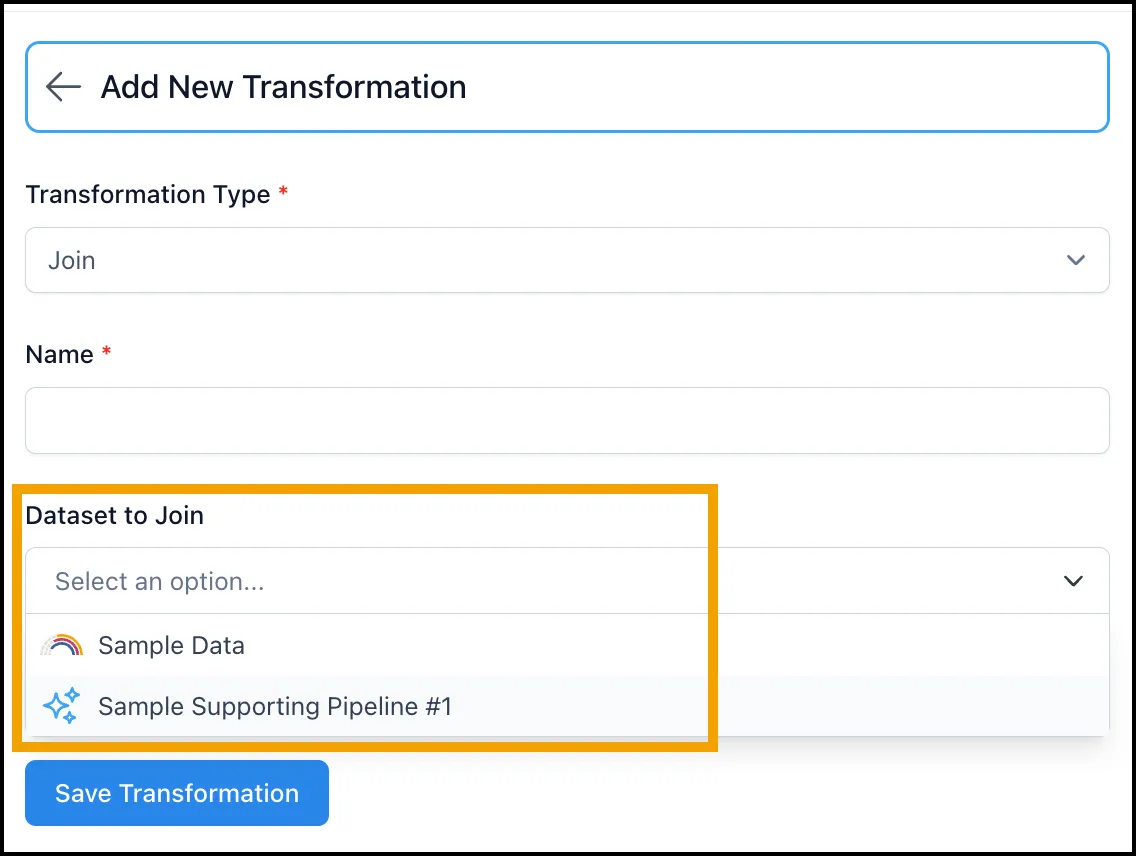
The Add New Transformation panel showing a Join transformation with Sample Supporting Pipeline #1 available as a Dataset to Join
This gives you two distinct ways to incorporate staged data into your transformation logic: starting from it, or joining against it. Both approaches allow you to break complex mapping and transformation logic into discrete, maintainable components rather than handling everything in a single Pipeline. Each stage has a clear purpose, the order is visible and adjustable, and individual steps can be modified or replaced without disrupting the rest of the Workflow.
Pipeline Management
Section titled “Pipeline Management”To manage an existing Pipeline, click the actions icon (⋮) to the right of any Pipeline in the list. This opens a dropdown with the following options:
-
Edit: Modify the Pipeline configuration.
-
Copy: Duplicate the Pipeline.
-
Mark as Primary: Designate this Output Pipeline as the Primary, making its column structure the standard that all other Output Pipelines must conform to.
-
Delete: Permanently remove the Pipeline.
Next Steps
Section titled “Next Steps”Once your Output Pipeline is configured, you can proceed to define your Workflow’s outputs. Click Go to Outputs in the next step prompt at the bottom of the page, or select the Outputs tab from the top navigation within the Workflow.
Ready to configure your destinations? Continue to Workflow Outputs.