

Roles and Permissions
Nexadata uses role-based access control (RBAC) to decide what each person in your organization can see and change. Access is built from three layers:
-
Org Role: Each member is an Admin or a Member of the organization. Admins have full access to everything.
-
Roles: Members get any combination of three roles, Workflow Access, Data Admin, and Security Admin, which open the matching areas of Nexadata.
-
Workspace permissions: User Groups are given Viewer, Executor, or Editor permission on each workspace and environment, which decides what their members can do with the Workflows inside.
Here is how the layers fit together:
| To do this | A member needs |
|---|---|
| Manage Connections, Datasets, the File Manager, Mapping Groups, and Copilot Configurations | The Data Admin role |
| Open Workflows and Variables | The Workflow Access role |
| See a workspace and its Workflows | Workflow Access, plus Viewer or higher on the workspace |
| Run a Workflow | Workflow Access, plus Executor or higher |
| Create, edit, or delete Workflows, Pipelines, Outputs, and Schedules | Workflow Access, plus Editor |
| Manage members, roles, User Groups, permissions, SSO, and other organization settings | The Security Admin role |
| Create workspaces | The Security Admin role |
| Everything | Admin as the Org Role |
Part 1: Open Your Organization Settings
Section titled “Part 1: Open Your Organization Settings”Roles and permissions are managed in your organization’s settings, which only Security Admins and Admins can open.
-
Click your user menu, then click Settings. The My organizations page opens.
-
Click your organization’s tile. Your organization’s settings page opens, titled with the organization’s name followed by Settings.
The tabs on the left include the ones this article uses: Team, User Management, Roles, User Groups, and Permissions. For the other tabs, see Organization Management.
Part 2: Make Someone an Org Admin
Section titled “Part 2: Make Someone an Org Admin”An Admin has full access to every area of the organization and is always an Editor on every workspace and environment, whatever their roles and User Groups say. Members invited to the organization join as Member.
-
Open the Team tab. The Org Role column shows each person’s role.
-
Open the menu on the person’s row and click Edit.
-
Under Role, choose Admin or Member, and click Save.
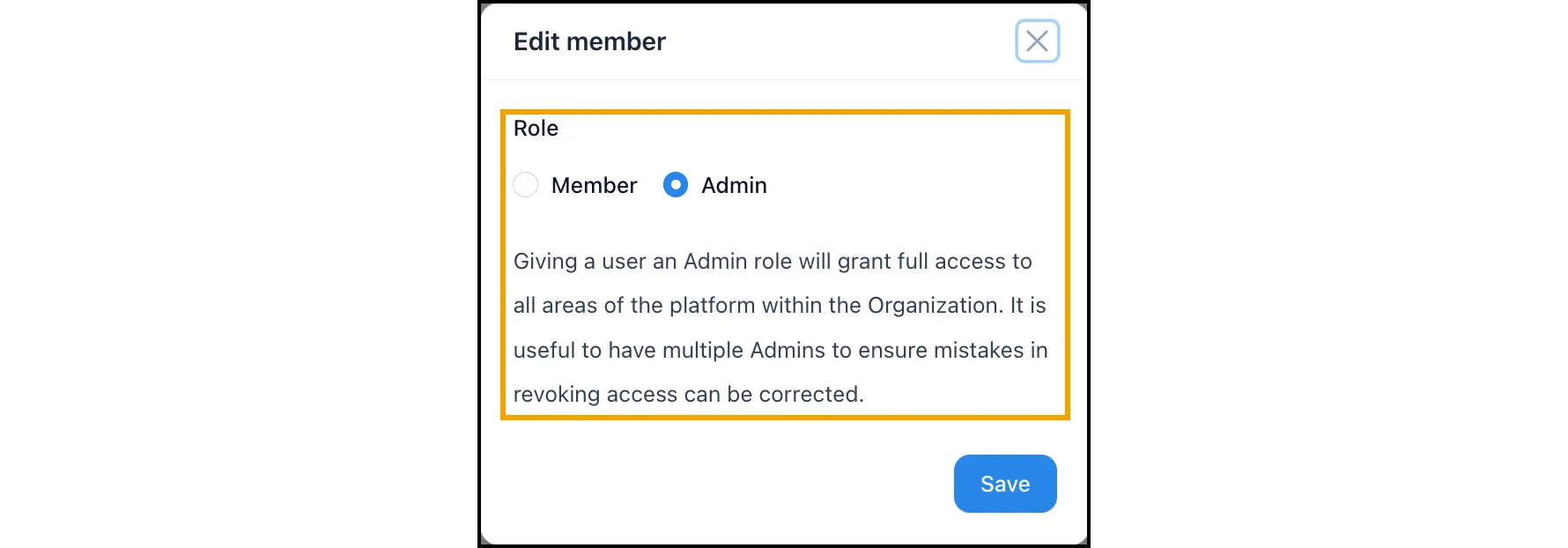
Keep at least two Admins. An Admin can correct mistakes in anyone’s access, including their own. Nexadata does not let you remove or demote the last Admin of an organization.
Part 3: Assign Roles
Section titled “Part 3: Assign Roles”Roles open the main areas of Nexadata. A member can hold any combination of them.
| Role | What it allows |
|---|---|
| Workflow Access | Open Workflows, Variables, and Workflow Results. What the member can do with each Workflow then depends on their workspace permissions. See Part 5. |
| Data Admin | Manage Connections, Datasets (including the Connector Copilot), the File Manager, Mapping Groups, Copilot Configurations, and Encryption Keys. |
| Security Admin | Open the organization settings to manage members, invitations, roles, User Groups, permissions, SSO, the IP allowlist, API settings, the LLM API key, tags, and the Activity Log. Create workspaces. |
Step 1: Choose Roles When You Invite Someone
Section titled “Step 1: Choose Roles When You Invite Someone”-
On the Team tab, click Invite new member.
-
Enter the person’s Email.
-
Under Roles, leave checked the roles the person should have, and clear the others. All three are checked by default.
-
Click Invite. The person receives the roles when they accept the invitation.
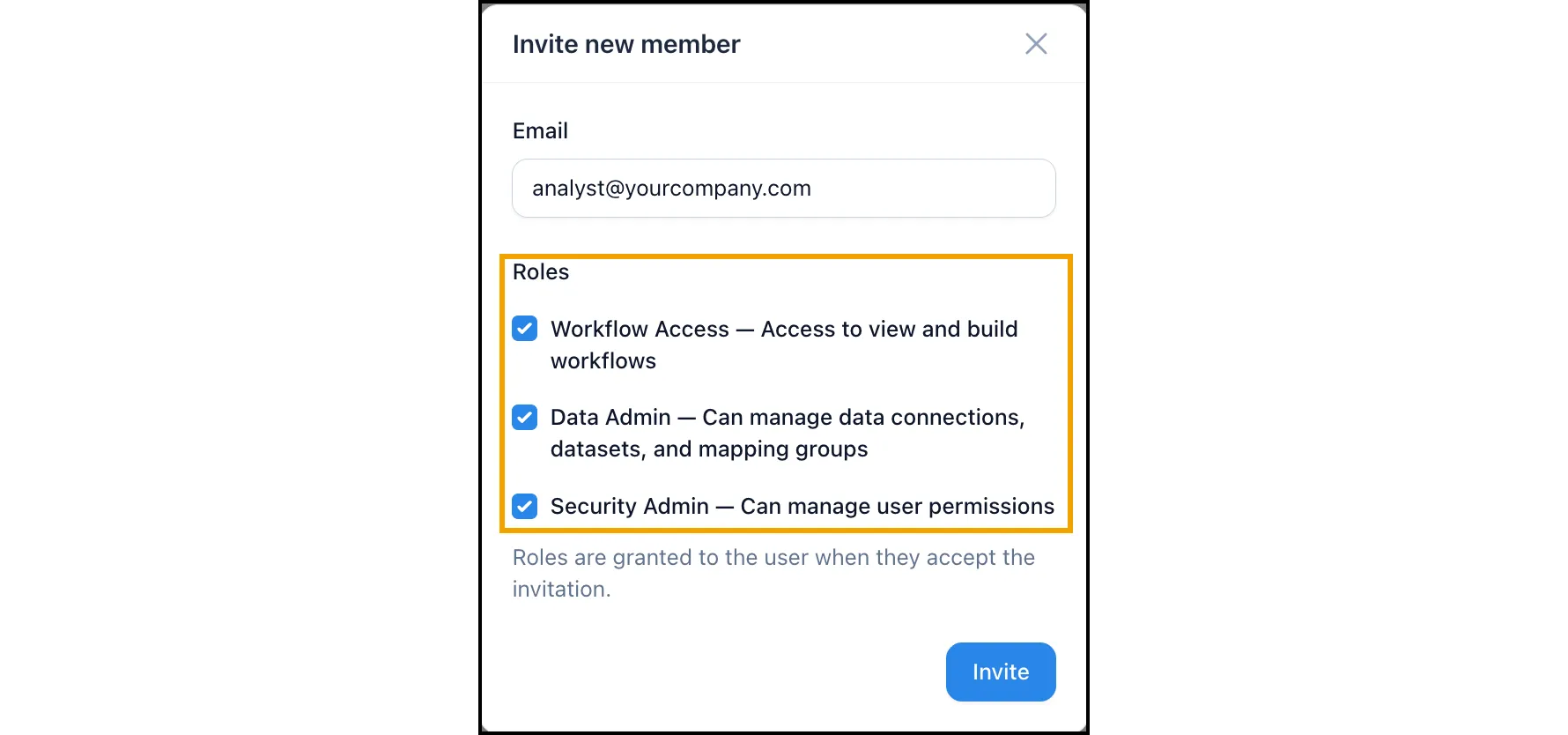
People who sign in through your organization’s SSO receive all three roles.
Step 2: Change a Member’s Roles
Section titled “Step 2: Change a Member’s Roles”Use either of these:
-
For one person: On the User Management tab, open the menu on the person’s row, click Edit, check or clear the Roles, and click Save.
-
For one role: On the Roles tab, click Manage Users next to the role. To add someone, choose them in Select a user and click Add. To remove people, click the remove icon next to each one and click Confirm Removals.
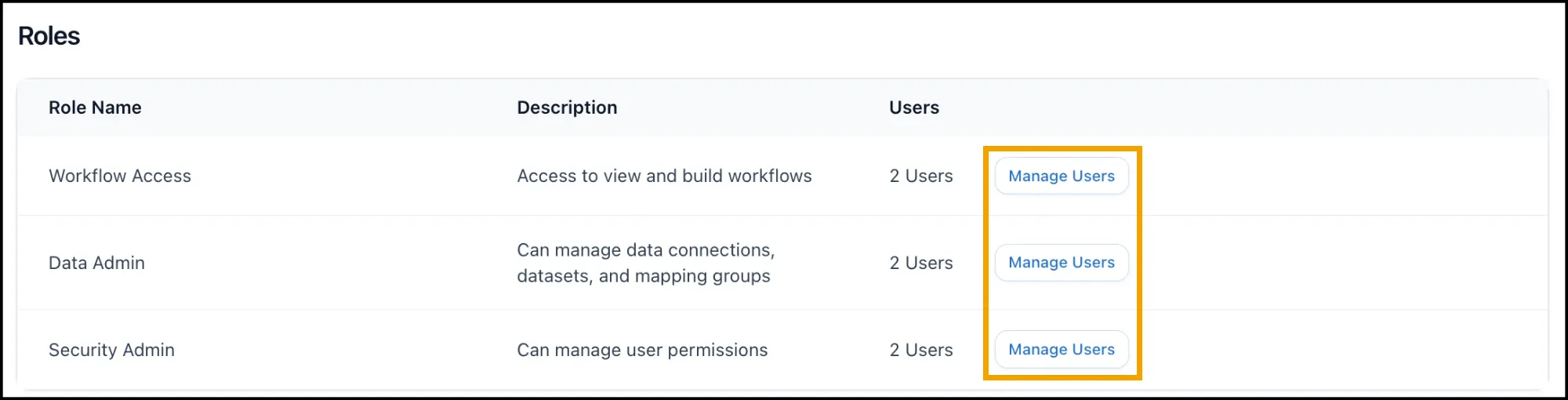
Role changes apply the next time the member opens a page.
Part 4: Organize Members into User Groups
Section titled “Part 4: Organize Members into User Groups”Workspace permissions are given to User Groups, not to individual people, so you set them up once for a team and add or remove people as the team changes.
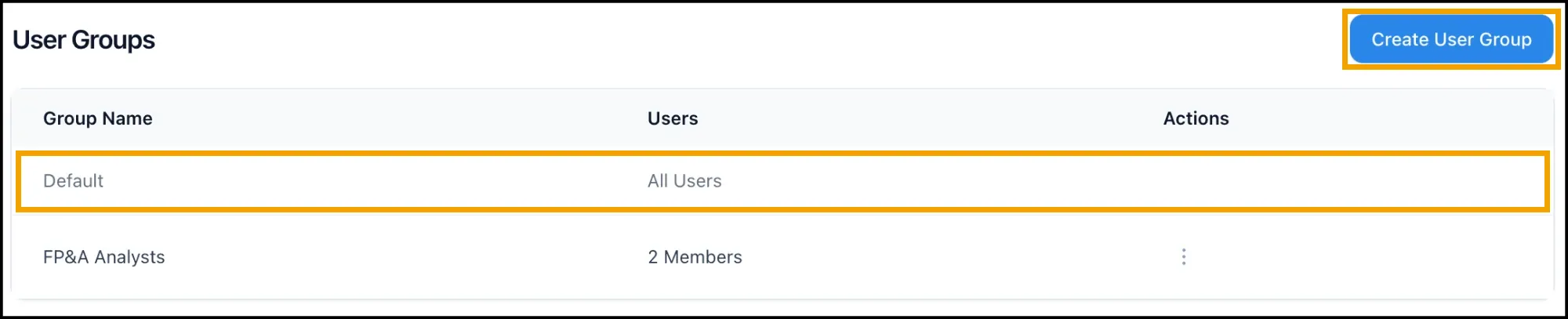
Every organization has a Default group that always contains All Users. Nobody can be removed from it, and it cannot be edited or deleted. Its workspace permissions therefore apply to everyone.
To create a group:
-
Open the User Groups tab and click Create User Group.
-
Enter a Name, for example
FP&A Analysts, check the members to include, and click Add Group.
To change a group’s members or name, open the menu on its row and click Edit, make your changes, and click Save Group. To remove a group, click Delete in the same menu and confirm.
Part 5: Set Workspace and Environment Permissions
Section titled “Part 5: Set Workspace and Environment Permissions”Each User Group can have one permission on each workspace and on each environment within it:
| Permission | Members of the group can |
|---|---|
| Viewer | See the workspace’s Workflows, Pipelines, Outputs, Schedules, and runs, without changing them |
| Executor | Everything a Viewer can, plus run Workflows |
| Editor | Everything an Executor can, plus create, edit, and delete Workflows, Pipelines, Outputs, and Schedules |
To set them:
-
Open the Permissions tab.
-
In Select a User Group to edit permissions, choose the group. The table lists every workspace, with its environments below it.
-
Check Viewer, Executor, or Editor on a workspace’s row. The change is saved immediately, and the same permission is applied to each of the workspace’s environments.
-
To give the group a different permission in one environment, change it on that environment’s row.
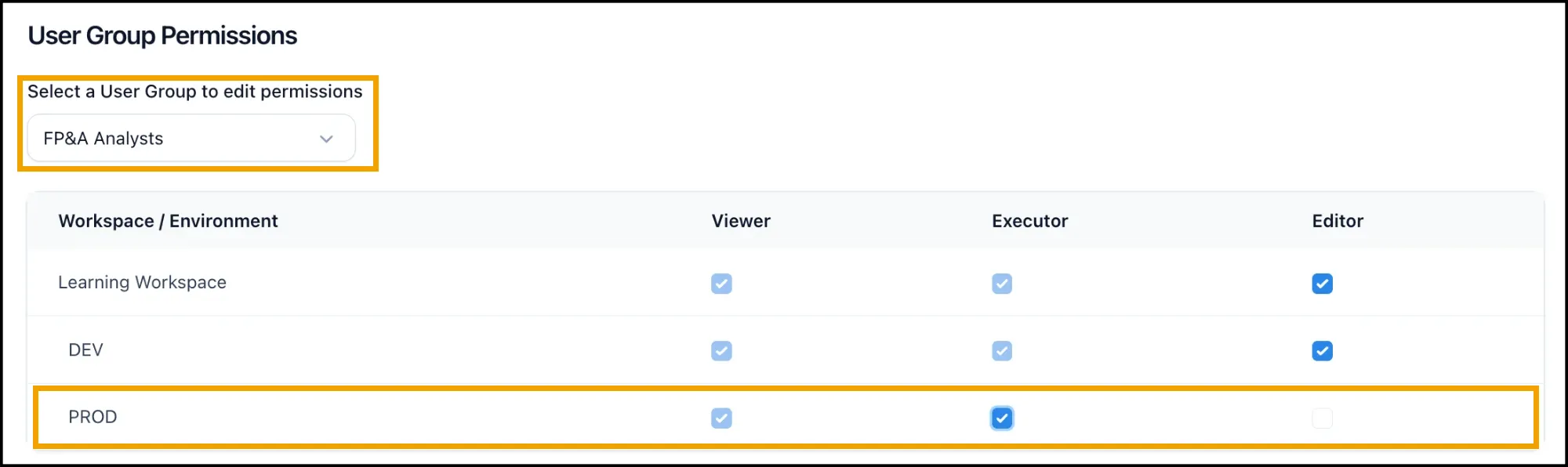
To change a permission, clear the checked box first, then check the new one. Clearing a workspace’s permission also removes the group’s permissions on all of that workspace’s environments.
How Nexadata Combines Permissions
Section titled “How Nexadata Combines Permissions”A member can belong to several groups. Nexadata works out their permission in each environment like this:
-
An Admin is always an Editor.
-
If any of the member’s groups has a permission on the environment, the highest of those applies, even if a group gives them more on the workspace.
-
Otherwise, the highest permission any of their groups has on the workspace applies.
-
With no permission at all, the workspace is hidden from them.
New workspaces give Editor to every User Group, including Default. Review the permissions on the Permissions tab after you create a workspace.
Restricting Access
Section titled “Restricting Access”Because everyone is in the Default group, narrow access by lowering what Default grants and building up from there:
-
Create a User Group for each team, for example
Finance EditorsandExecutives, and add the right people. See Part 4. -
On the Permissions tab, select each team’s group and give it the permission it needs on each workspace.
-
Select the Default group and lower its permission on each workspace to Viewer, or clear it to hide the workspace from everyone who is not in another group.
-
On the Roles tab, remove Data Admin and Security Admin from people who do not manage data or users.
-
Sign in as a test user, or ask a team member, to confirm what they can see.
What Members See Without Access
Section titled “What Members See Without Access”-
Without Data Admin: The Setup menu (Connections, Datasets, File Manager, Copilot Configurations, and Encryption Keys) and Mapping Groups are hidden.
-
Without a role a page needs: Opening the page returns them to the home screen with the message You do not have permission to access this page.
-
Without permission on any workspace: Workflows shows No Workspace Access: You do not have access to any Workspaces. Please contact your Security Admin to grant you access to a Workspace.
-
As a Viewer: Create, edit, and delete controls are hidden or unavailable, the Pipeline editor shows a Read Only badge, and Execute Workflow is unavailable.
-
As an Executor: Members can run Workflows, but create, edit, and delete controls are hidden or unavailable.
-
Without Security Admin: The organization’s tile on the My organizations page cannot be opened.
Tips and Best Practices
Section titled “Tips and Best Practices”-
Keep two Admins. If one Admin leaves or demotes themselves by mistake, another can restore access.
-
Give Security Admin sparingly. Security Admins control everyone’s access, so limit the role to the people who manage users.
-
Use groups for teams, not individuals. Permissions follow the group, so onboarding and offboarding become a matter of adding or removing people.
-
Separate building from running. Give analysts who maintain Workflows Editor, and people who only refresh results Executor.
-
Protect production with environments. Give most groups Viewer or Executor on a production environment, and keep Editor for the few who promote changes.
-
Check access after changes. Ask a member of each group to confirm what they see after you change permissions.