Step 9 - Push Data to Pigment from Nexadata
🔍 What You’re Doing
Section titled “🔍 What You’re Doing”You’re setting up a Pigment output destination in Nexadata so your transformed data can be sent directly into Pigment. You’ll configure the connection, choose where the data should go, and run the integration to push the data live.
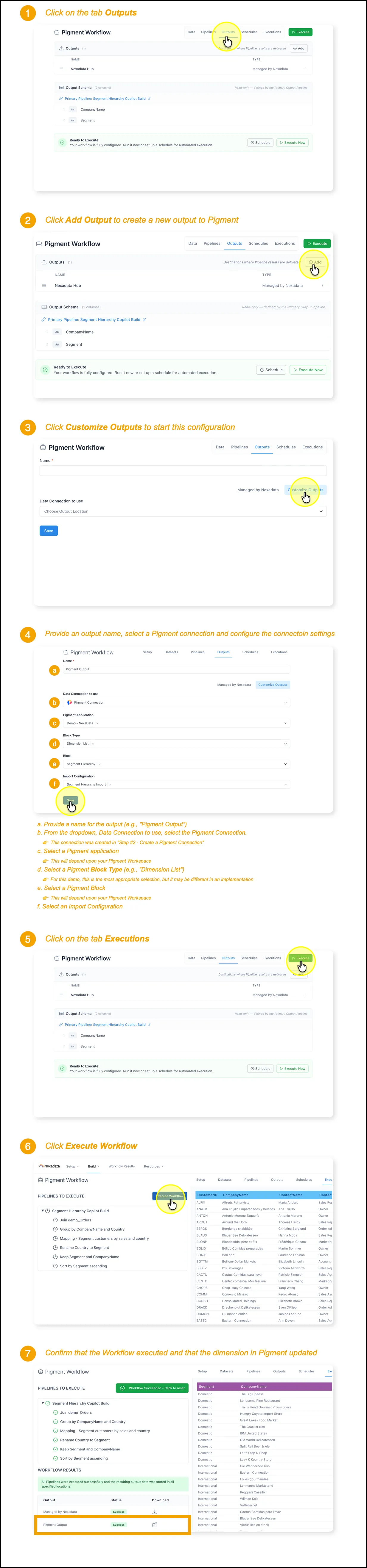
✅ Summary of Steps
Section titled “✅ Summary of Steps”-
Go to the Build tab in Nexadata.
-
Navigate to your existing Workflow.
-
Click the Outputs tab and add a new Output.
-
Choose the Pigment connector and configure settings.
-
Click Customize Outputs to finalize the setup.
-
Go to the Executions tab and run the Workflow.
-
Confirm the Pigment Dimension List was updated successfully.