

Using a HubSpot Connection
Once you’ve successfully connected HubSpot to Nexadata, you can begin using the connection to bring data into Nexadata (as a Dataset) or send data back to HubSpot in Pipeline Outputs. This article will guide you through both processes.
Here are the key capabilities:
-
Import data from HubSpot using prebuilt object support for Contacts, Companies, Deals, and more
-
Export transformed data back to HubSpot using supported options like Upsert, Create, and Update
-
Dynamically configure the Object, Property, and Column Type based on your CRM schema
-
Validate schema and field mappings to ensure alignment between Nexadata datasets and HubSpot targets
-
Flatten nested HubSpot fields into tabular datasets for analysis or reporting
Let’s walk through each setup process step-by-step.
Part 1: Creating a Dataset from HubSpot
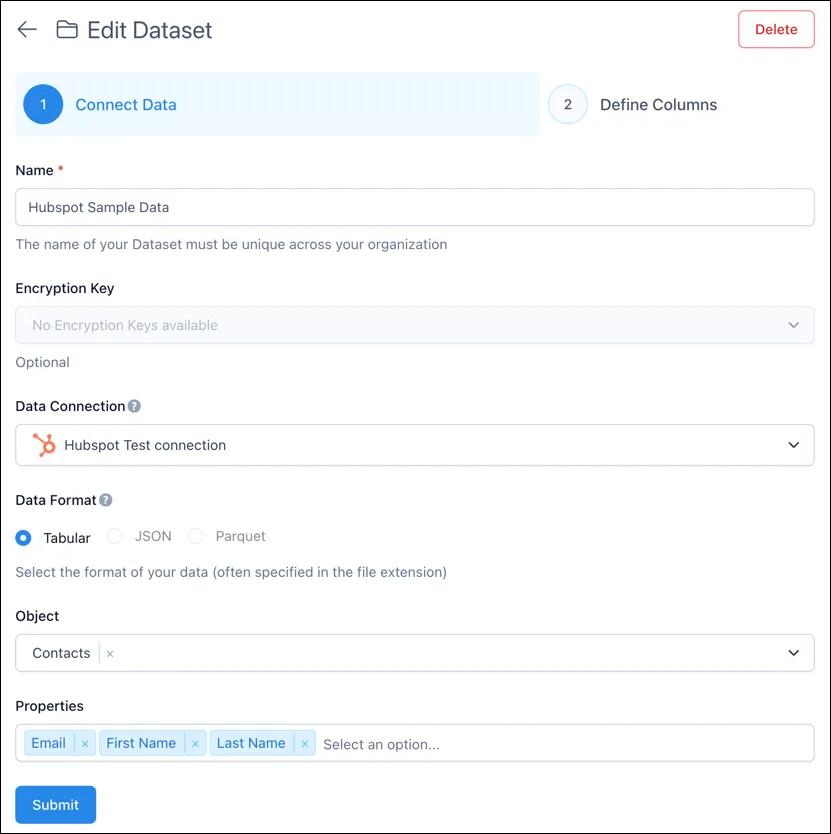
Section titled “Part 1: Creating a Dataset from HubSpot”You can use this process to ingest data from your HubSpot CRM into Nexadata for use in Pipelines.
Step 1: Create a New Dataset
Section titled “Step 1: Create a New Dataset”-
Navigate to the Datasets section in Nexadata.
-
Click Create Dataset.
-
Under Data Connection, select your configured HubSpot connection.
Step 2: Configure Dataset Properties
Section titled “Step 2: Configure Dataset Properties”-
Name: Provide a clear, unique name for the dataset.
-
Data Connection: Ensure your existing HubSpot connection is selected.
Step 3: Select Data Format
Section titled “Step 3: Select Data Format”-
Choose Tabular as the data format.
-
This format is required to work with standard HubSpot CRM data.
Step 4: Select Object and Properties
Section titled “Step 4: Select Object and Properties”-
Select the appropriate HubSpot Object (e.g., Contacts, Companies).
-
The Properties field will populate automatically with available fields from the object.
-
Choose the fields you want to include. These fields will be flattened and mapped into columns in the dataset.
Step 5: Submit the Dataset
Section titled “Step 5: Submit the Dataset”-
Review all dataset configurations.
-
Click Submit to finalize.
-
The dataset will now be available for use in Nexadata pipelines.
Part 2: Sending Data Back to HubSpot
Section titled “Part 2: Sending Data Back to HubSpot”After transforming data in a Nexadata Pipeline, use HubSpot as an output destination to sync the results back to your CRM. The Output Builder provides an intuitive interface for mapping your dataset to both standard and custom HubSpot objects.
Step 1: Choose Date Format
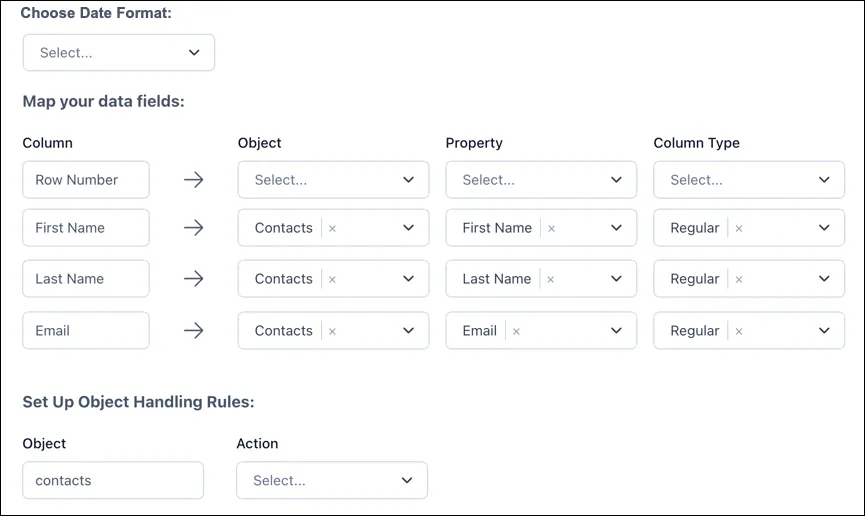
Section titled “Step 1: Choose Date Format”HubSpot requires a consistent format for all date fields. Select one of the supported formats from the Choose Date Format dropdown:
-
MONTH_DAY_YEAR
-
DAY_MONTH_YEAR
-
YEAR_MONTH_DAY
This selection will apply globally to any mapped date fields during export.
Step 2: Map Your Data Fields
Section titled “Step 2: Map Your Data Fields”Each column from the final step of your Pipeline must be mapped to a specific HubSpot object and its associated property. You can include mappings for multiple objects within the same configuration.
-
Column: The column from the final step in a Pipeline (e.g., First Name, Email).
-
Object: The HubSpot object to associate the column with (e.g., Contacts, Deals, Companies).
-
Property: The corresponding HubSpot field (e.g.,
firstname,email) of that object -
Column Type:
-
Regular – Standard field value
-
HubSpot Object ID – Use if your data identifies existing records via HubSpot’s object ID
-
HubSpot Alternate ID – Match using alternate identifiers
-
Flexible Association Label – For managing associations between objects
-
Association Keys – Use for relationship mapping using foreign keys
-
Step 3: Set Up Object Handling Rules
Section titled “Step 3: Set Up Object Handling Rules”At the bottom of the Output Builder, configure how Nexadata should handle each object you’ve mapped during the sync process.
-
Object: Select the HubSpot object you’re targeting (e.g., contacts, companies).
-
Action:
-
Upsert – Update existing records, or create new ones if no match is found.
-
Create – Only create new records; existing ones will not be affected.
-
Update – Only update existing records; unmatched rows will be skipped.
-
These rules determine how records will be processed when syncing back to HubSpot.
Tips and Best Practices
Section titled “Tips and Best Practices”-
Use meaningful names for both datasets and outputs to keep track of data flow between Nexadata and HubSpot.
-
Validate required fields: Ensure all required HubSpot fields (e.g., Email for Contacts) are included in the dataset to avoid sync errors.
-
Choose the right Object Handling Rule based on your use case (e.g., use Upsert when syncing updates and new records).
-
Use Chunk Size to optimize performance for high-volume exports and avoid rate limiting.
-
Leverage object-specific mappings to ensure compatibility with custom HubSpot fields and data types.