Step 1 - Create the Anaplan Audit Datasets
🔍 What You’re Doing
Section titled “🔍 What You’re Doing”With your Anaplan connection in place, you now create the Nexadata datasets that will pull the raw audit data from Anaplan. Each dataset maps to a different Anaplan Export Type, giving you the Events feed plus the lookup datasets (Users, Workspaces, CloudWorks Jobs, Models, Imports, Exports, Processes, and Actions) needed to resolve IDs into human-readable names.
These datasets are the foundation the rest of the guide builds on. The workflow template you import in Step 3 configures Pipelines only, so it creates none of these for you. Every dataset it expects has to exist first, with the right columns already in place, which is why this comes before the import.
✅ Summary of Steps
Section titled “✅ Summary of Steps”-
Open the Datasets panel and click Create a Dataset.
-
Name the dataset (for example, Anaplan - Events) and choose your Anaplan connection.
-
Select the Export Type that matches the dataset you are creating.
-
If prompted, choose the required Workspace and Model.
-
On the Define Columns screen, check IGNORE on every column the dataset does not need and set the types of the ones you keep. Each Export Type has its own list, given in full below and shown in that section’s screenshot. Do not skip this. The workflow template expects these exact column sets.
-
Save the dataset and repeat for each of the nine Export Types below.
Creating a Dataset
Section titled “Creating a Dataset”Every Anaplan audit dataset starts with the same three-step flow. Follow this pattern once to reach the dataset configuration screen, then use the Export Type specific settings shown below to finish each one.
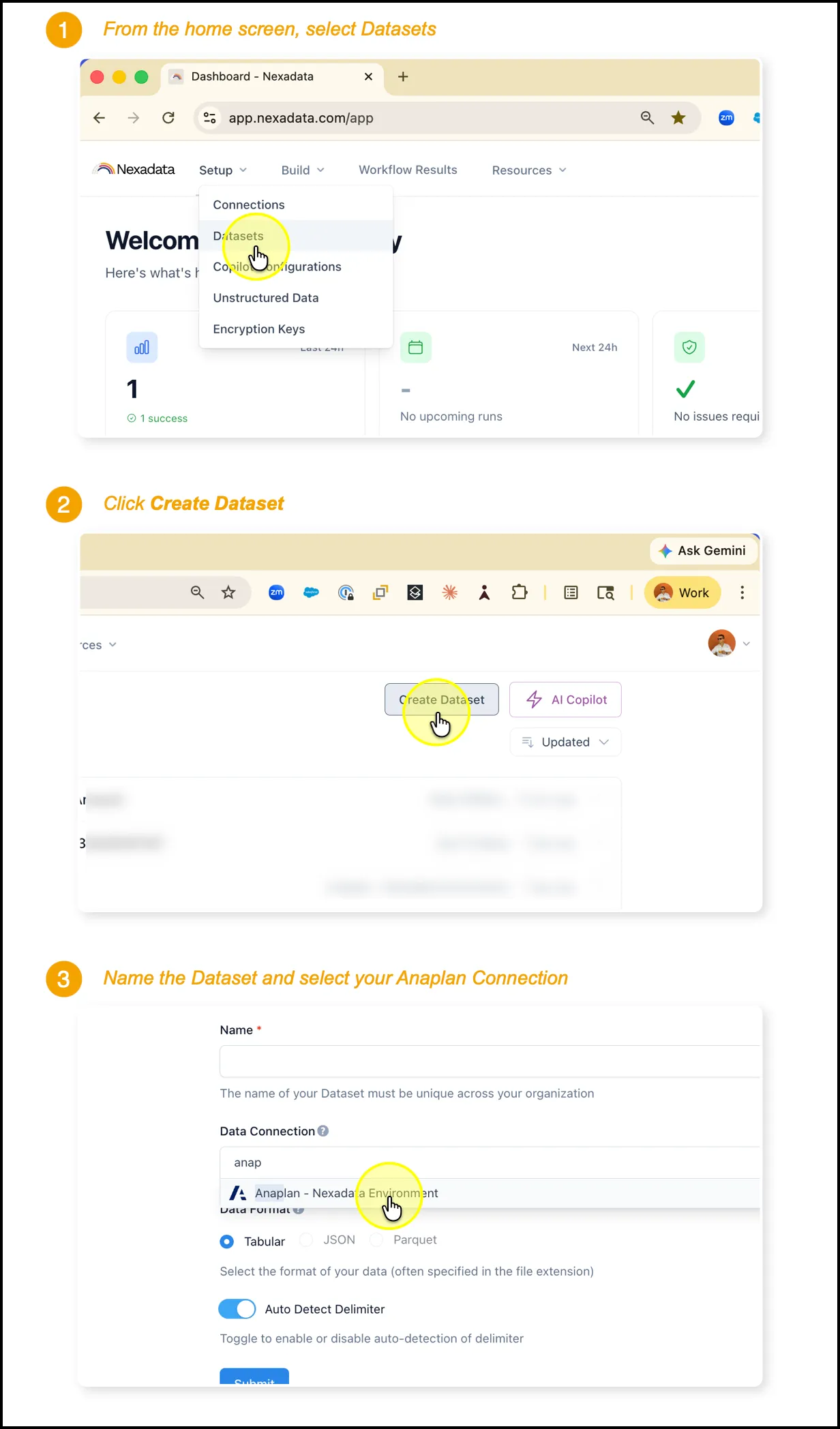
Once your Data Connection is set to your Anaplan connection, you are ready to configure the Export Type.
Configure Each Export Type
Section titled “Configure Each Export Type”After the connection is selected, choose the matching Export Type from the dropdown. Some types require additional Workspace or Model selections, and Events includes an interval setting. Every type also needs its columns set on the second screen, so work through both screenshots in each section below.
Anaplan - Events
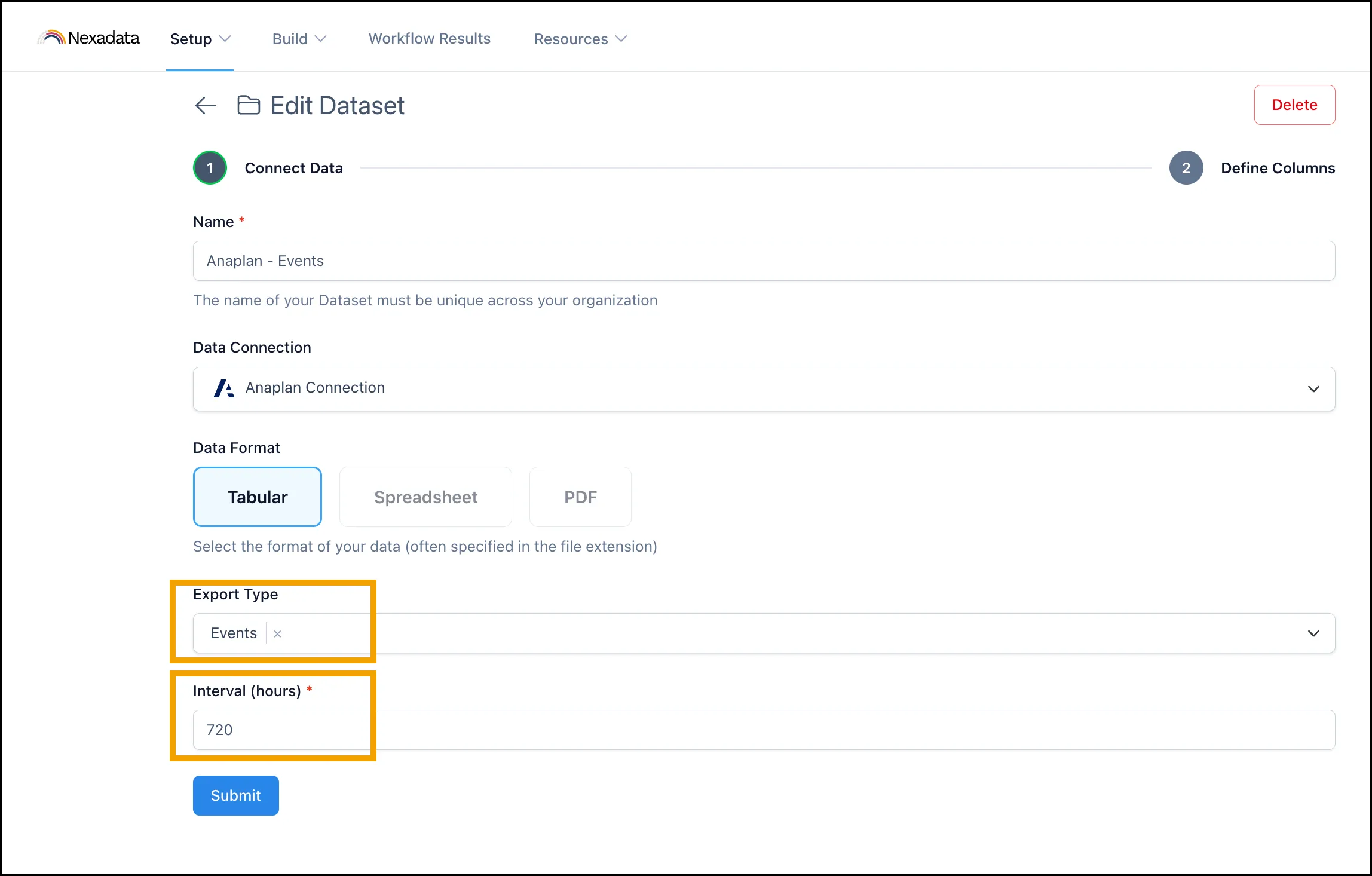
Section titled “Anaplan - Events”Select Events as the Export Type and set Interval (hours) to 720, which pulls the trailing 30 days of audit events.
Choosing the Events Interval
Section titled “Choosing the Events Interval”Interval (hours) sets how far back each run reaches for audit events, so it is the one setting on this screen that depends on your own refresh strategy rather than on a fixed correct answer.
| Lookback | Interval (hours) | When to use it |
|---|---|---|
| 24 hours | 24 | Steady state, matched to a daily refresh |
| 30 days | 720 | Initial load on standard Anaplan retention |
| 90 days | 2160 | Initial load on Anaplan Enterprise, the maximum |
Anaplan retains 30 days of audit events on standard editions and up to 90 days on Enterprise. Setting an interval beyond what your edition retains returns an error rather than a partial result. If you hit it, lower the value to 720 or 2160 to match your edition and run again.
Defining the Events Columns
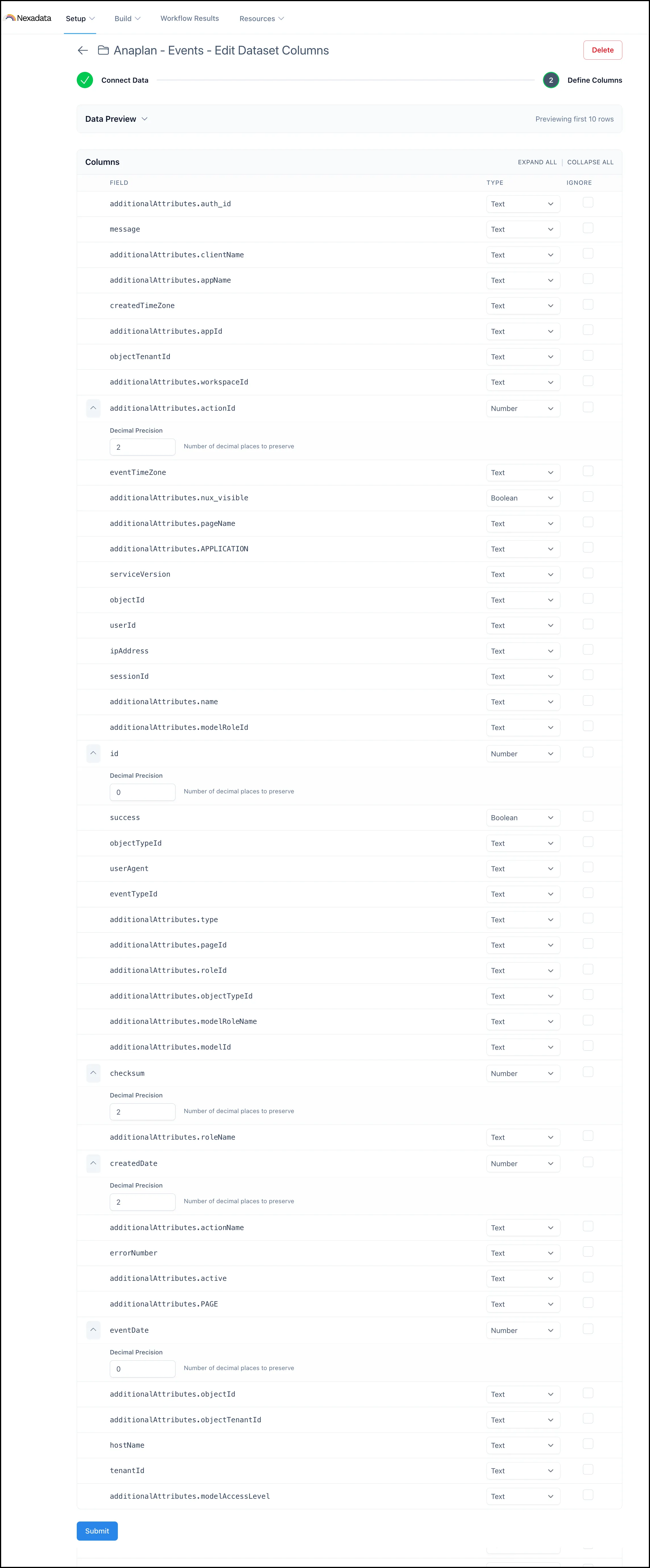
Section titled “Defining the Events Columns”Events is the one dataset where you keep everything, because the audit record itself is the data you are after. Leave every IGNORE box unchecked here.
Set the five numeric columns rather than leaving them as text:
| Column | Type | Decimal Precision |
|---|---|---|
| id | Number | 0 |
| eventDate | Number | 0 |
| additionalAttributes.actionId | Number | 2 |
| checksum | Number | 2 |
| createdDate | Number | 2 |
Everything else stays Text, apart from additionalAttributes.nux_visible and success, which are Boolean.
Anaplan - Users
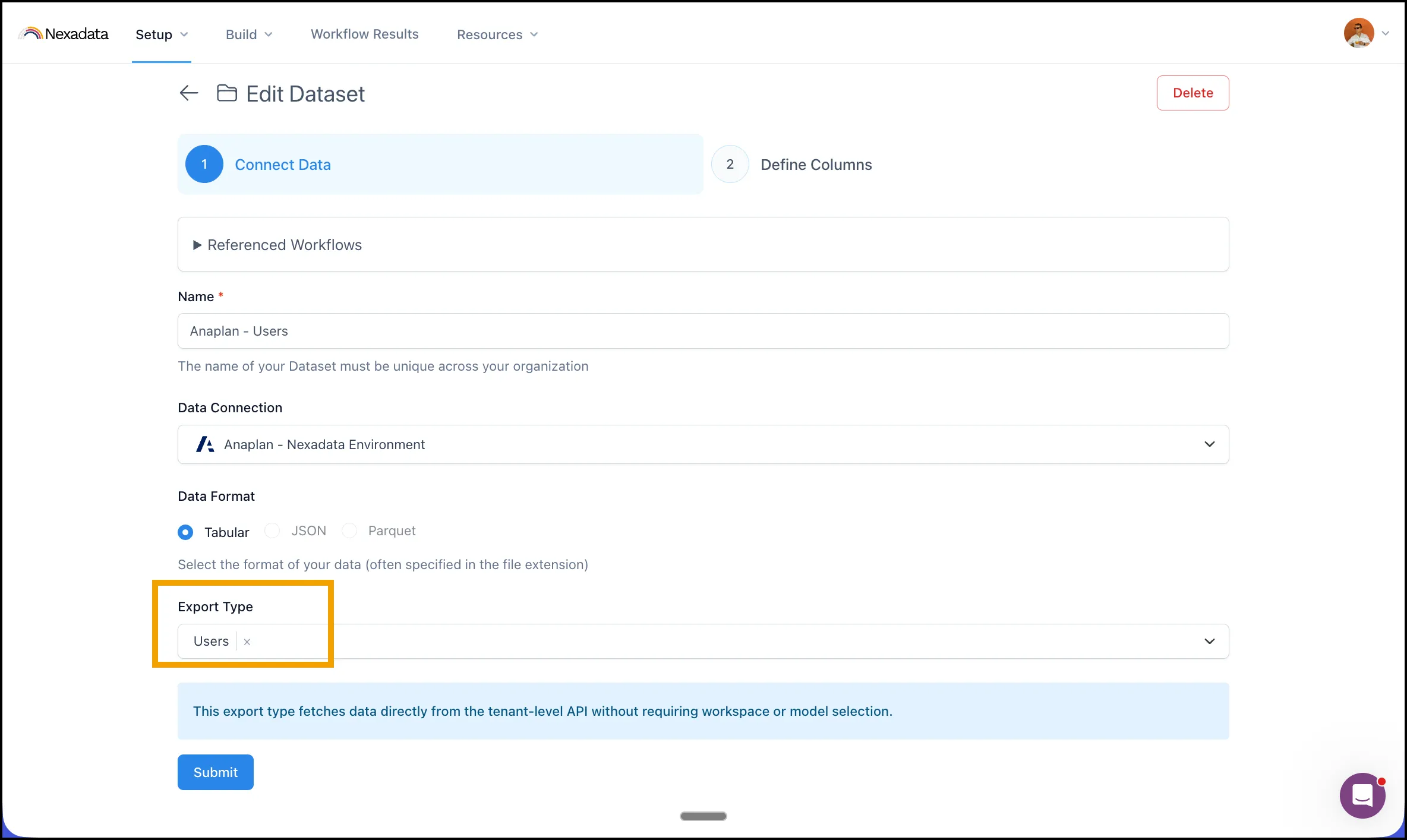
Section titled “Anaplan - Users”Select Users as the Export Type to pull every user in the tenant.
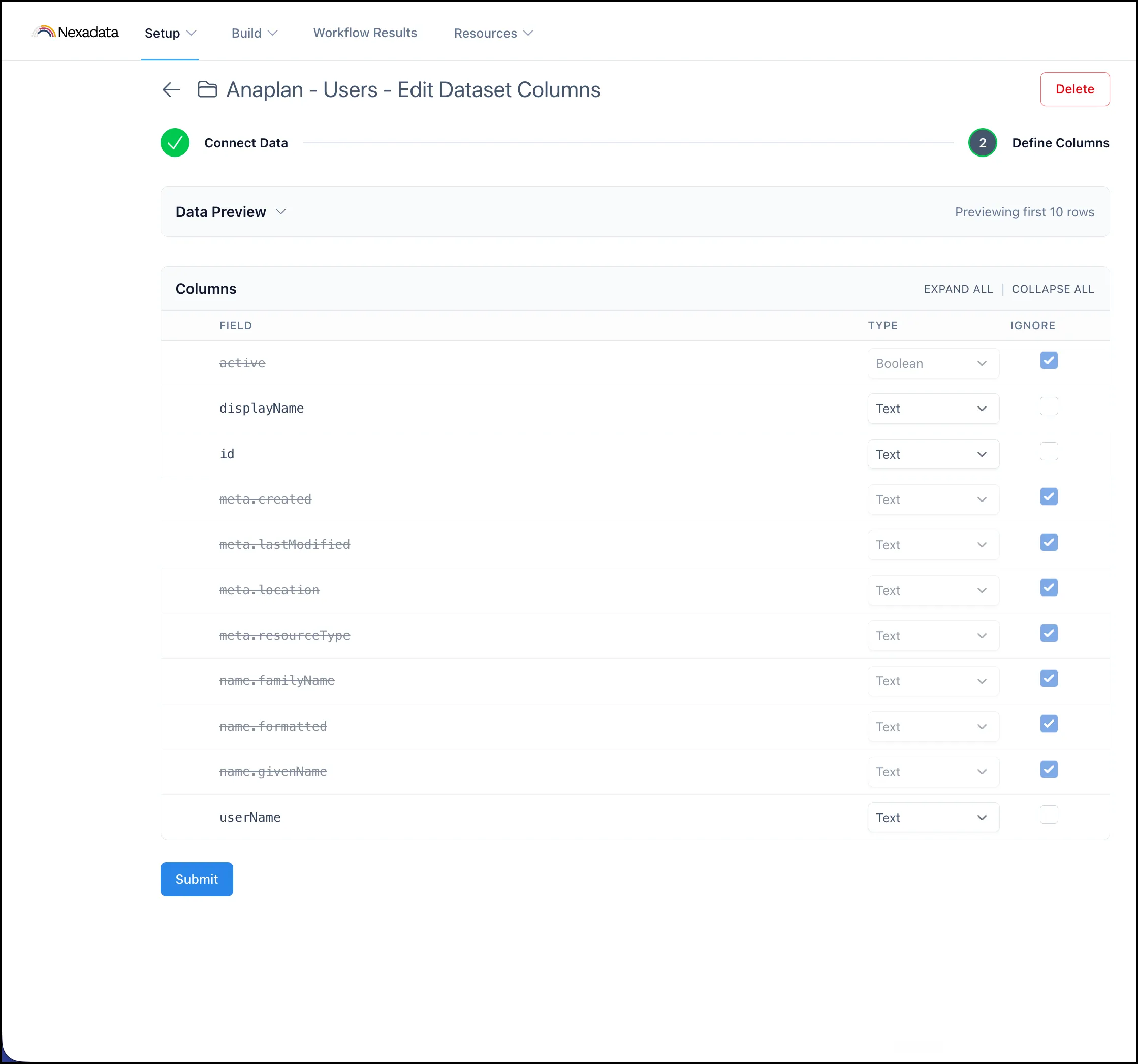
On the Define Columns screen, keep id, userName, and displayName, all as Text. Ignore active, meta.created, meta.lastModified, meta.location, meta.resourceType, name.familyName, name.formatted, and name.givenName.
Anaplan - Workspaces
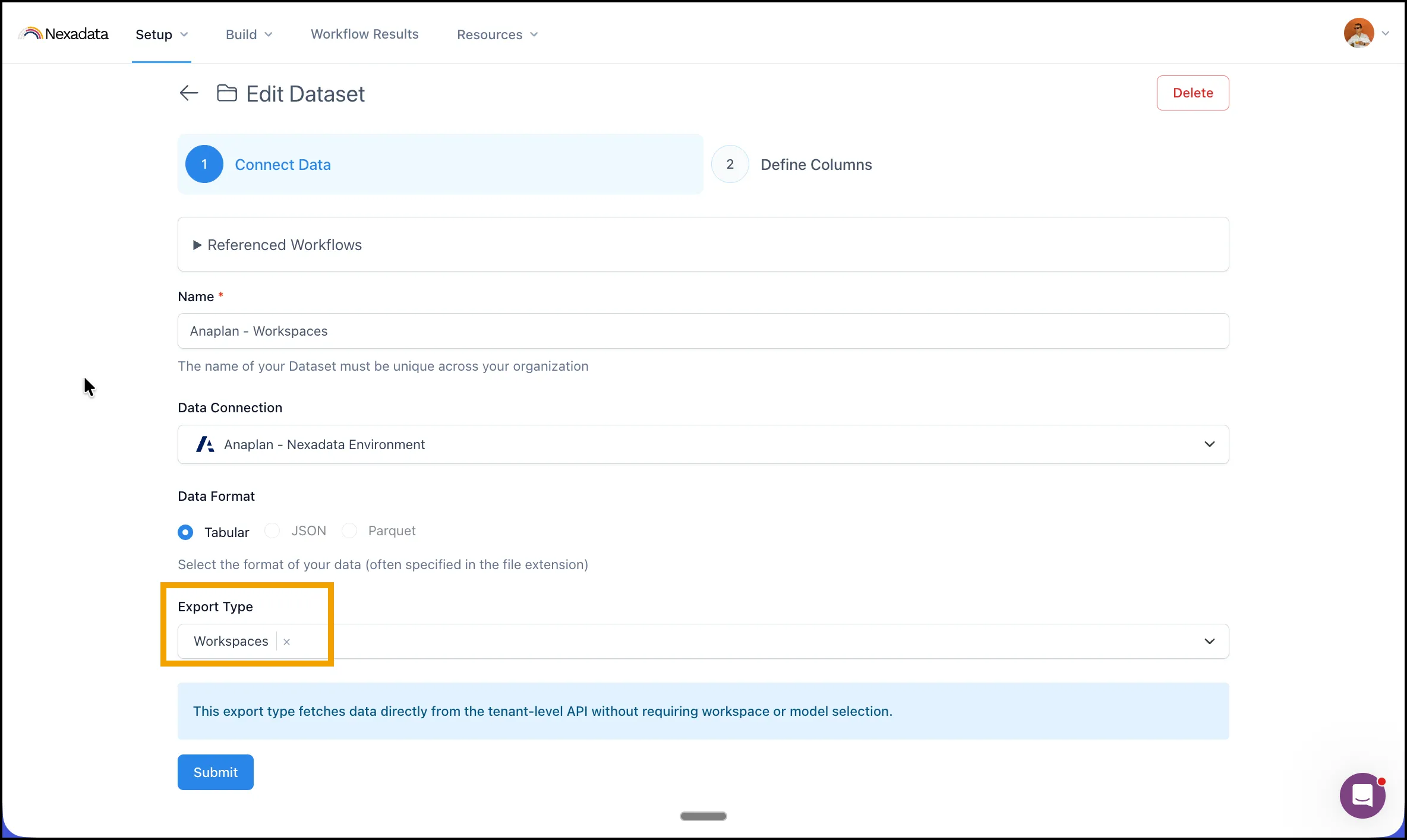
Section titled “Anaplan - Workspaces”Select Workspaces as the Export Type to list every workspace in the tenant.
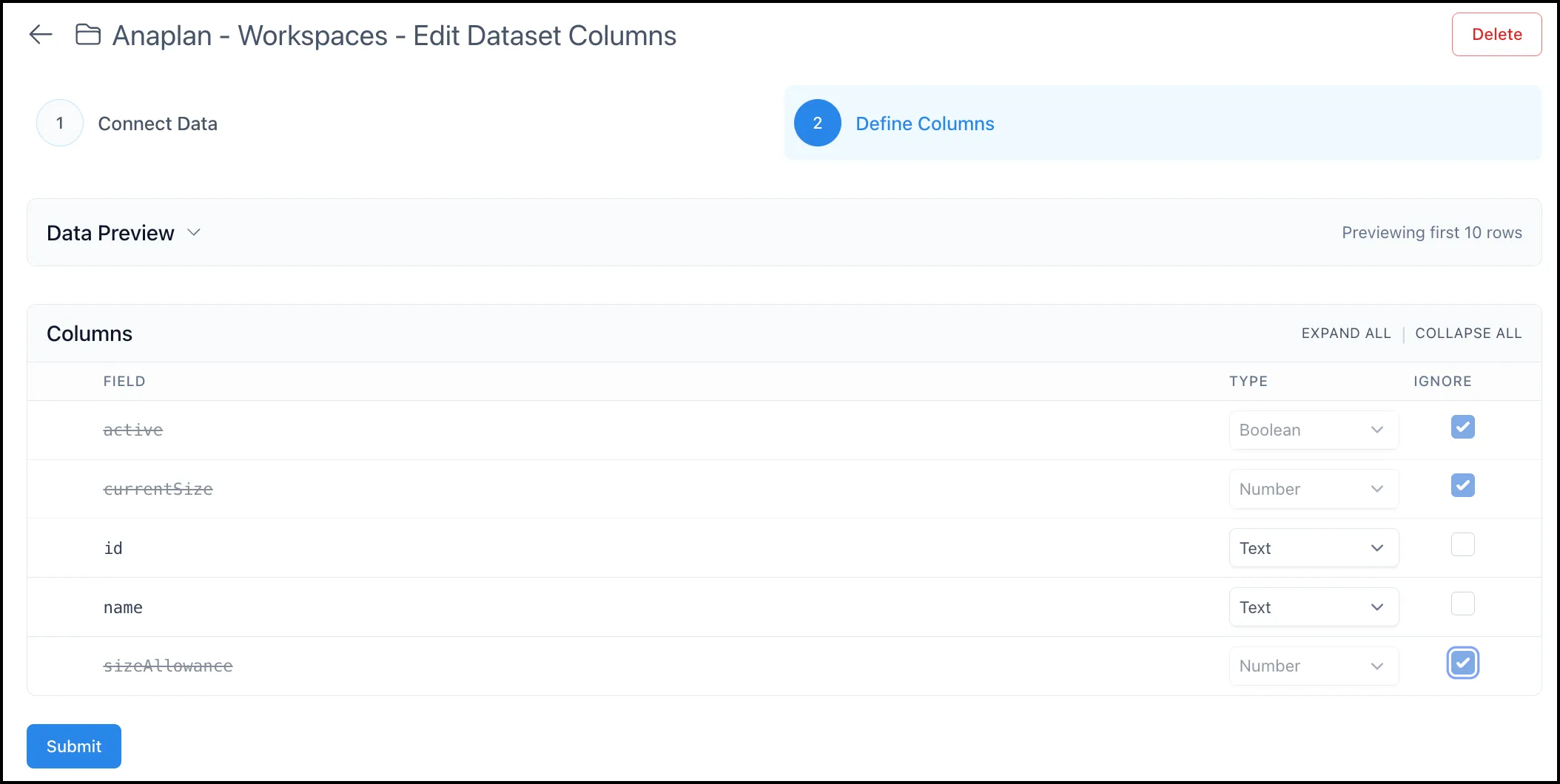
On the Define Columns screen, keep id and name, both as Text. Ignore active, currentSize, and sizeAllowance.
Anaplan - CloudWorks Jobs
Section titled “Anaplan - CloudWorks Jobs”Select CloudWorks Jobs as the Export Type to pull integration job records.
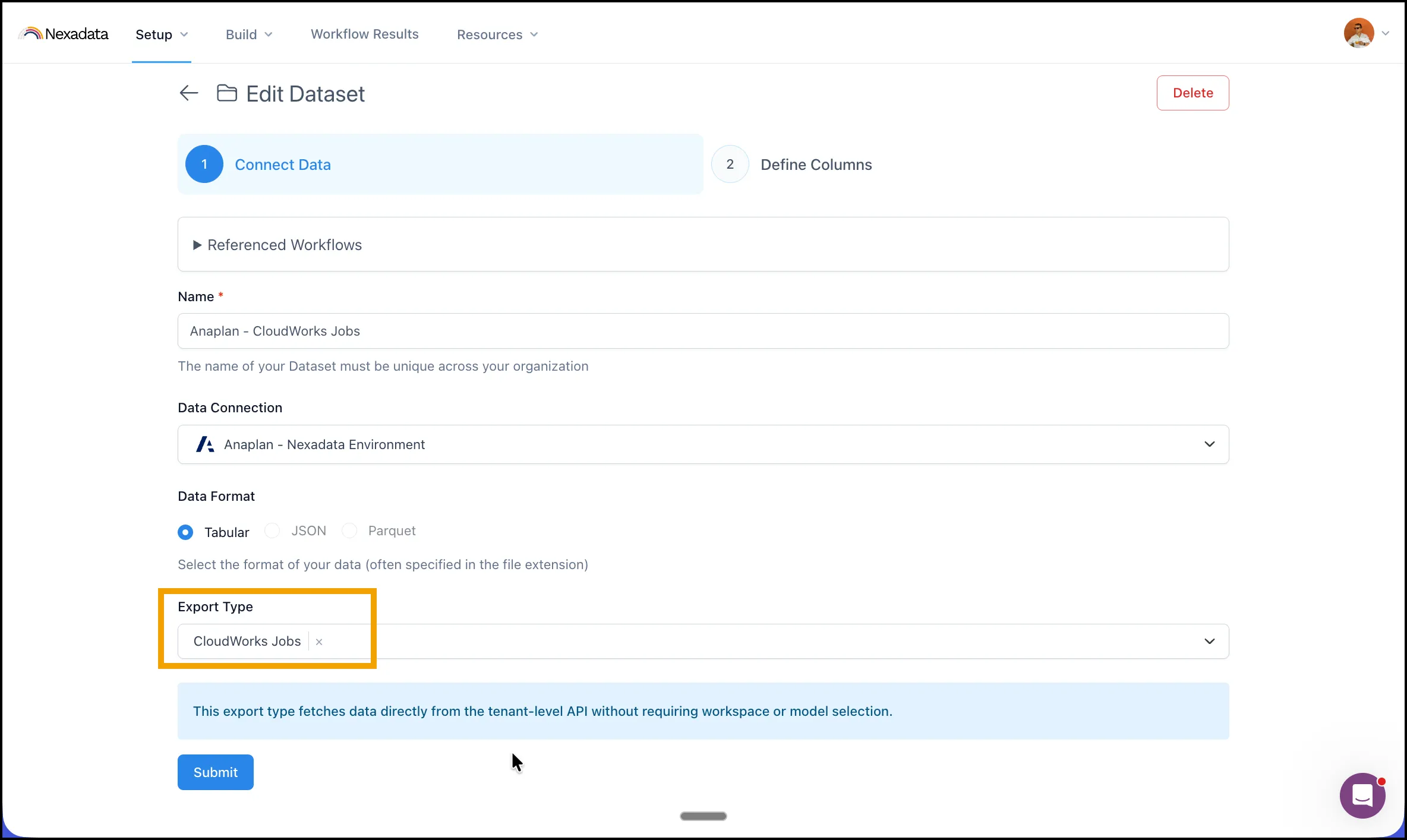
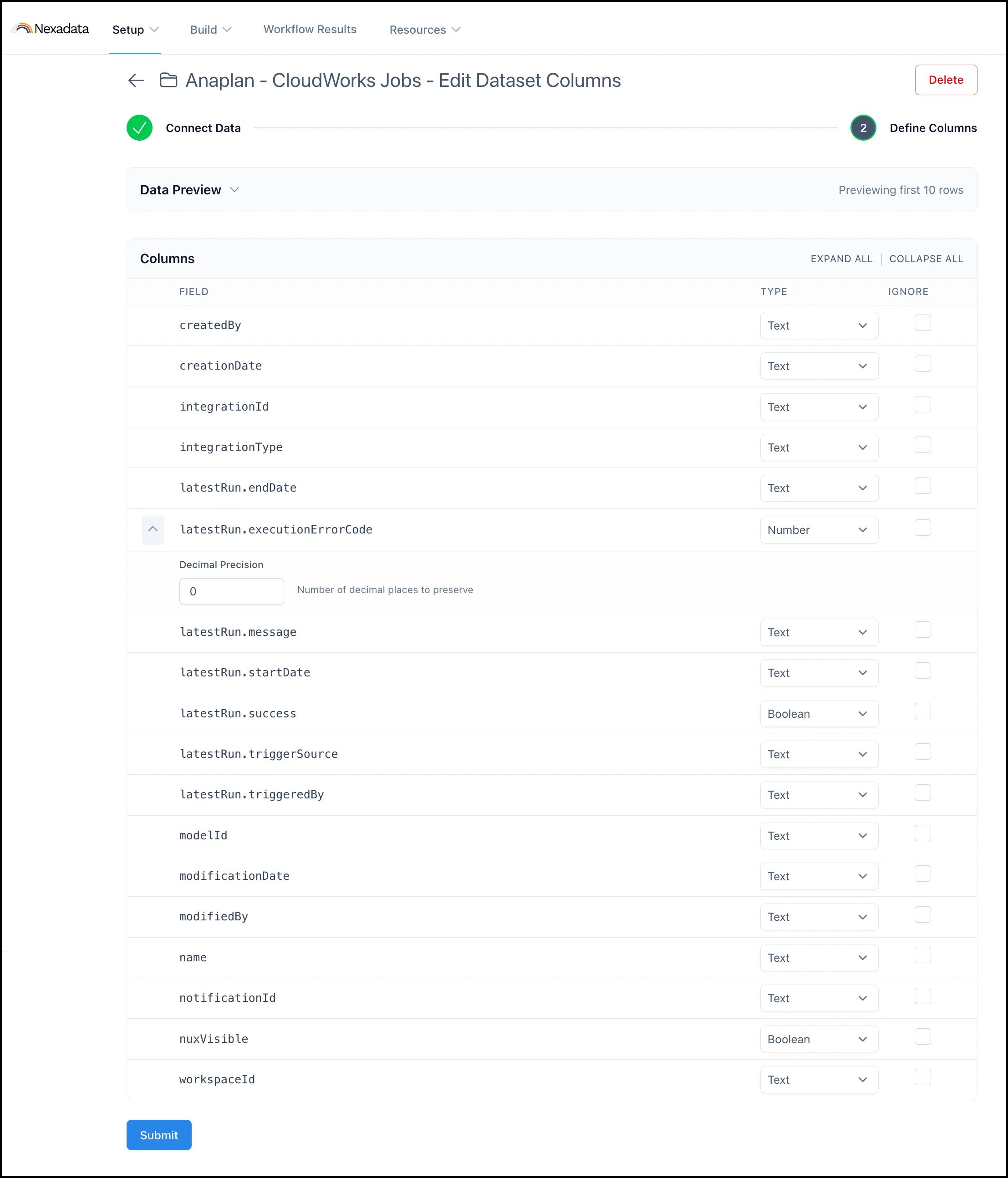
On the Define Columns screen, keep every column. Set latestRun.executionErrorCode to Number with a Decimal Precision of 0. latestRun.success and nuxVisible are Boolean, and everything else stays Text.
Anaplan - Models
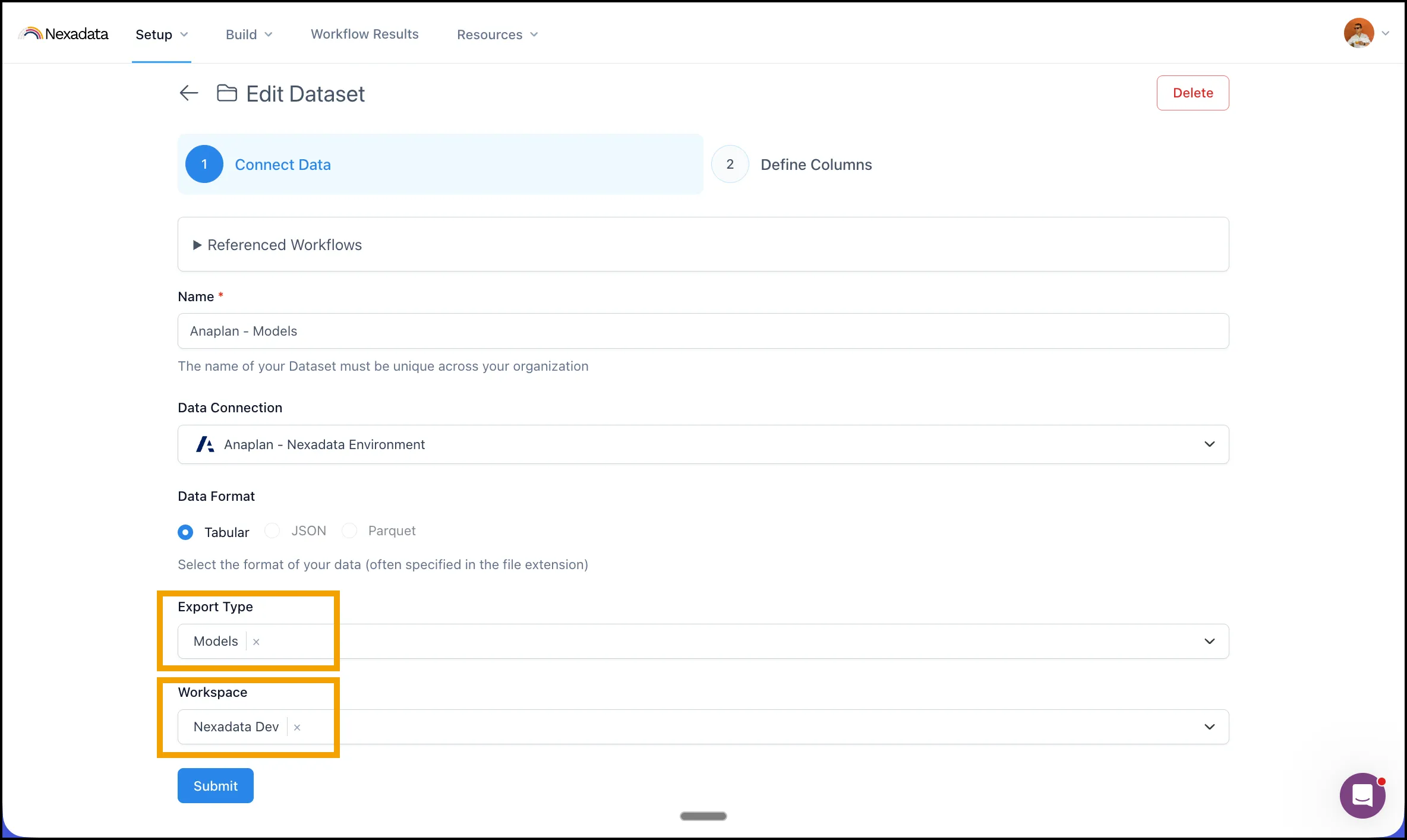
Section titled “Anaplan - Models”Select Models as the Export Type, then choose the target Workspace.
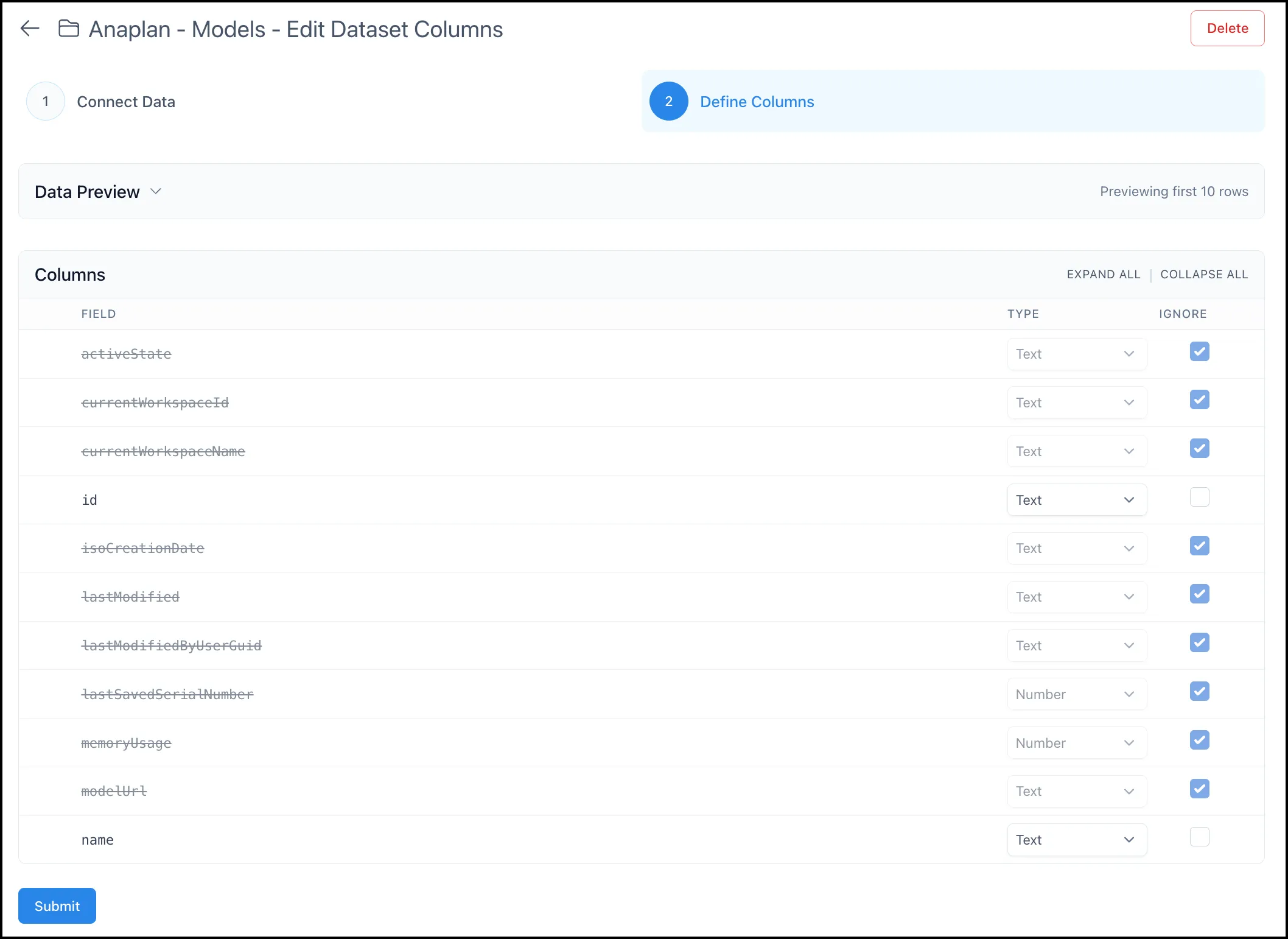
On the Define Columns screen, keep id and name, both as Text. Ignore activeState, currentWorkspaceId, currentWorkspaceName, isoCreationDate, lastModified, lastModifiedByUserGuid, lastSavedSerialNumber, memoryUsage, and modelUrl.
One Set of Action Datasets Per Workspace and Model
Section titled “One Set of Action Datasets Per Workspace and Model”The four Export Types that follow, Imports, Exports, Processes, and Actions, behave differently from the ones above. Each is scoped to a single Anaplan workspace and model rather than to the whole tenant, so a dataset built against one combination returns records for that combination only.
If you are covering more than one workspace and model combination, name each set so you can tell them apart later, for example Anaplan - Imports - Finance Prod. You will stack these additional datasets onto the Stack Actions supporting pipeline in Step 4.
Anaplan - Imports
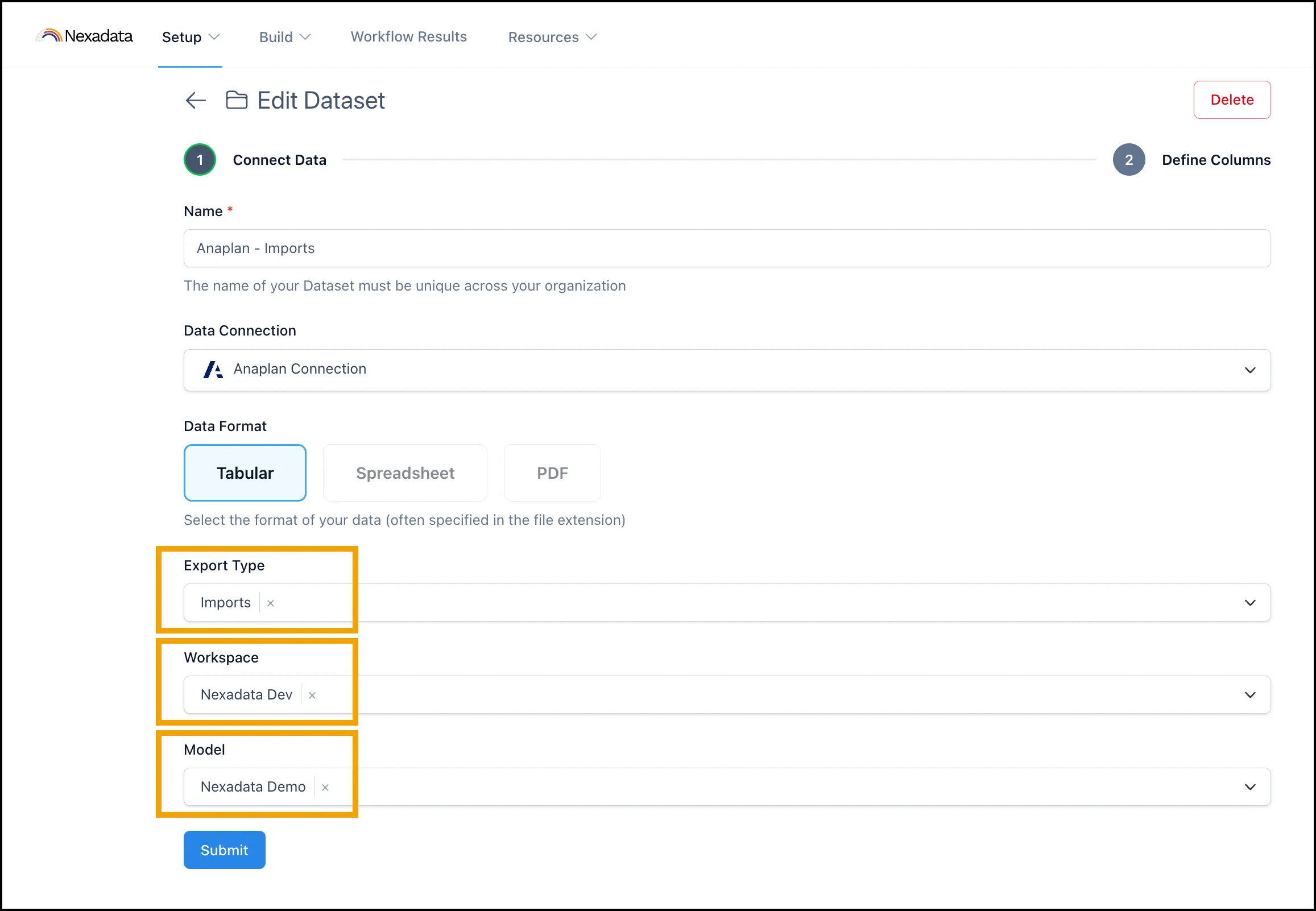
Section titled “Anaplan - Imports”Select Imports as the Export Type, then choose a Workspace and Model.
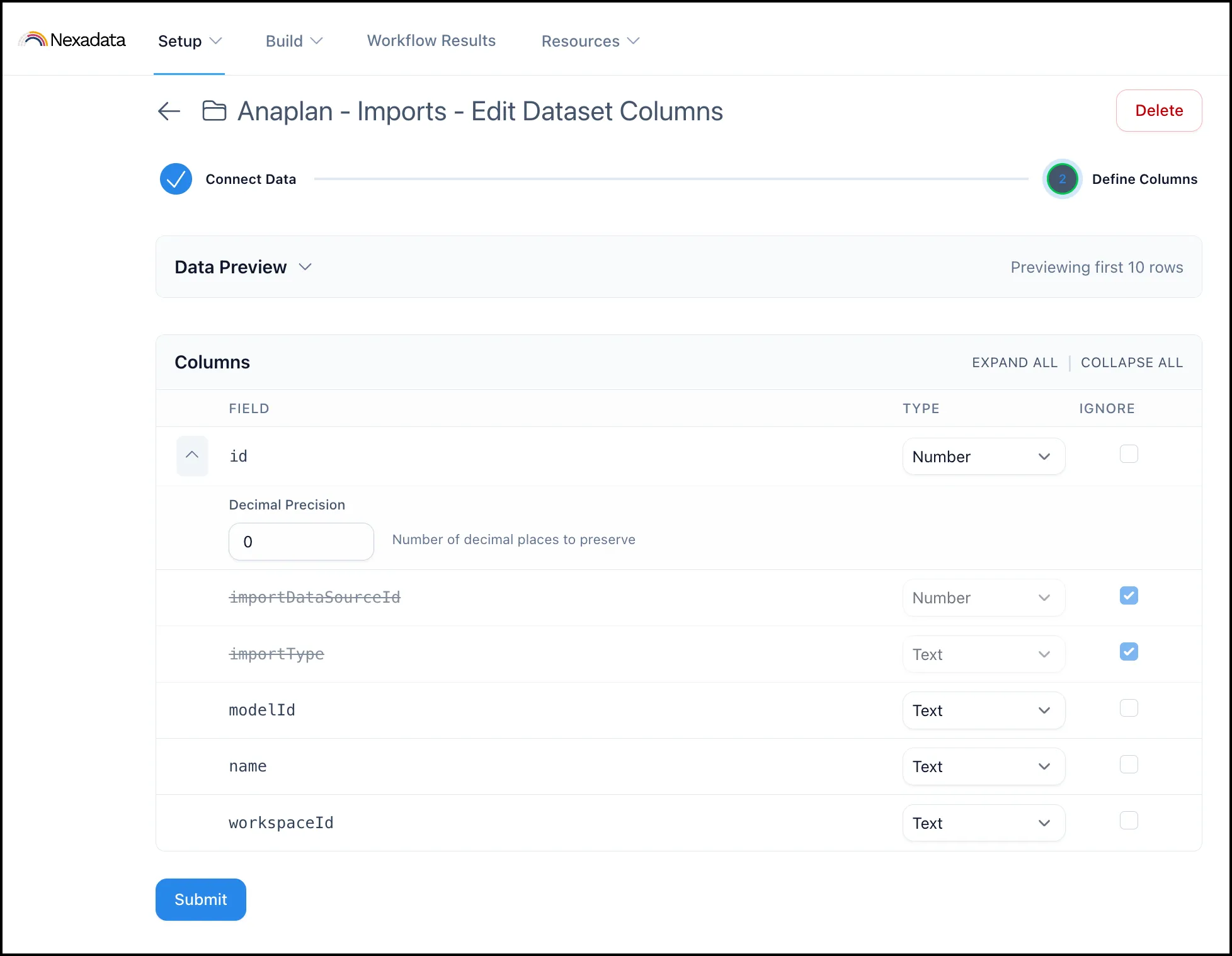
On the Define Columns screen, ignore importDataSourceId and importType, then set id to Number with a Decimal Precision of 0 and leave modelId, name, and workspaceId as Text.
Anaplan - Exports
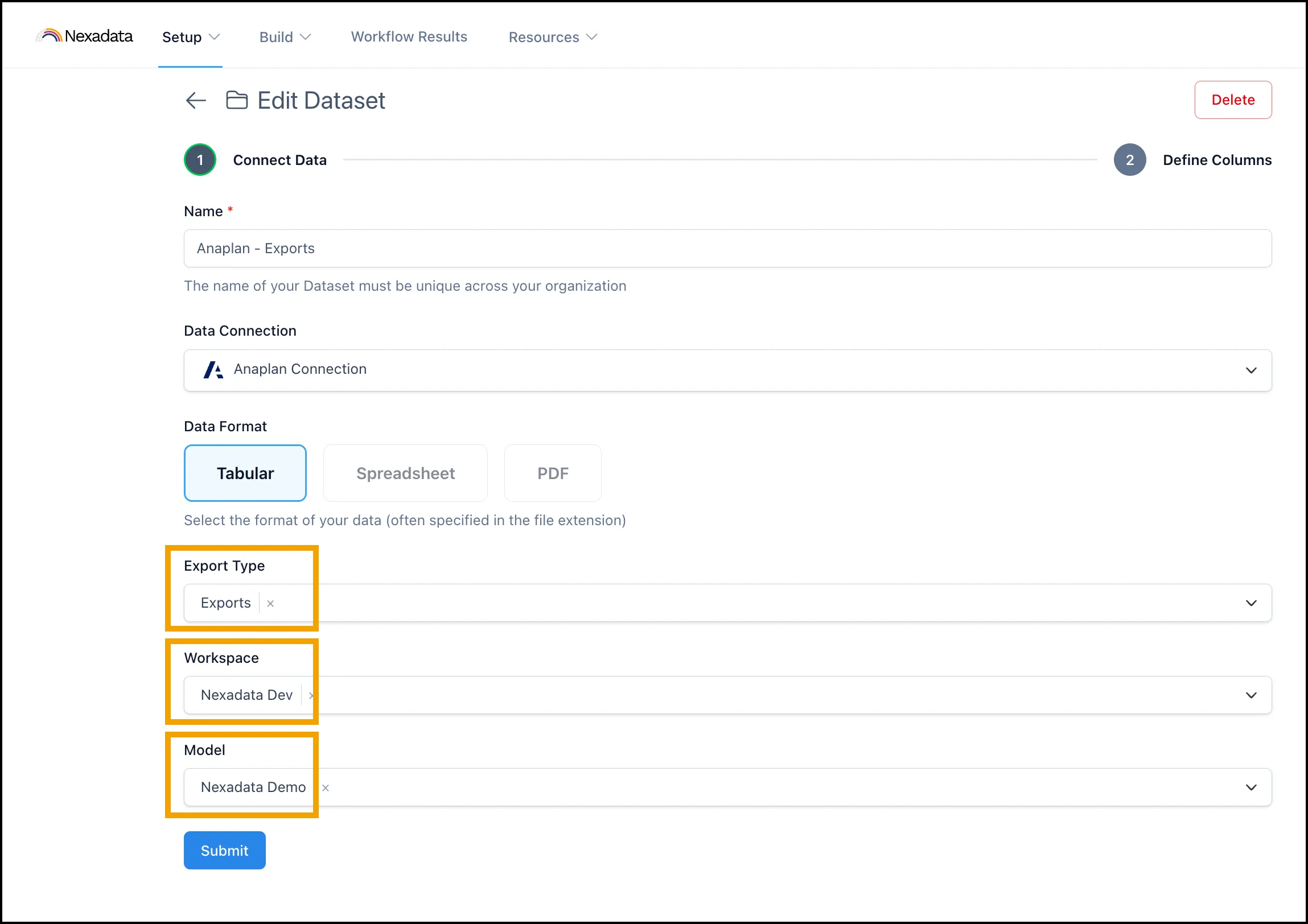
Section titled “Anaplan - Exports”Select Exports as the Export Type, then choose a Workspace and Model.
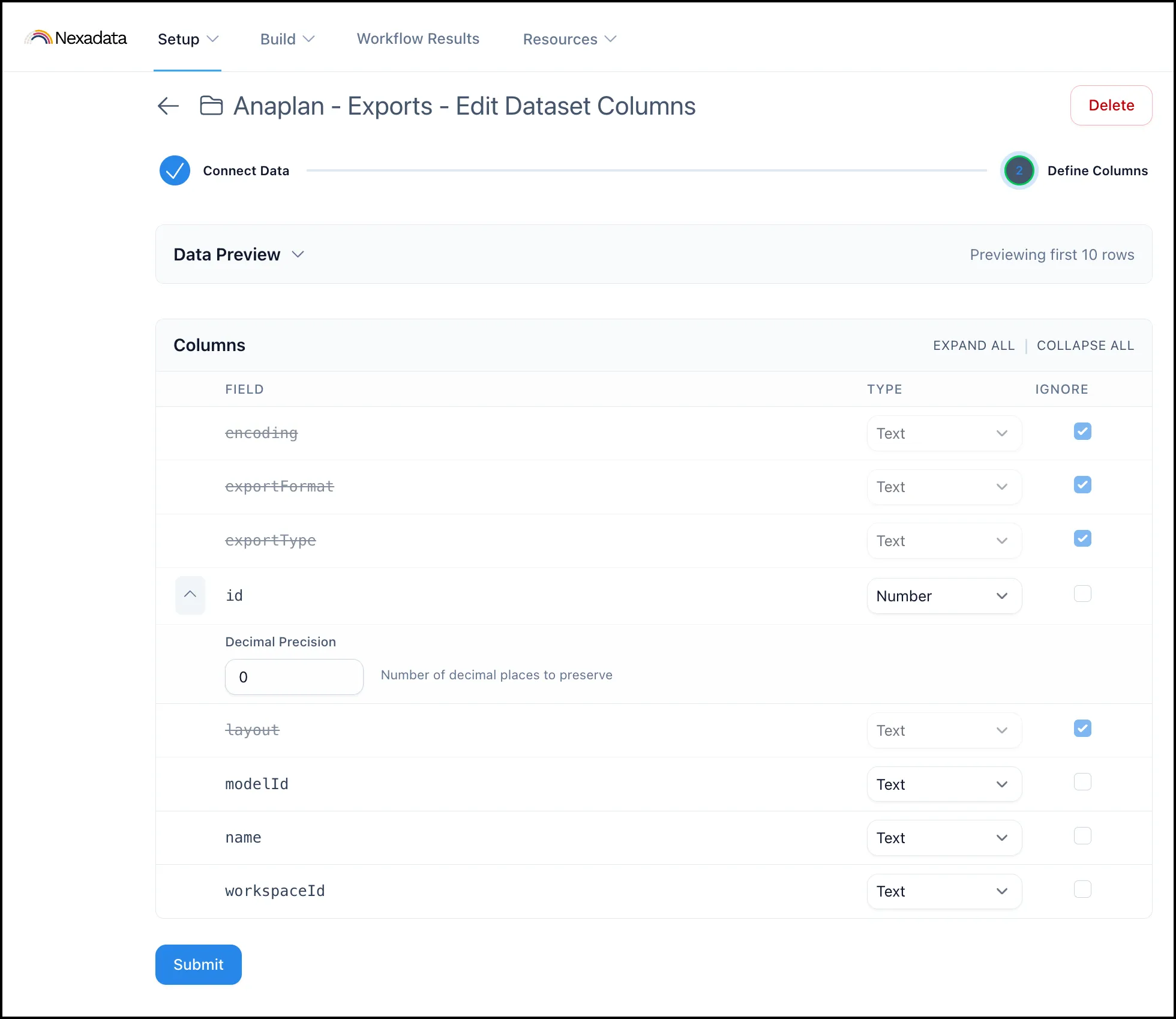
On the Define Columns screen, ignore encoding, exportFormat, exportType, and layout, then set id to Number with a Decimal Precision of 0 and leave modelId, name, and workspaceId as Text.
Anaplan - Processes
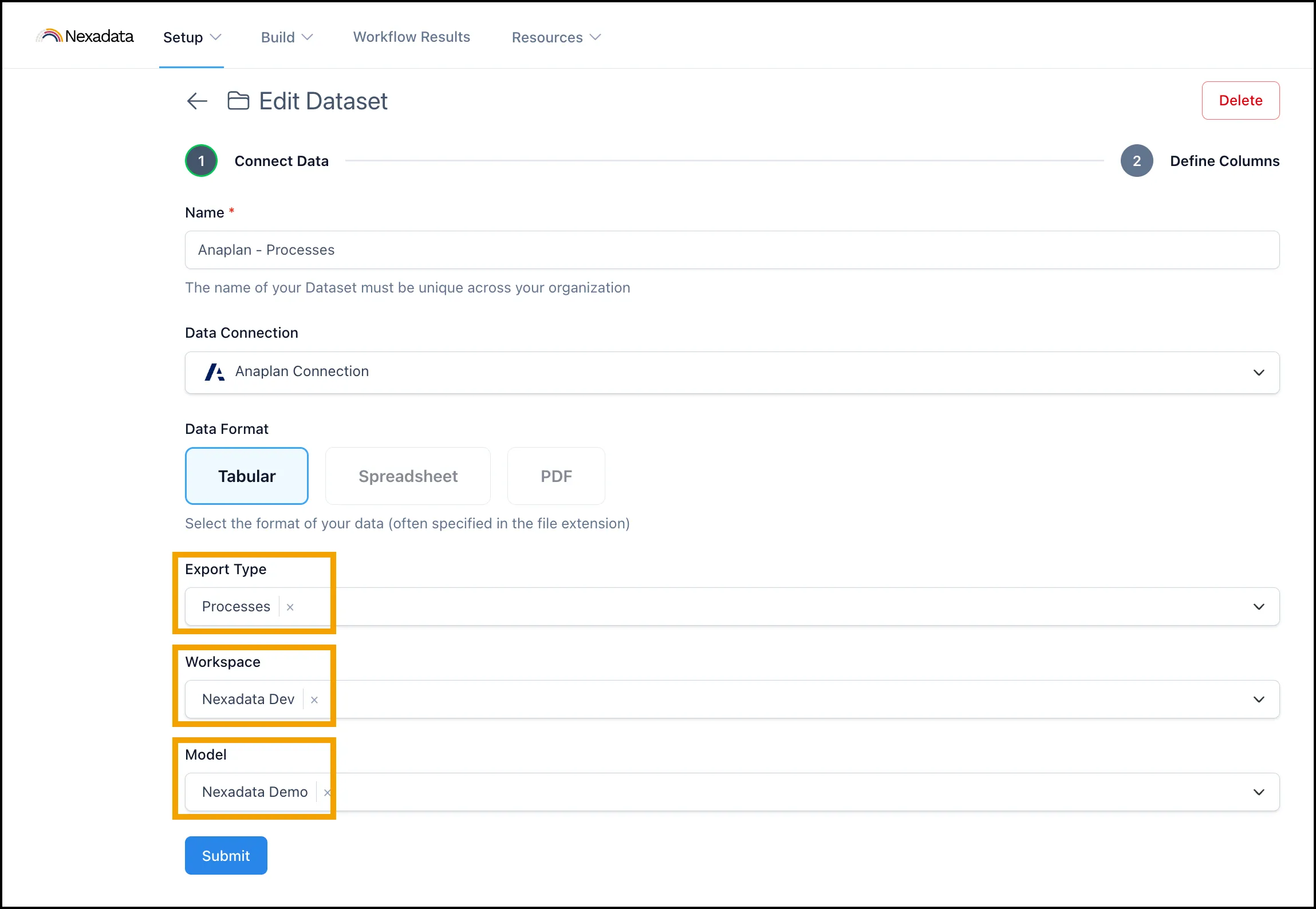
Section titled “Anaplan - Processes”Select Processes as the Export Type, then choose a Workspace and Model.
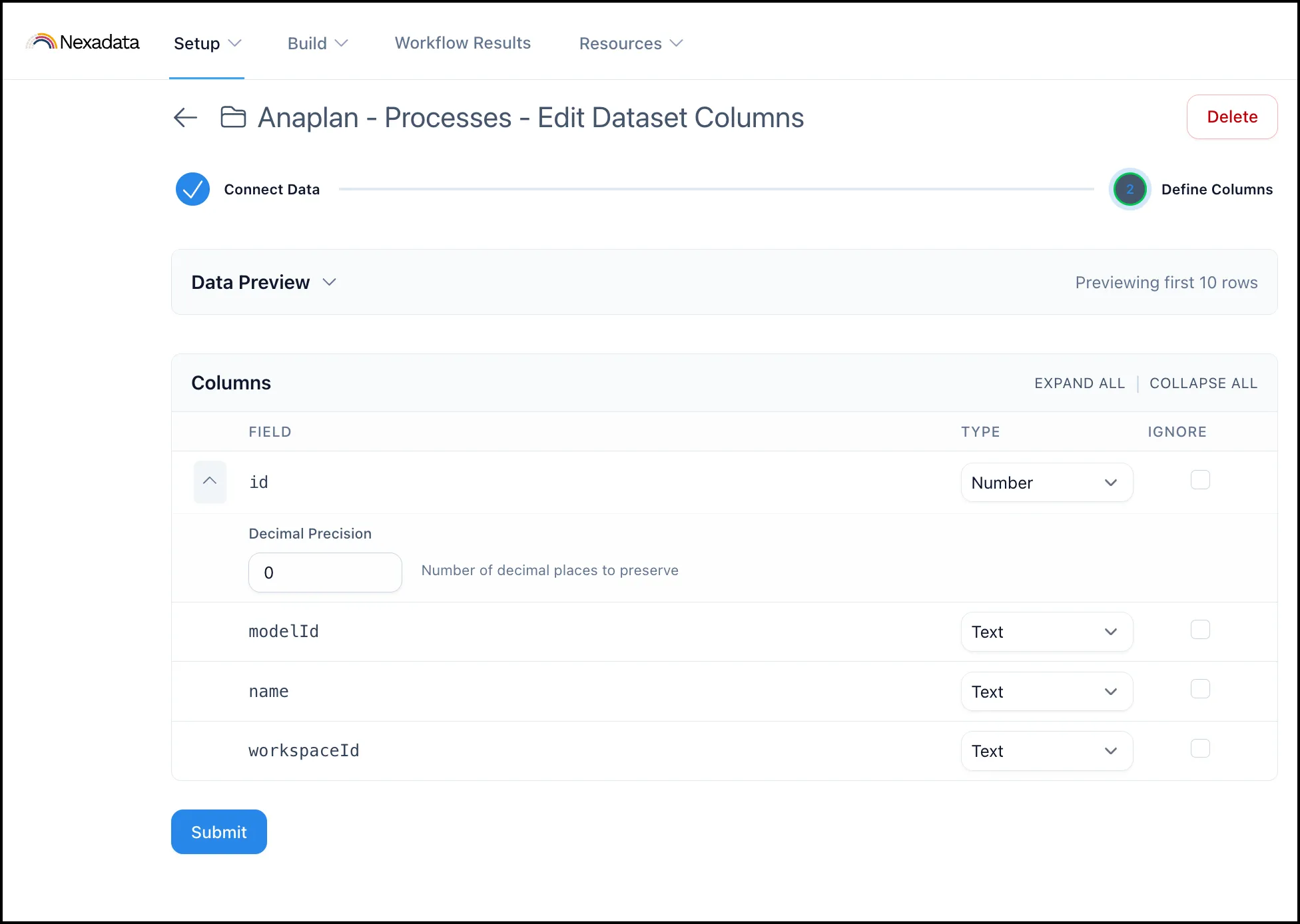
On the Define Columns screen, Processes returns only id, modelId, name, and workspaceId, so there is nothing to ignore. Set id to Number with a Decimal Precision of 0 and leave the other three as Text.
Anaplan - Actions
Section titled “Anaplan - Actions”Select Actions as the Export Type, then choose a Workspace and Model.
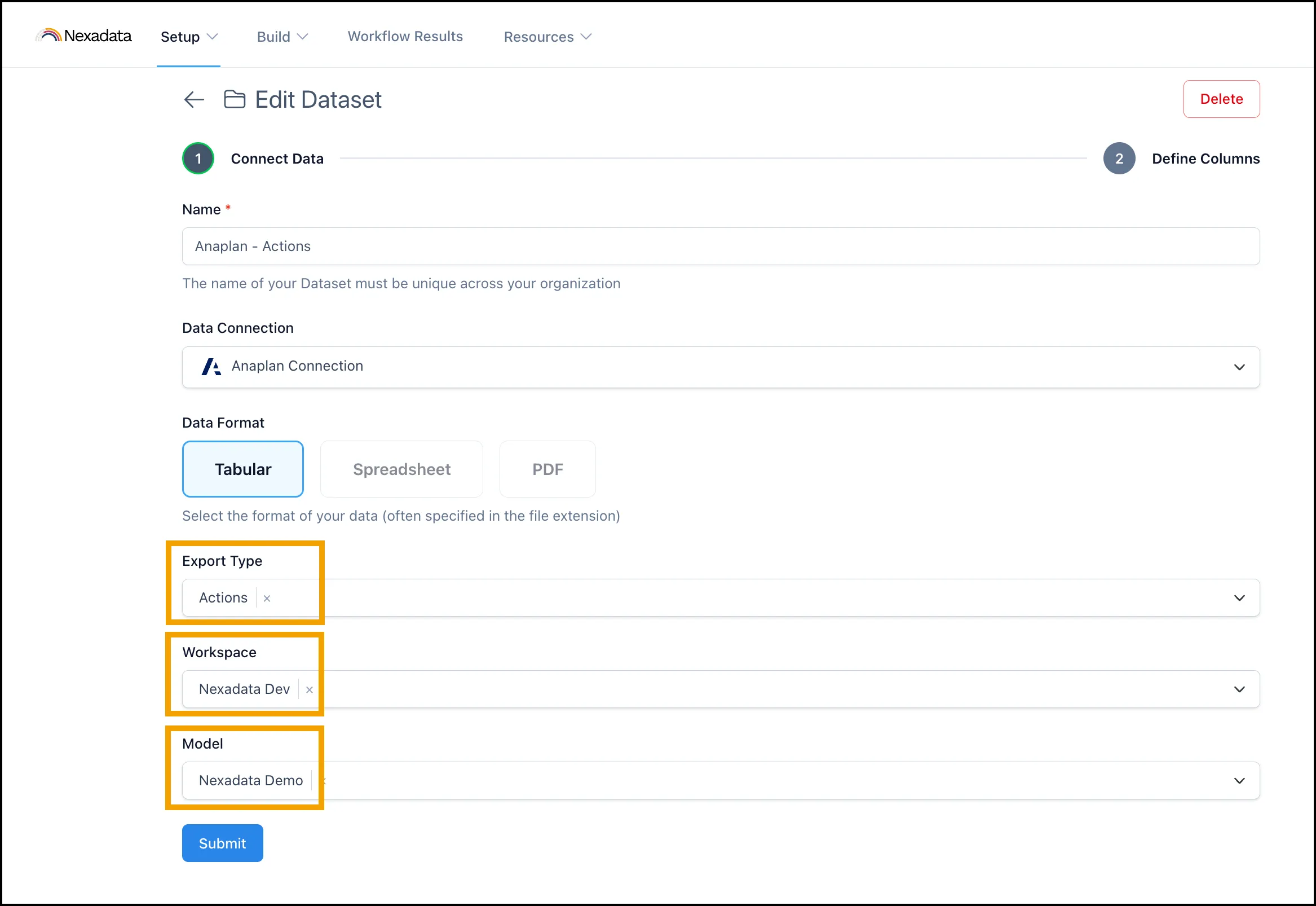
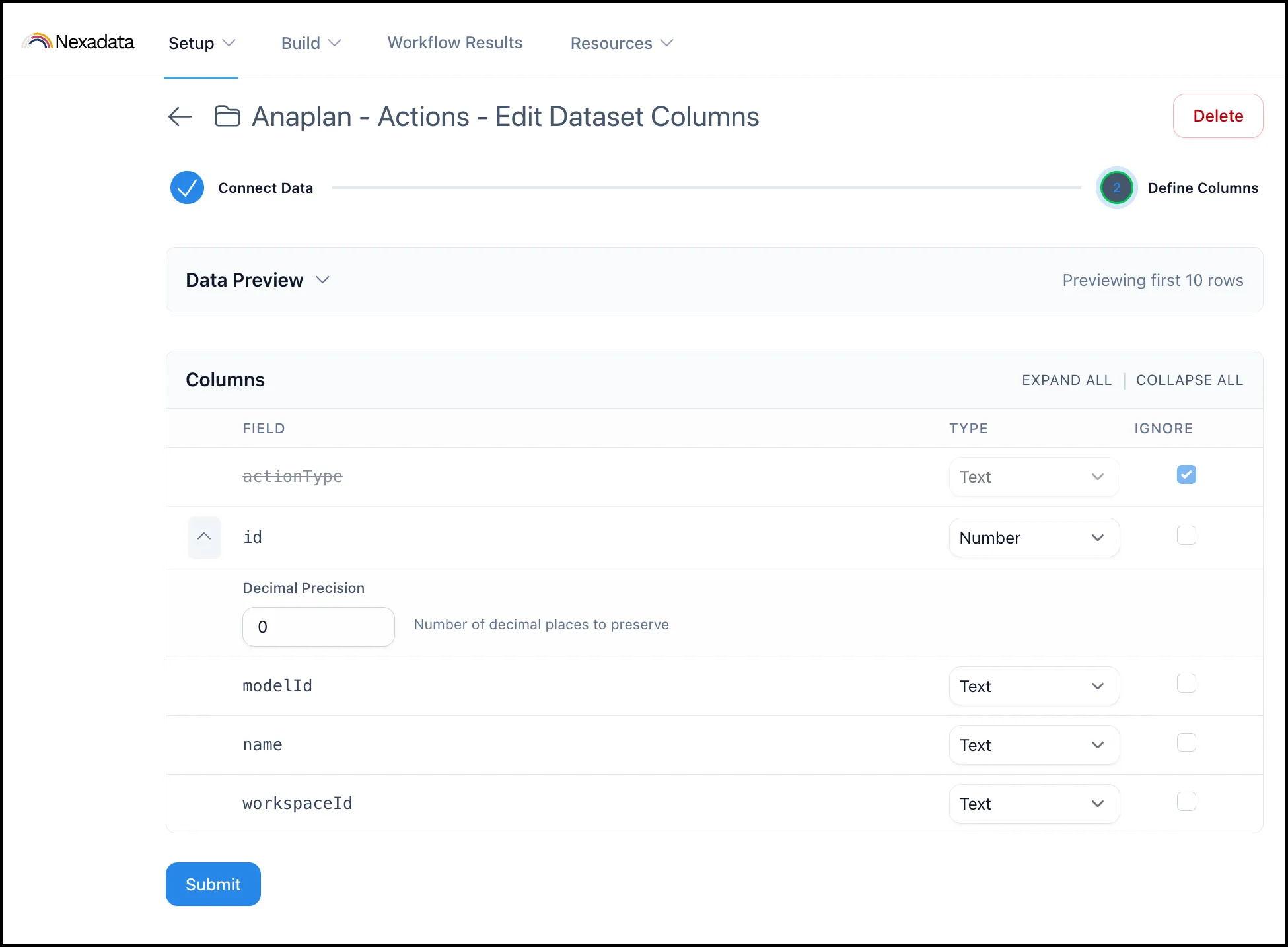
On the Define Columns screen, ignore actionType, then set id to Number with a Decimal Precision of 0 and leave modelId, name, and workspaceId as Text.