

Creating, Editing, and Deleting Variables
Creating, Editing, and Deleting Variables
Section titled “Creating, Editing, and Deleting Variables”Variables allow you to define reusable values at the workspace level that can be referenced across all pipelines and transformations within that workflow. Variables support text and numeric data types and can be managed through the Variables interface.
Accessing Variable Management
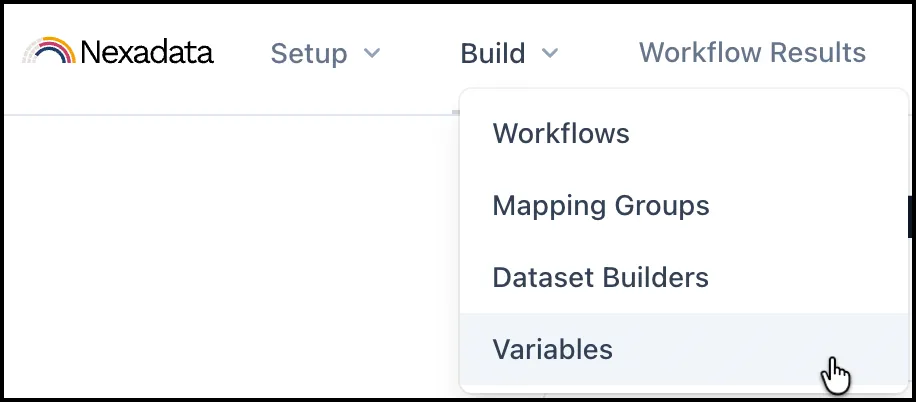
Section titled “Accessing Variable Management”Navigate to the Nexadata home screen and select Build from the main menu. In the left sidebar, you will see the Variables option. Click on Variables to open the variable management interface for your current workspace.
Creating a Variable
Section titled “Creating a Variable”To create a new variable, click the New Variable button in the upper-right corner of the Workspace Variables section.
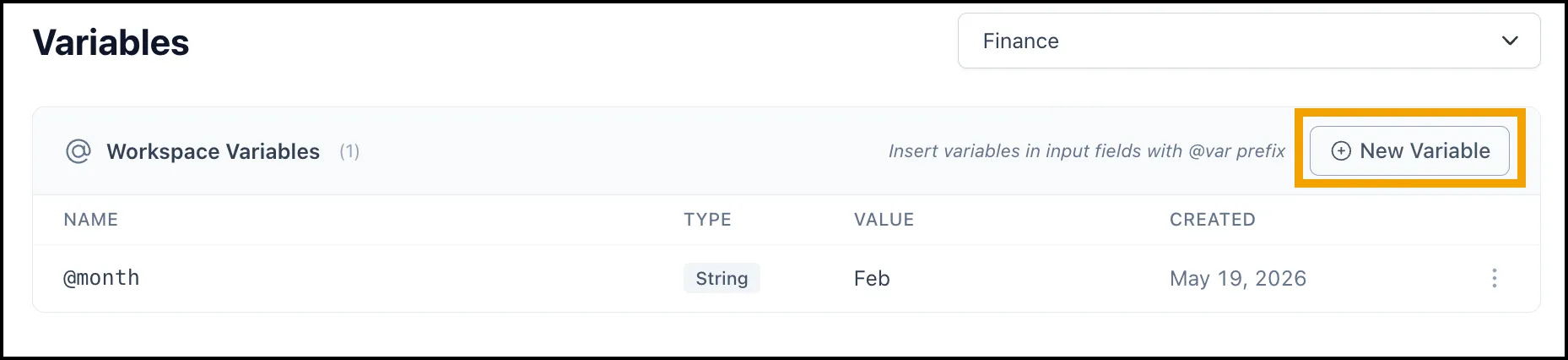
The New Variable button is located in the top right of the Variables interface
In the variable creation form, complete the following fields:
-
Workspace Select the Workspace for where the variable should be created.
-
Name (Required) Enter a unique name for your variable. This is the identifier you will reference when using the variable in transformations.
-
Variable Type (Required) Select the data type for your variable from the dropdown. Nexadata supports:
-
Text
-
Numeric
-
-
Value (Required) Enter the default or current value for your variable. This value will be used when the variable is referenced in transformations unless overridden at runtime.
-
Description (Optional) Provide a brief description of what the variable is used for and why it exists. This helps you and your team understand the variable’s purpose when viewing the list.
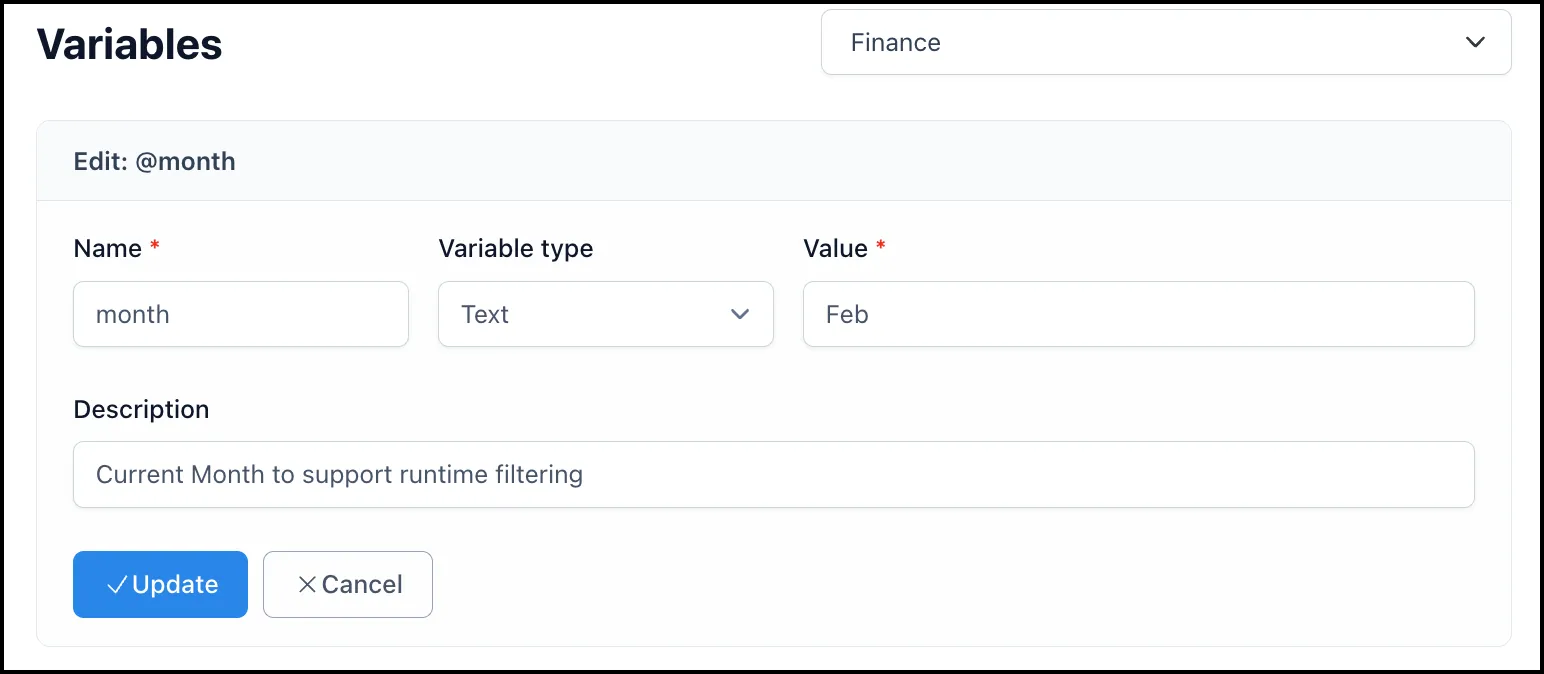
The variable creation form with fields for Name, Variable Type, Value, and Description
Click the blue Update button to save your new variable. The variable will now appear in the Workspace Variables list and be available for use across all pipelines and transformations in your workflow.
Editing a Variable
Section titled “Editing a Variable”To edit an existing variable, locate it in the Workspace Variables list and click on the variable row or the three-dot menu icon next to the variable entry.
In the edit form, you can modify:
-
The variable name
-
The variable type (Text or Numeric)
-
The current value
-
The description
After making changes, click the blue Update button to save. All transformations currently using this variable will receive the updated value.
Deleting a Variable
Section titled “Deleting a Variable”When a variable is no longer required for your workflows, you can delete it from the workspace. Before deleting, ensure that no active pipelines or transformations are referencing the variable, as this may cause execution errors.
Locate the variable you want to delete in the Workspace Variables table. Click the three-dot menu icon at the right end of the variable row.
Select the Delete option from the menu.
A confirmation dialog will appear asking you to confirm the deletion. This step prevents accidental removal of variables that may be in use.
Click Confirm to permanently delete the variable from your workspace.
Variable Scope
Section titled “Variable Scope”Variables are local to the workspace where they are created and cannot be accessed from other workspaces. Each workspace maintains its own set of variables.
Managing Variables via MCP
Section titled “Managing Variables via MCP”You can also manage variables programmatically using the Nexadata MCP (Model Context Protocol) server. This allows you to create, edit, and delete variables as part of automated workflows or external integrations. Refer to the MCP Tool Reference for details on the available variable management endpoints.