

Using a Databricks Connection
Once you have set up a Databricks connection, you can use it to bring Databricks data into Nexadata (Datasets) or send transformed data back to Databricks (Outputs). This article walks through each option step by step.
Here are the key capabilities:
-
Create datasets from tables and views in an OpenSharing share, chosen from lists of what the share contains
-
Create datasets from a SQL statement that runs on a SQL warehouse you choose, so you can filter, join, and aggregate before the data moves
-
Write Workflow outputs to a Databricks table with Append or Upsert
-
Optionally create the target table and allow new columns as your outputs evolve
-
Every written row is stamped with the Nexadata run ID in a
nexadata_run_idcolumn, so you can trace any row back to the run that wrote it
Part 1: Creating a Dataset from a Databricks Share
Section titled “Part 1: Creating a Dataset from a Databricks Share”Use this option with a connection that uses an OpenSharing Profile.
Step 1: Create a New Dataset
Section titled “Step 1: Create a New Dataset”-
Navigate to the Datasets section in Nexadata.
-
Click Create Dataset.
-
Enter a unique Name for the dataset.
-
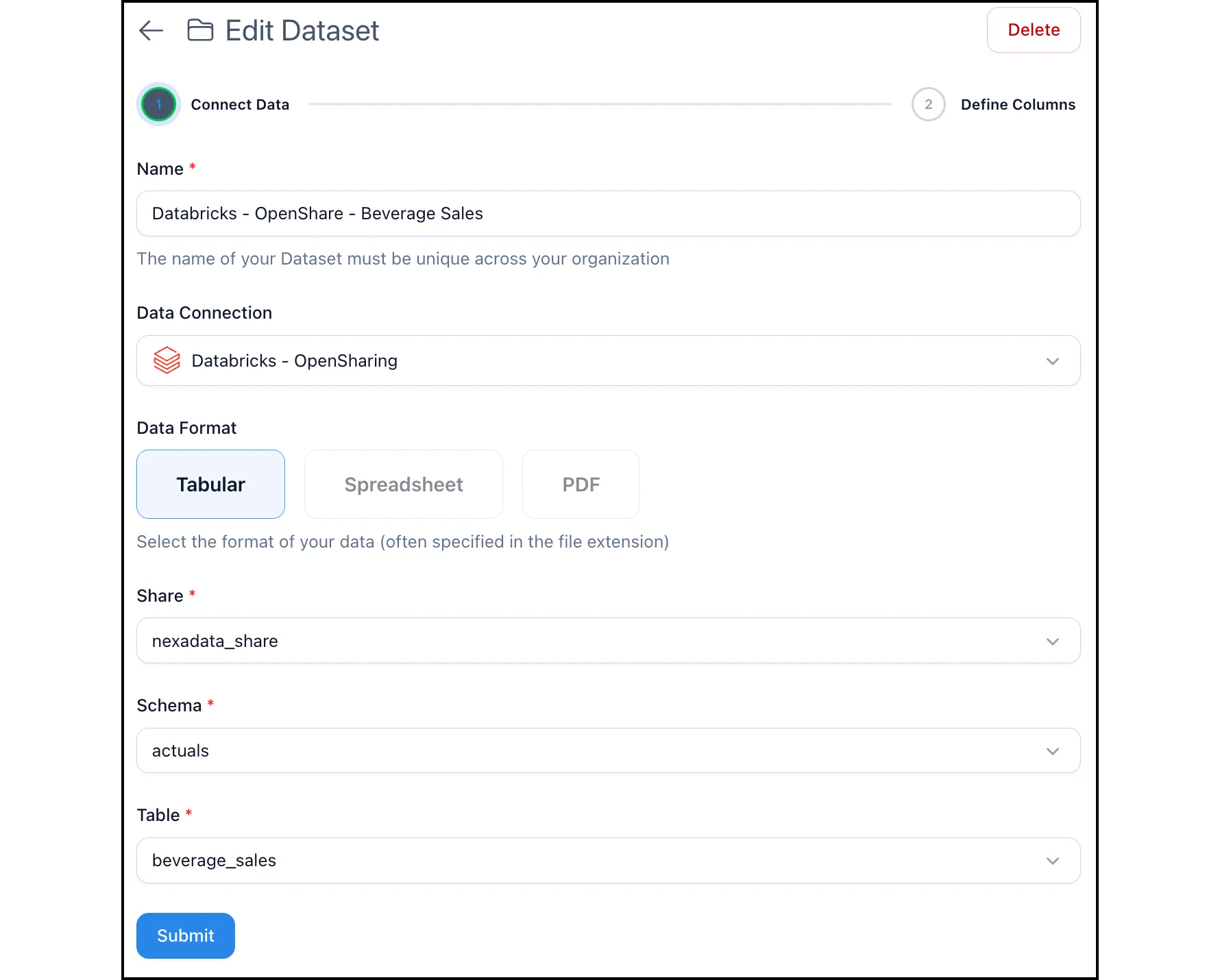
Under Data Connection, select your Databricks OpenSharing connection.
-
Under Data Format, leave Tabular selected.
Step 2: Select the Share, Schema, and Table
Section titled “Step 2: Select the Share, Schema, and Table”-
Select the Share. Start typing to search the shares the profile can access.
-
Select the Schema within that share.
-
Select the Table. Shared tables and shared views both appear here, and both work the same way.
Step 3: Submit and Define Columns
Section titled “Step 3: Submit and Define Columns”-
Click Submit. Nexadata reads the table from the share.
-
On Define Columns, review the columns and save, as for any dataset. See How to Create a New Nexadata Dataset. The dataset is ready to use in Workflows, and a full run reads every record.
Part 2: Creating a Dataset from a Databricks SQL Statement
Section titled “Part 2: Creating a Dataset from a Databricks SQL Statement”Use this option with a connection that uses Service Principal or App Connection (User Sign-In).
Step 1: Create a New Dataset
Section titled “Step 1: Create a New Dataset”-
Navigate to the Datasets section in Nexadata.
-
Click Create Dataset.
-
Enter a unique Name for the dataset.
-
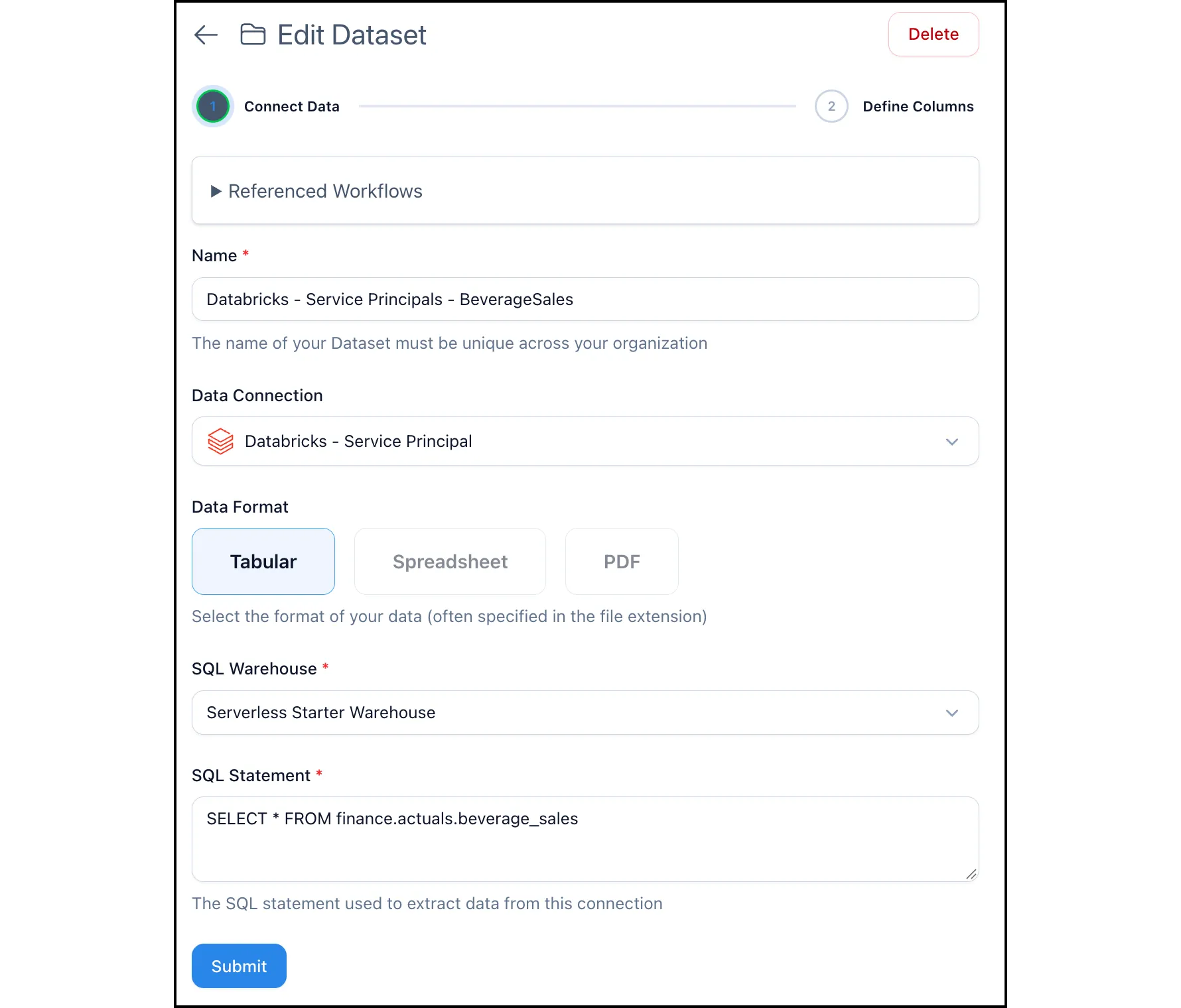
Under Data Connection, select your Databricks connection.
-
Under Data Format, leave Tabular selected.
Step 2: Choose a SQL Warehouse
Section titled “Step 2: Choose a SQL Warehouse”Under SQL Warehouse, start typing to search, then select the warehouse the statement should run on. The list shows the warehouses the connection has Can use on.
Step 3: Write Your SQL Statement
Section titled “Step 3: Write Your SQL Statement”Enter the statement that defines the dataset in SQL Statement. Use fully qualified table names in the form catalog.schema.table, since no catalog or schema is preselected. For example:
SELECT region, product_line, fiscal_month, SUM(net_revenue) AS net_revenueFROM finance.actuals.gl_revenueWHERE fiscal_year = 2026GROUP BY region, product_line, fiscal_monthIf a catalog, schema, or table name contains a hyphen, wrap it in backticks, for example `nexadata-demo-data`.default.revenue.
The connection needs SELECT on every table or view the statement reads. See Setting up a Databricks Connection.
Step 4: Submit and Define Columns
Section titled “Step 4: Submit and Define Columns”-
Click Submit. Nexadata runs the statement on the warehouse. If the warehouse is stopped, Databricks starts it first, so this can take a minute or two.
-
On Define Columns, review the columns the statement returned and save, as for any dataset. See How to Create a New Nexadata Dataset.
Part 3: Sending Data Back to Databricks
Section titled “Part 3: Sending Data Back to Databricks”Use this option with a connection that uses Service Principal or App Connection (User Sign-In). Nexadata stages the Workflow output as a CSV file in a Unity Catalog volume, loads it into the target table, then deletes the staged file.
Step 1: Add an Output
Section titled “Step 1: Add an Output”-
Open the Workflow that produces the data you want to write, and go to its Outputs tab. See Workflow Outputs.
-
Add an output and enter a Name for it.
-
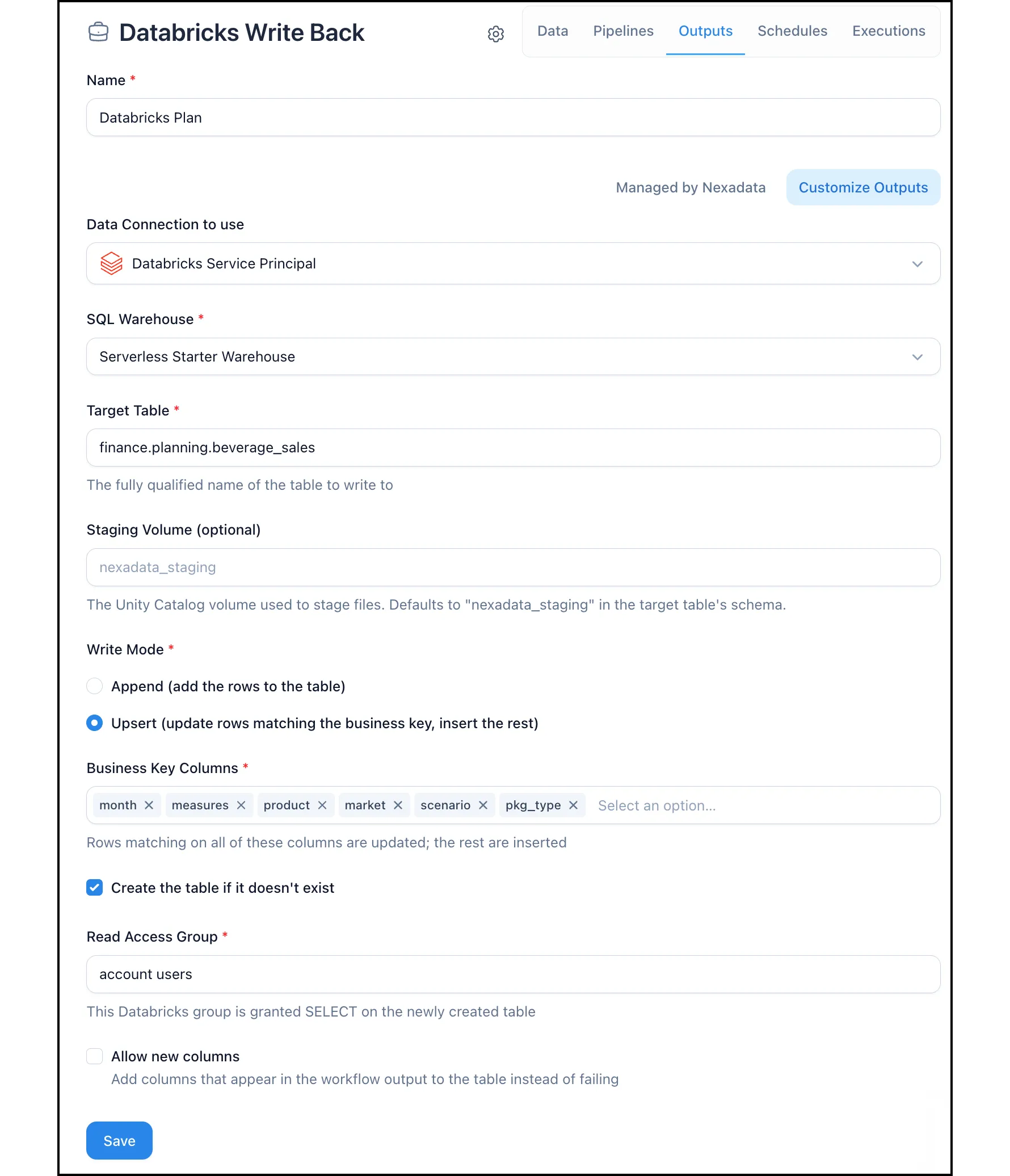
Click Customize Outputs, then under Data Connection to use, select your Databricks connection. The Databricks settings appear below.
Step 2: Choose the Warehouse, Target Table, and Staging Volume
Section titled “Step 2: Choose the Warehouse, Target Table, and Staging Volume”-
SQL Warehouse: The warehouse that runs the load.
-
Target Table: The table to write to, as
catalog.schema.table, for examplefinance.planning.revenue_allocations. -
Staging Volume (optional): The Unity Catalog volume to stage files in. Leave it blank and Nexadata uses a volume named
nexadata_stagingin the target table’s schema, creating it if needed.
Step 3: Choose a Write Mode
Section titled “Step 3: Choose a Write Mode”-
Append (add the rows to the table): Adds every row to the table on each run.
-
Upsert (update rows matching the business key, insert the rest): Under Business Key Columns, select the columns that together identify a row, for example
region,product_line, andfiscal_month. Rows that match the table on all of these columns are updated; the rest are inserted.
Step 4: Set Optional Behaviors
Section titled “Step 4: Set Optional Behaviors”Both settings are off by default.
-
Create the table if it doesn’t exist: Nexadata creates the target table with the output’s column types before the first load. Enter a Read Access Group: this Databricks group is granted
SELECTon the new table. The group must be an account-level group; enteraccount usersto let every user in your Databricks account read the table. Without this grant, only the service principal can read the table. -
Allow new columns: If the Workflow output gains a column, Nexadata adds it to the table instead of failing the run.
A completed output, upserting into finance.planning.beverage_sales and creating the table on the first run, looks like this:
Step 5: Save and Run
Section titled “Step 5: Save and Run”Save the output and run the Workflow. Nexadata writes the results to the table according to your settings.
How Nexadata Writes to Databricks
Section titled “How Nexadata Writes to Databricks”-
Explicit column types. Every column is written at the type defined in the Nexadata output rather than one Databricks guesses from the file. Money is written as
DECIMAL, so totals in Databricks tie to the source to the cent. -
Run traceability. Nexadata adds a
nexadata_run_idcolumn to the target table if it is not already there, and stamps every row it writes with the ID of the Workflow run. With Upsert, the run ID is updated on the rows that change.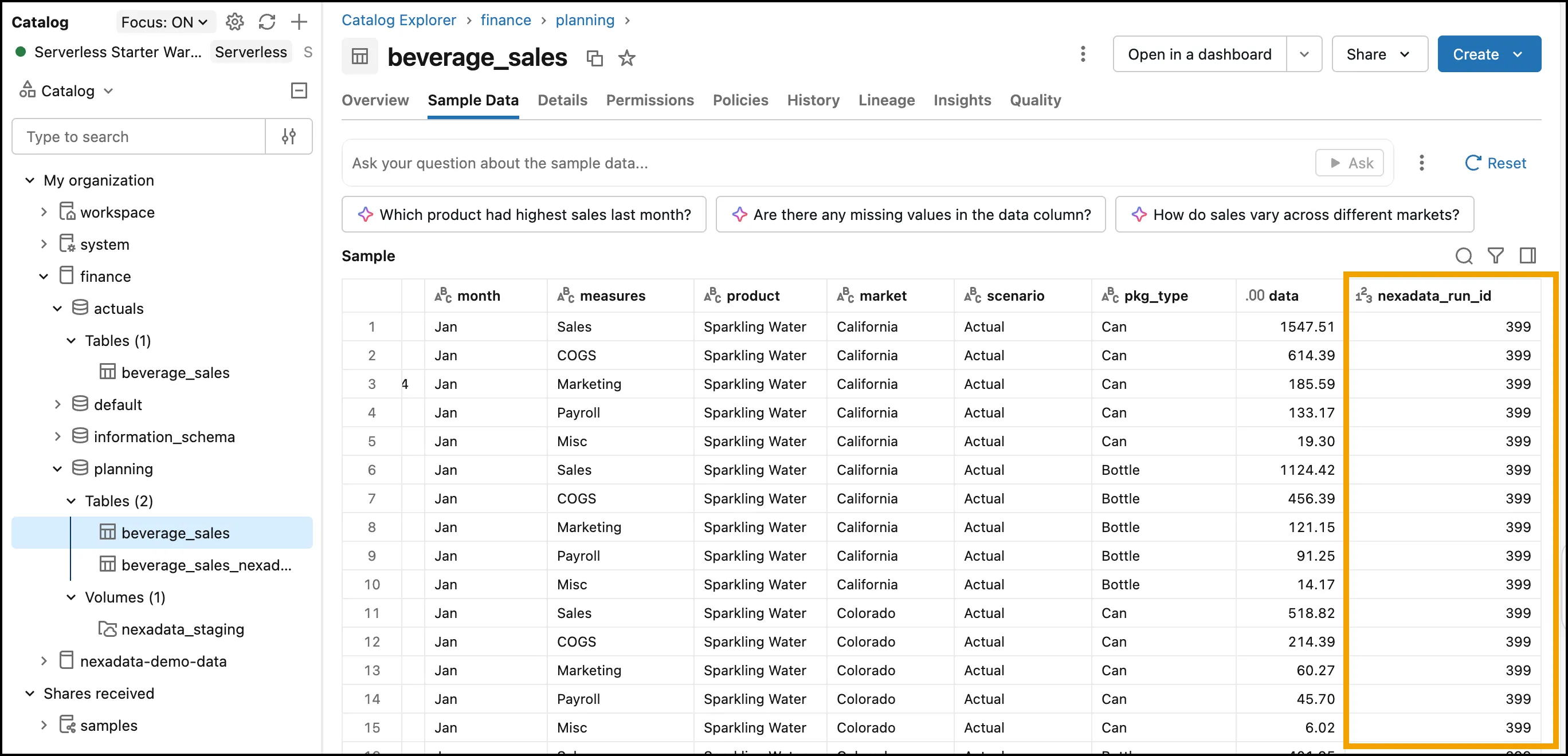
-
Safe reruns. Rerunning a failed or partly completed write does not create duplicate rows. Each run stages a uniquely named file, and Databricks skips files it has already loaded.
-
Upsert staging. An upsert loads the run into a staging table named
<table>_nexadata_stagingin the target schema, replaced on every run, then merges it into the target on the business key. The staging table stays in the schema between runs; it is not a copy of the target, so do not query or build on it.
Tips and Best Practices
Section titled “Tips and Best Practices”-
Use OpenSharing for read-only feeds. If a team only needs to read curated tables, a share is the narrowest access to approve.
-
Push work to the warehouse. With a SQL statement, filter and aggregate in the statement so only the rows you need move into Nexadata.
-
Use Upsert for recurring loads. Plan versions and allocations that are restated each cycle should upsert on a business key rather than append.
-
Run once against a test schema. Since table and permission problems surface at run time, point a new output at a sandbox schema first.