

Accessing Extended Data Sources in Anaplan
For organizations using Anaplan for connected planning, maintaining visibility into user activity and platform changes is critical for security and compliance. Until now, extracting and formatting Anaplan audit data into a reportable format required custom scripting and significant manual effort. Nexadata eliminates that complexity.
The Anaplan connector supports a significantly expanded set of data sources, accessible directly from the Dataset Builder and purpose-built to surface audit and administrative data in a clean, human-readable format. User identification, activity timestamps, event types, and action descriptions are extracted into a consistent, structured dataset that can then be joined, transformed, and mapped within Nexadata’s data platform to make it ready for reporting and analytics.
Selecting an Export Type
Section titled “Selecting an Export Type”When configuring an Anaplan dataset, the Export Type dropdown is your starting point. Each selection maps to a different Anaplan data source and controls which additional fields appear below it.
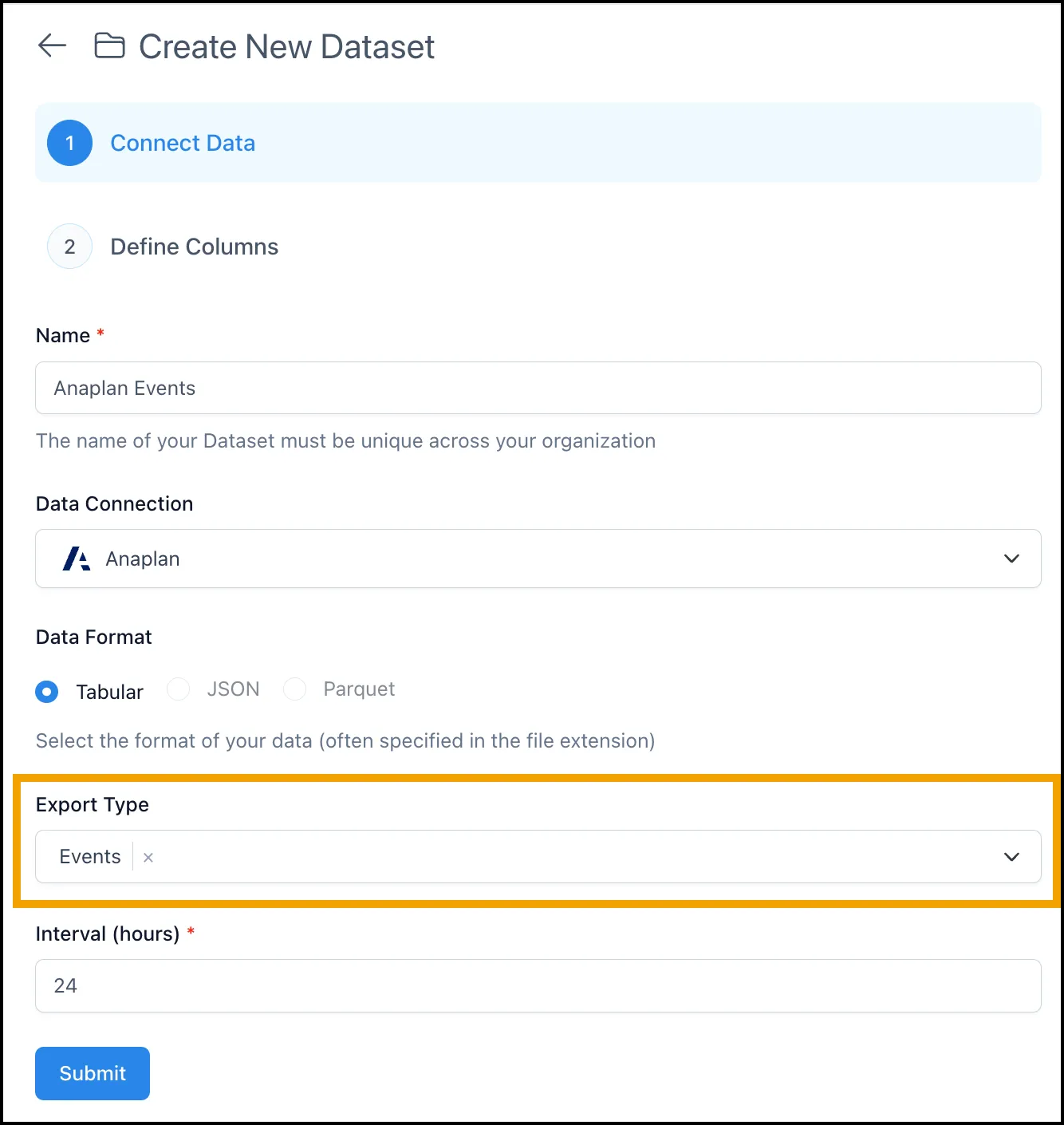
The available Export Types are:
-
Export Data — Pulls from a specific Export Action within a model (existing behavior)
-
Events — Retrieves audit event records from your Anaplan tenant
-
Users — Pulls the full list of users in your Anaplan tenant
-
Workspaces — Returns all workspaces associated with your tenant
-
CloudWorks Jobs — Retrieves CloudWorks integration job records
-
Models — Lists all models within a selected workspace
-
Imports — Lists import actions within a selected workspace and model
-
Exports — Lists export configurations within a selected workspace and model
-
Actions — Lists actions within a selected workspace and model
-
Processes — Lists processes within a selected workspace and model
-
Files — Lists files within a selected workspace and model
Export Type Behaviors
Section titled “Export Type Behaviors”Each export type group behaves differently in the UI. Understanding which fields appear, and in what order, helps you configure your dataset correctly.
Export Data
Section titled “Export Data”This is the original Dataset Builder behavior. After selecting Export Data, the Workspace, Model, and Export Action dropdowns appear in sequence. Select each in order to populate the next.
Events, Users, Workspaces, and CloudWorks Jobs
Section titled “Events, Users, Workspaces, and CloudWorks Jobs”These export types fetch tenant-level data, so no additional dropdowns are required. Once you select one of these as your Export Type, the dataset is ready to configure without needing to specify a workspace or model.
Models
Section titled “Models”When Models is selected, a Workspace dropdown appears. Select a workspace to load all models associated with it. The dataset returns all models within the chosen workspace.
Imports, Exports, Actions, Processes, and Files
Section titled “Imports, Exports, Actions, Processes, and Files”These export types require two selections. First, choose a Workspace from the dropdown. Once a workspace is selected, the Model dropdown populates. Select a model to complete the configuration. The dataset will return all items of the selected type within that workspace and model.
Turning Audit Data into an Analytics-Ready View
Section titled “Turning Audit Data into an Analytics-Ready View”Anaplan audit events are returned with IDs for workspaces, models, actions, and users rather than human-readable names. To make that data usable for reporting, you can use Nexadata’s data platform to join the Events dataset against your Workspaces, Models, Actions, and Users datasets, replacing every ID with its corresponding name.
Here is an example prompt you can use with Nexadata to build that pipeline:
I have an Anaplan Events dataset where all references to workspaces,models, actions, and users are stored as IDs only. I also have separatedatasets for Workspaces, Models, Actions, and Users, each containing boththe ID and the Name. Join the Events dataset to each of those lookupdatasets on their respective IDs to replace every ID with its human-readable name. Transform the result into a clean, flat materialized viewwith descriptive column names that is ready for reporting and analytics.The resulting materialized view provides a fully resolved audit trail with named actors, resources, and actions, ready for filtering, aggregation, and visualization in your reporting tool of choice.
Prerequisites
Section titled “Prerequisites”-
An active Anaplan connection configured in Nexadata
-
Appropriate permissions in your Anaplan tenant for the data type you are accessing (for example, audit API access for Events, or workspace and model membership for model-level types)