

Workflow Schedules
Workflow Schedules allow you to automate the execution of a Workflow on a recurring basis, without requiring a manual trigger each time. Schedules can be configured to run hourly, daily, weekly, or monthly; on a relative basis, such as the first Monday of each month; or using a custom cron-like expression.
Accessing the Schedules Tab
Section titled “Accessing the Schedules Tab”To configure a schedule, open the Workflow you want to automate and select the Schedules tab from the top navigation.
When no schedules have been created yet, the tab displays a “No Schedules defined yet” empty state with a description of the available scheduling options.
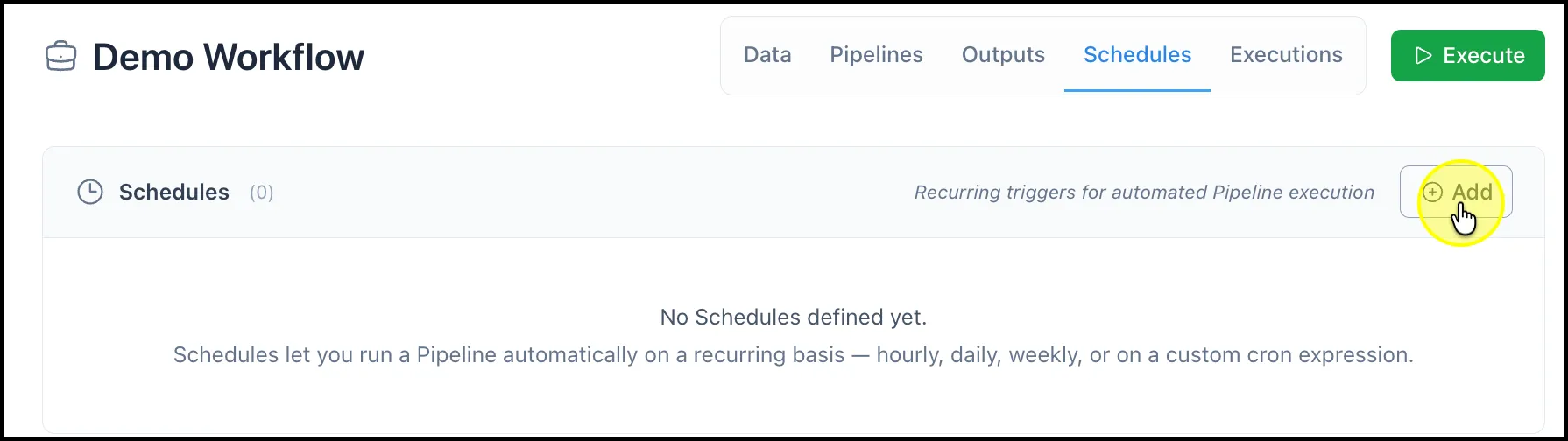
The Schedules tab in its empty state, showing the Add button and scheduling options description
Creating a New Schedule
Section titled “Creating a New Schedule”Click the Add button in the upper right of the Schedules section to open the schedule configuration form.
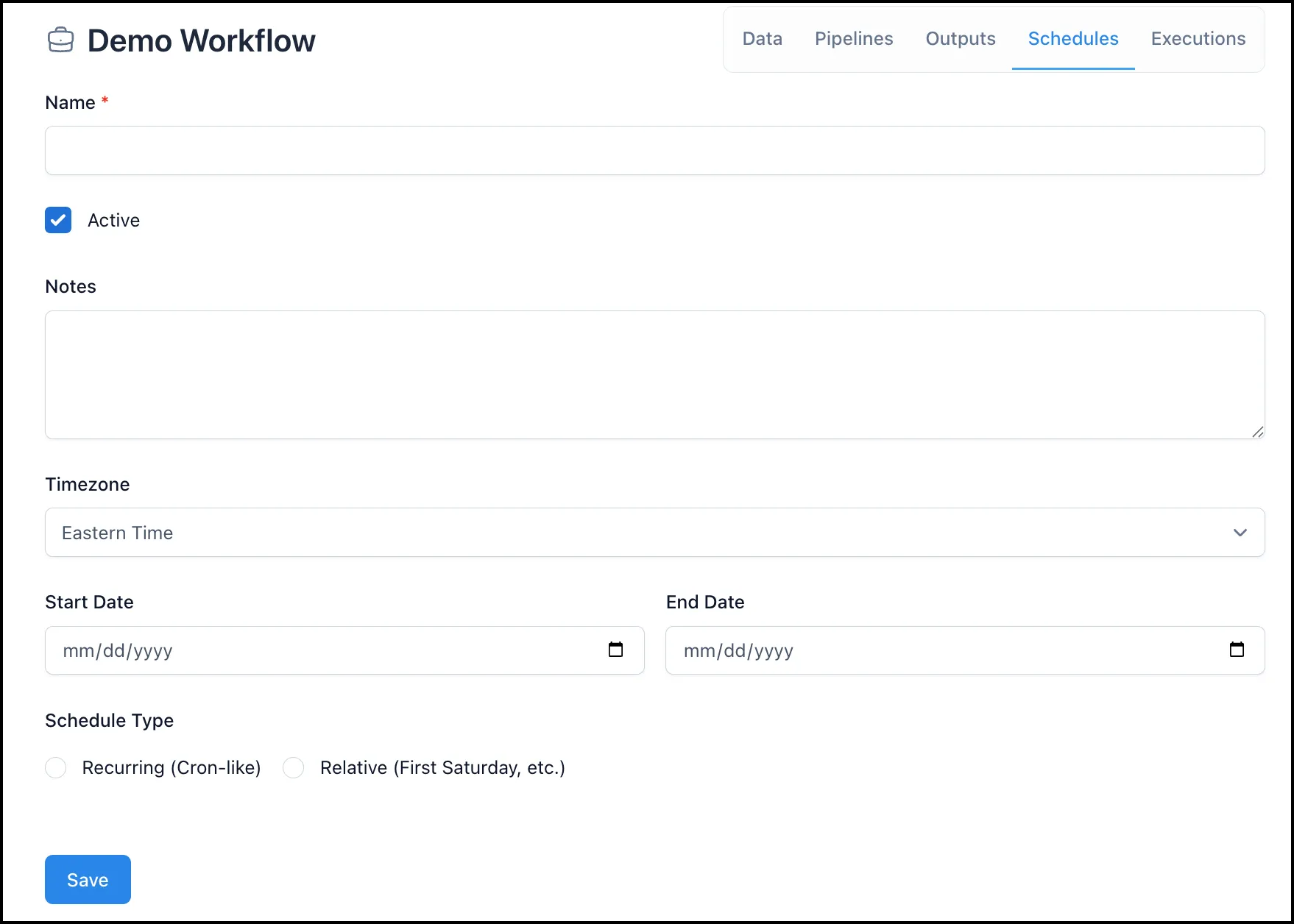
The schedule configuration form showing Name, Active, Notes, Timezone, Start Date, End Date, and Schedule Type fields
Fill out the following fields:
-
Name (required): Enter a clear, descriptive name for the schedule.
-
Active: Check this box to activate the schedule immediately on save. Uncheck it to pause the schedule without deleting it.
-
Notes (optional): Add context or details about the schedule for future reference.
-
Timezone: Select the timezone the schedule should follow.
-
Start Date / End Date: Specify when the schedule should begin and stop running.
-
Schedule Type: Choose either Recurring (Cron-like) or Relative (First Saturday, etc.).
Once configured, click Save to activate the schedule.
Recurring (Cron-like) Types
Section titled “Recurring (Cron-like) Types”This option allows you to schedule workflows to run on a regular, repeating basis.
Hourly Schedule
Section titled “Hourly Schedule”-
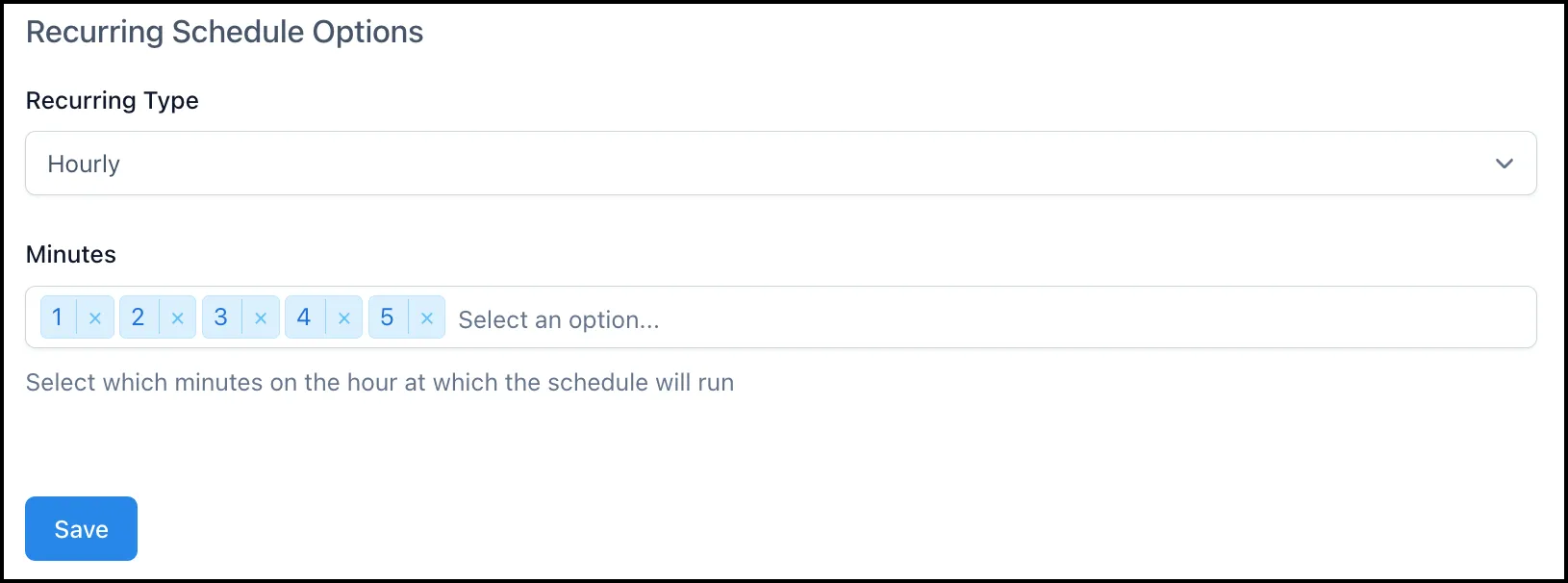
Select Hourly from the Recurring Type dropdown.
-
Choose the minutes past each hour when the workflow should run.
-
You can select multiple minutes (e.g., 0, 15, 30, 45).
Daily Schedule
Section titled “Daily Schedule”-
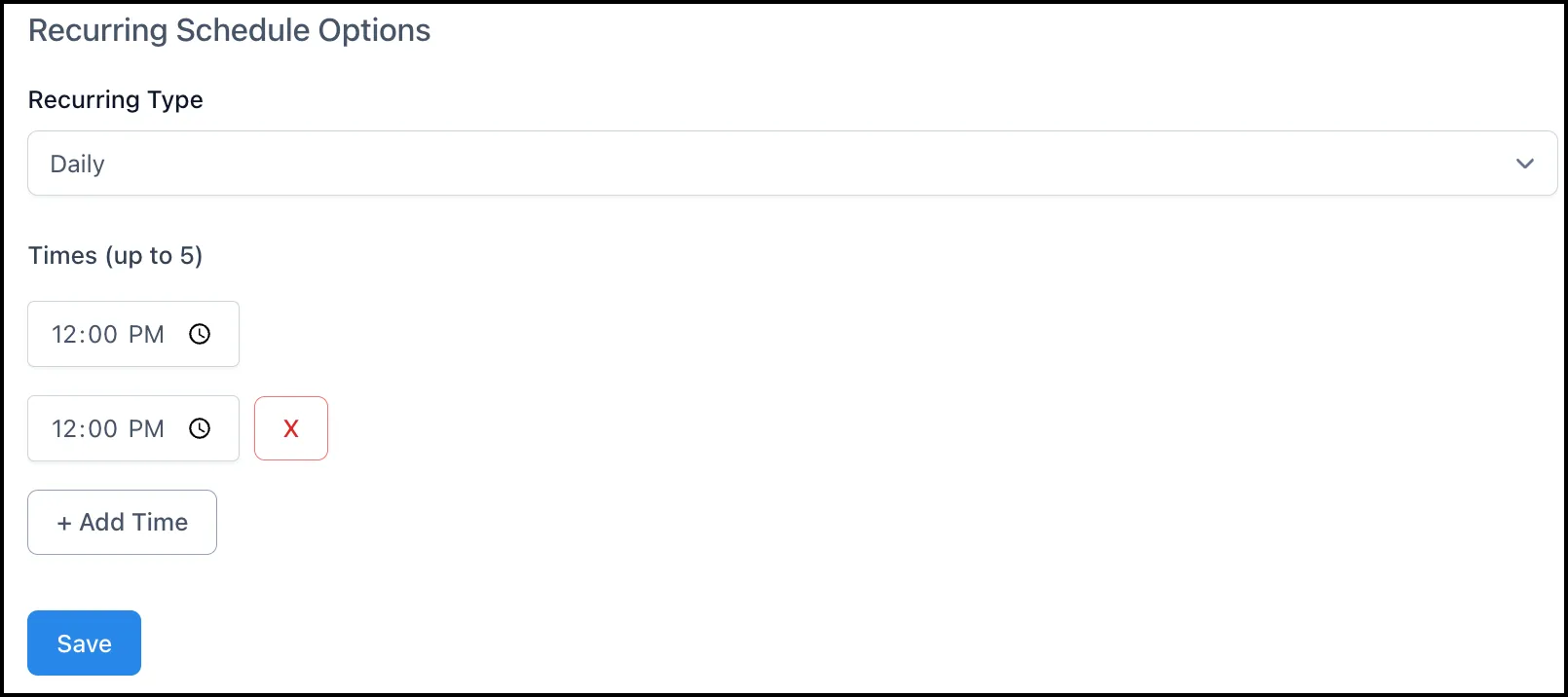
Select Daily from the Recurring Type dropdown.
-
You can add up to 5 execution times per day.
-
Click + Add Time to include more run times.
-
Use the X icon to remove a time slot.
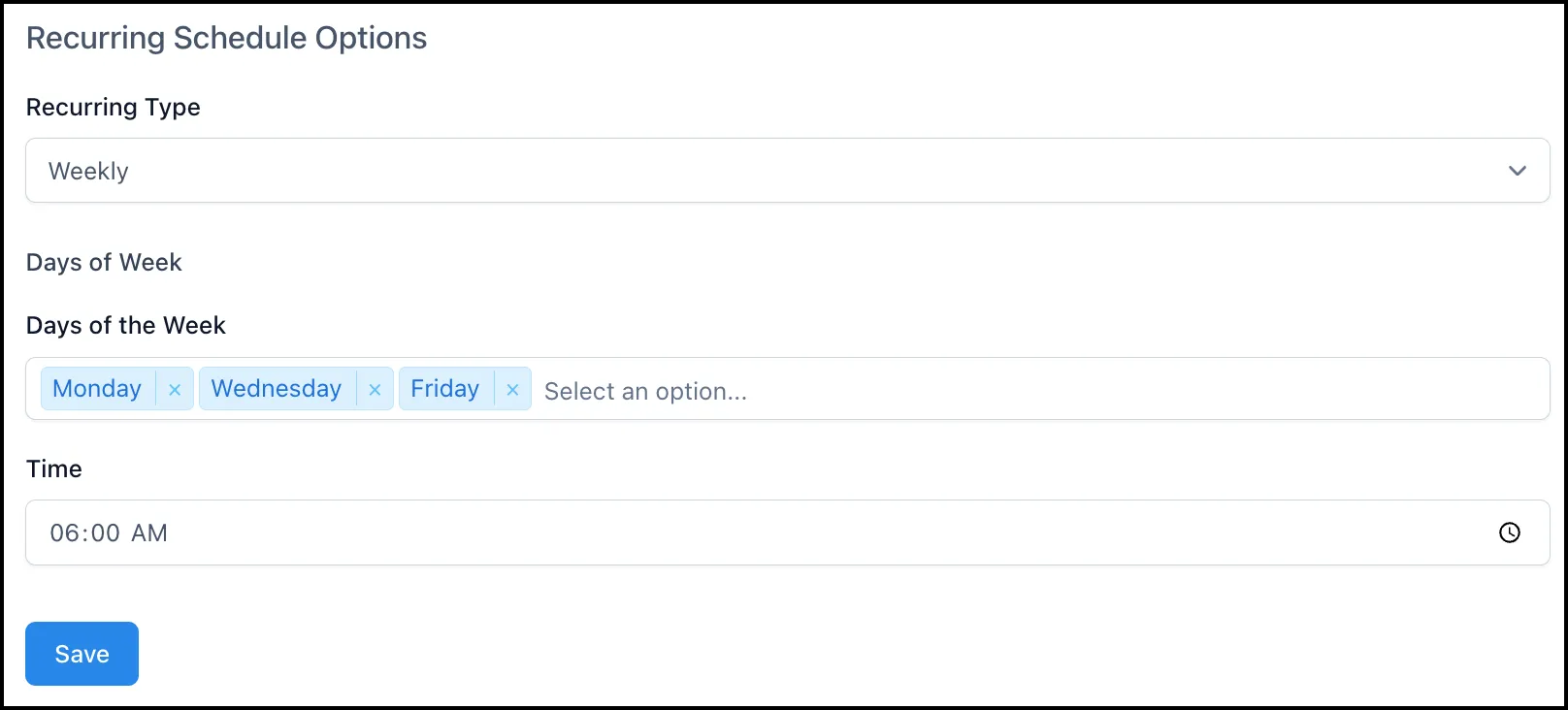
Weekly Schedule
Section titled “Weekly Schedule”-
Select Weekly from the Recurring Type dropdown.
-
Choose one or more days of the week.
-
Select a time when the workflow should run on those days.
Monthly Schedule
Section titled “Monthly Schedule”-
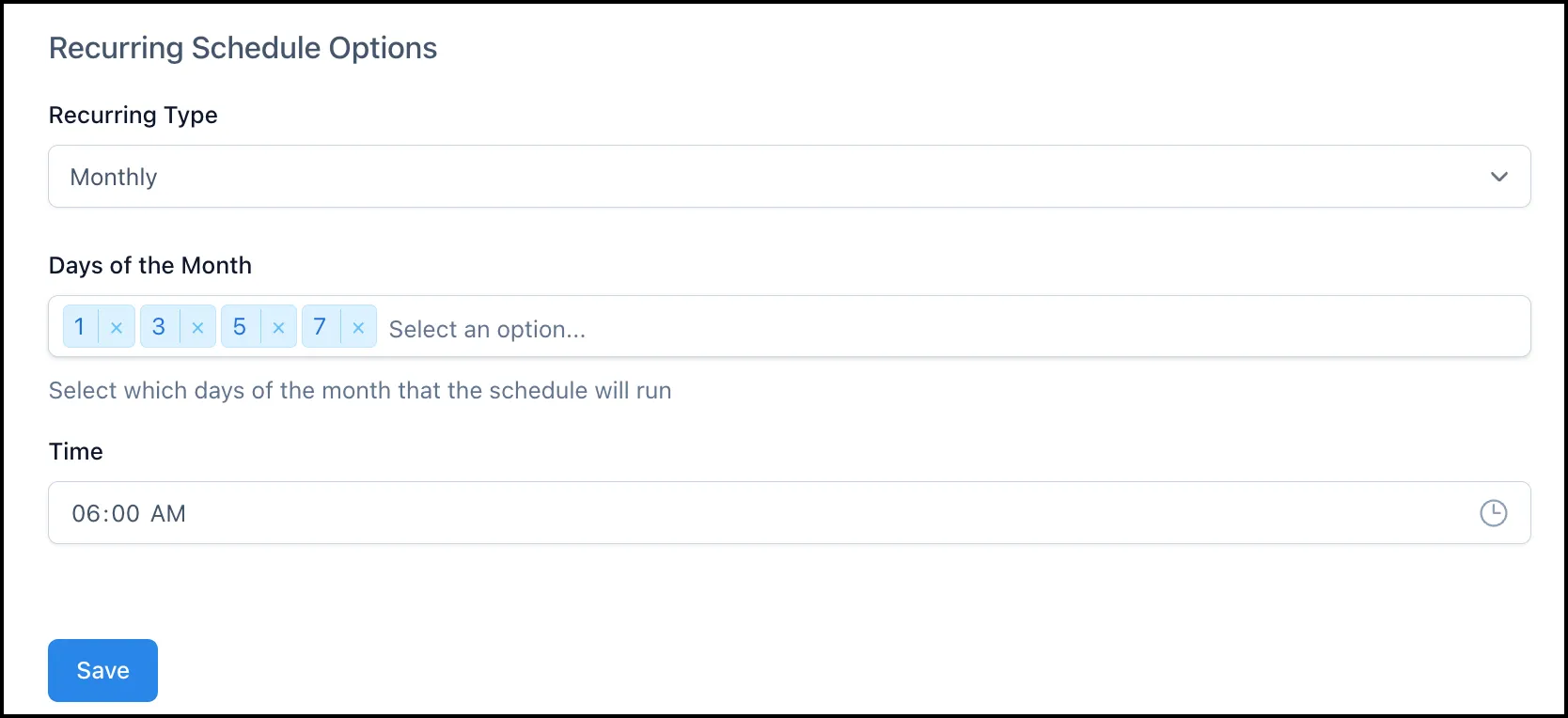
Select Monthly from the Recurring Type dropdown.
-
Choose one or more days of the month (e.g., 1st, 3rd, 5th, 7th).
-
Select a time for the workflow to run on those days.
Relative (First Saturday, etc.)
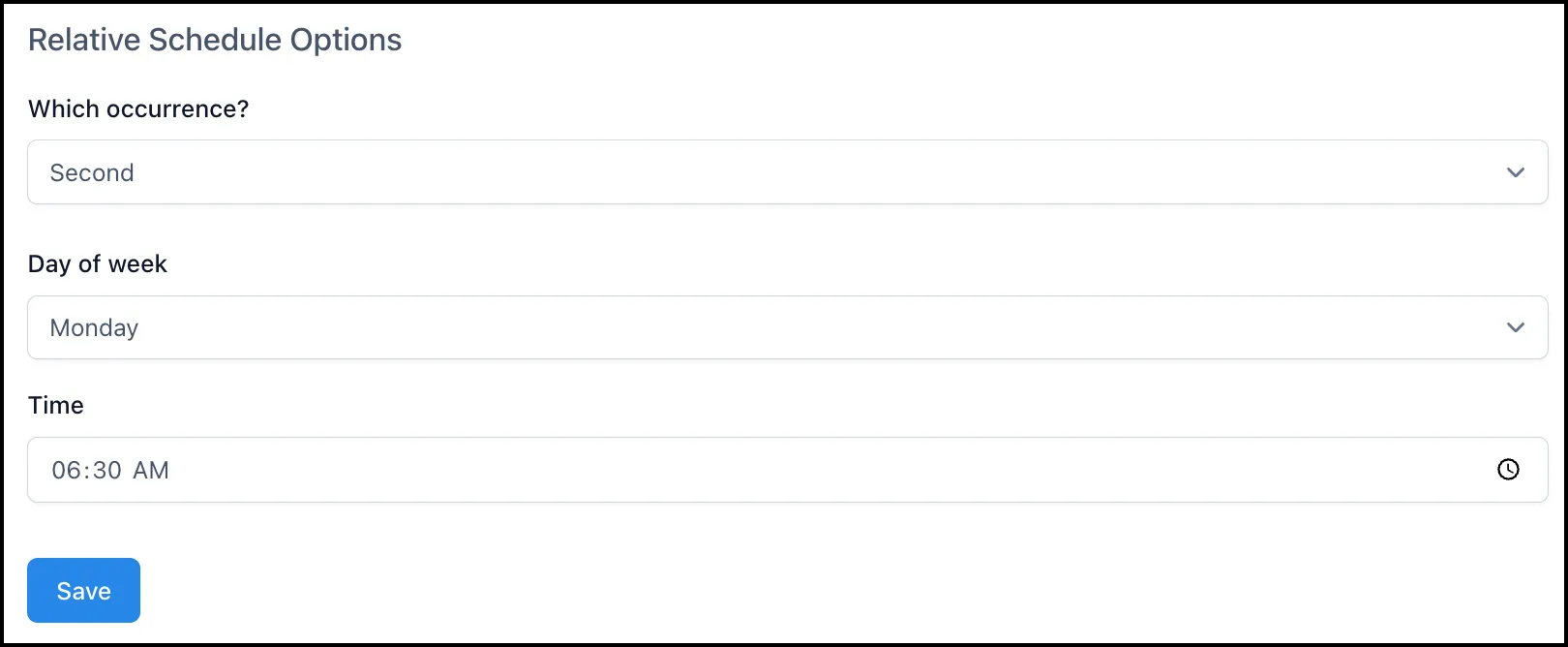
Section titled “Relative (First Saturday, etc.)”Use this option to run workflows on a relative basis, such as “First Monday of the month.”
-
Choose the occurrence (First, Second, Third, Fourth, or Last).
-
Select the day of the week.
-
Set the time for execution.
Example: Run the workflow on the First Monday of every month at 6:30 AM.
Saving the Schedule
Section titled “Saving the Schedule”Once you’ve configured the schedule:
-
Double-check the details.
-
Click the Save button to activate it.