

Setting up a Databricks Connection
Databricks is a data and AI platform where many organizations stage their finance, operations, and planning data in a lakehouse governed by Unity Catalog. Nexadata integrates directly with Databricks in both directions: you can read tables, views, and query results into Nexadata datasets, transform and harmonize them, and write the results back to a Databricks table.
Here are the key features:
-
Two ways to read: Read the tables and views your admin has placed in an OpenSharing share, or run your own SQL statement on a SQL warehouse.
-
Write-back to Databricks tables: Send Workflow outputs to a Databricks table with Append or Upsert, with every column written at an explicit type so financial amounts tie to the cent.
-
Service principal authentication: Connect with OAuth machine-to-machine credentials for a Databricks service principal, not a personal access token.
-
Secure credential storage: Secrets, tokens, and profiles are encrypted and stored server-side.
This article covers the setup in three parts. Parts 1 and 2 are usually completed with your Databricks admin. Part 3 takes place in Nexadata.
Part 1: Choose an Authentication Type
Section titled “Part 1: Choose an Authentication Type”A Databricks connection uses one of three authentication types. Which one you need depends on what you want to do.
| Authentication type | Read from a share | Read with a SQL statement | Write outputs back | Who Nexadata acts as |
|---|---|---|---|---|
| Service Principal | Yes | Yes | A service principal you create | |
| App Connection (User Sign-In) | Yes | Yes | The Databricks user who signs in | |
| OpenSharing Profile | Yes | A sharing recipient, read-only |
Service Principal is the default and the recommended choice for SQL reads and write-back. A service principal is an account in Databricks made for an application rather than a person. Nobody signs in with it; Nexadata uses its Client ID and Client Secret, much like a username and password reserved for one system. It can do only what your admin grants it, so its access is easy to review and revoke, and it keeps working when people change roles or leave.
App Connection (User Sign-In) connects Nexadata as a real Databricks user. An app connection is an entry that a Databricks account admin creates to tell Databricks that Nexadata is allowed to ask users for access. When you click Connect to Databricks, you sign in to Databricks yourself and approve the request, the same way you might allow an app to use your Google account. Nexadata then acts as you, with your privileges, and every action is recorded under your name. Choose it if your organization prefers that integrations act on behalf of named users, or does not allow service principals for this purpose.
OpenSharing Profile (OpenSharing is Databricks’ new name for Delta Sharing) is the easiest for an admin to approve. Your admin places selected tables in a share and gives Nexadata a credential file that can read only that share. Nexadata can read only what is placed in the share, and the share cannot be written to.
Service Principal and App Connection (User Sign-In) both use OAuth, the standard way for one application to get access to another without sharing a person’s password. They use two different OAuth flows, and the difference is whether a person signs in:
| Service Principal | App Connection (User Sign-In) | |
|---|---|---|
| OAuth flow | Machine-to-machine (M2M) | User-to-machine (U2M) |
| How Nexadata gets access | Nexadata sends the Client ID and Client Secret to Databricks and receives a short-lived token. Nobody signs in. | You sign in to Databricks and approve access. Databricks then gives Nexadata tokens to act on your behalf. |
| Whose identity is used | The service principal’s | Yours |
| Scopes | sql, files | sql, files, offline_access |
The offline_access scope lets Nexadata renew its access without asking you to sign in again. A service principal does not need it, because Nexadata can request a new token with the Client Secret at any time.
Part 2: Prepare Databricks
Section titled “Part 2: Prepare Databricks”Complete the section that matches the authentication type you chose. Most of these steps require a Databricks workspace admin, or the owner of the catalogs and schemas involved.
Option A: Create a Service Principal
Section titled “Option A: Create a Service Principal”-
In Databricks, open Settings → Identity and access → Service principals and create a service principal for Nexadata, for example
nexadata-connector. Open it and make sure Databricks SQL access is checked under Entitlements. It is the only entitlement Nexadata needs; leave the others at your workspace defaults, and leave Admin access unchecked. The service principal’s Application Id is the Client ID you will enter in Nexadata.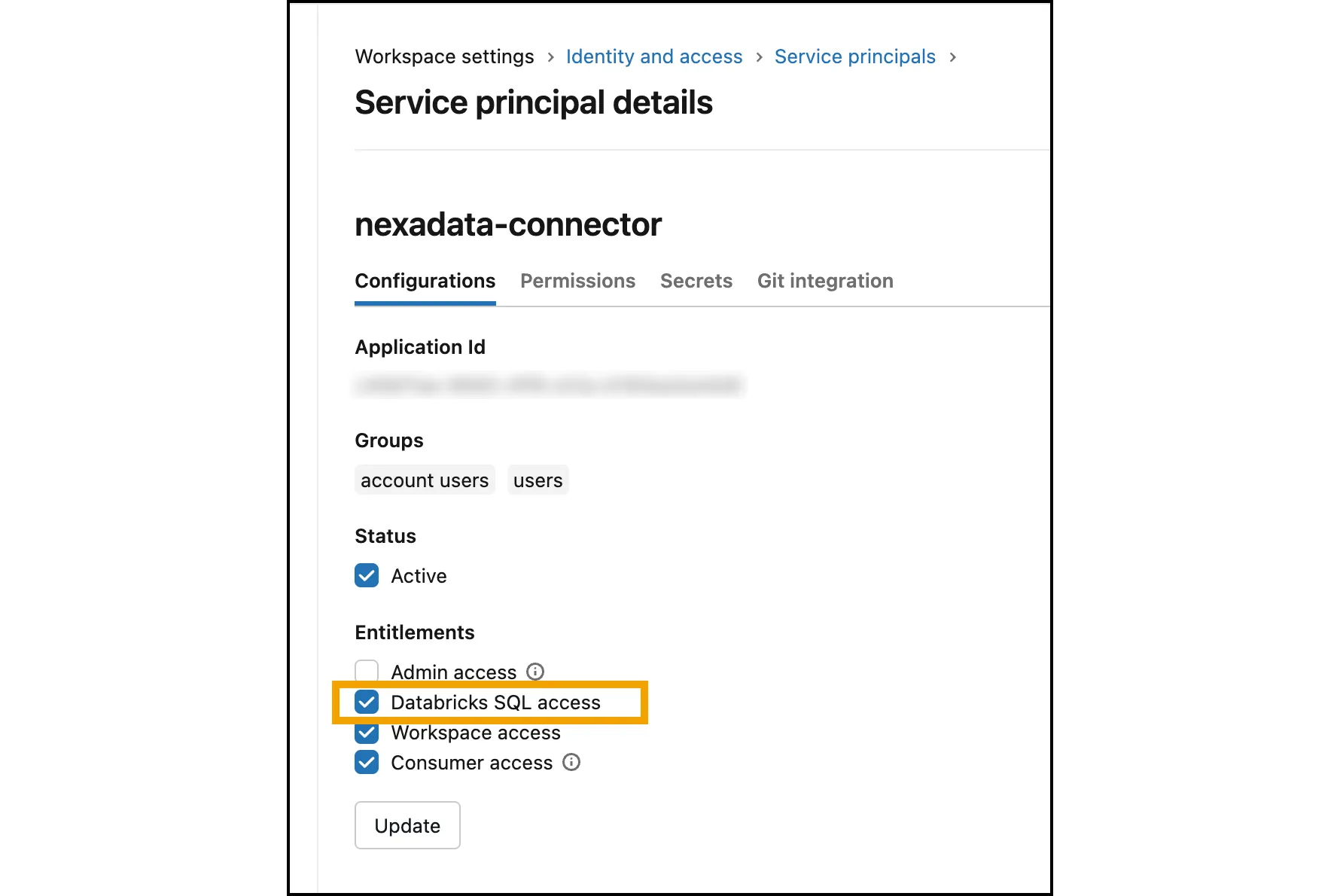
-
On the Secrets tab, click Generate secret, set its lifetime (1 to 730 days), and include the
sqlandfilesscopes.filesis needed to write outputs back. Copy the Secret and Client ID before you click Done; the secret is shown only once.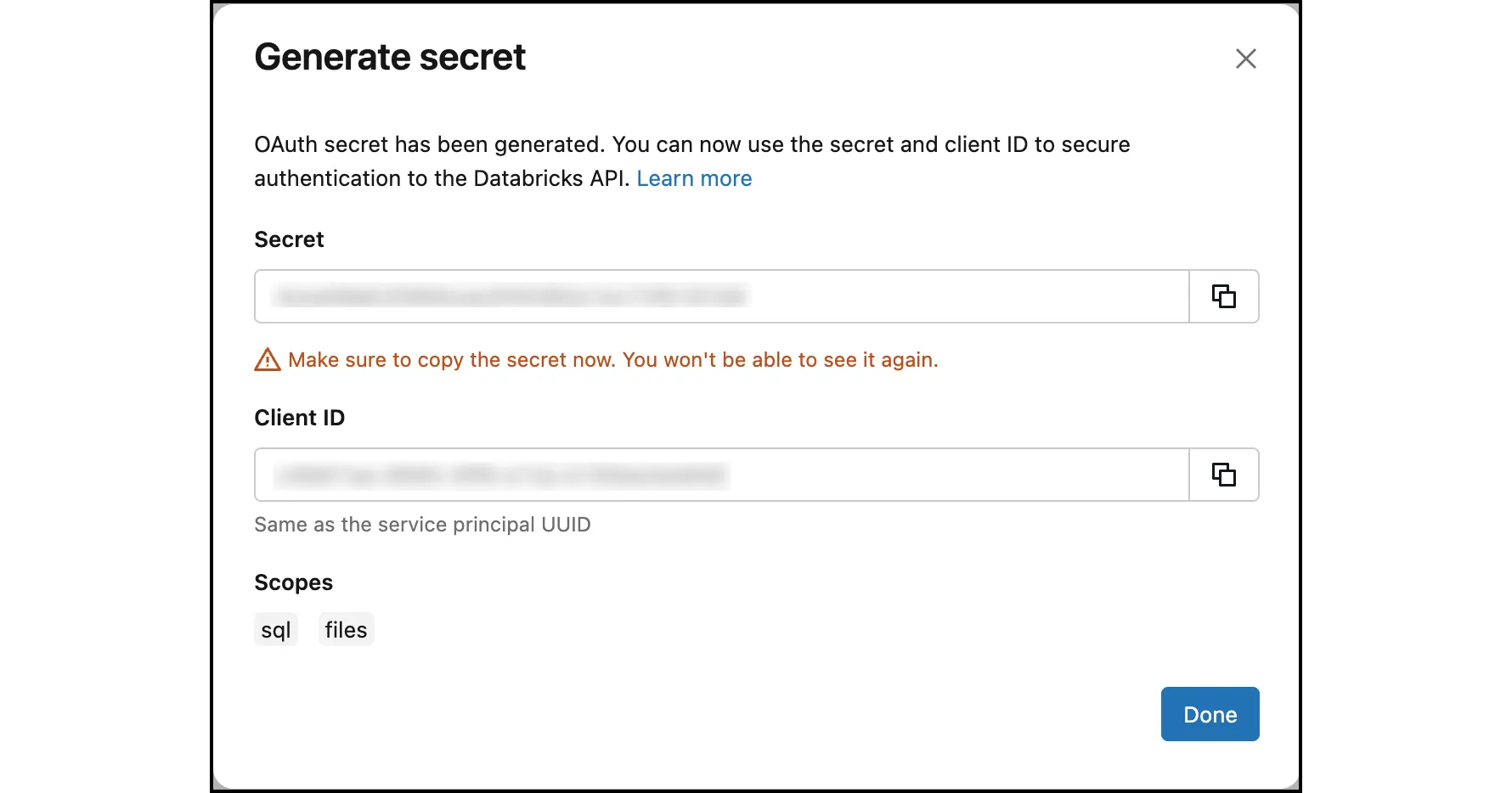
-
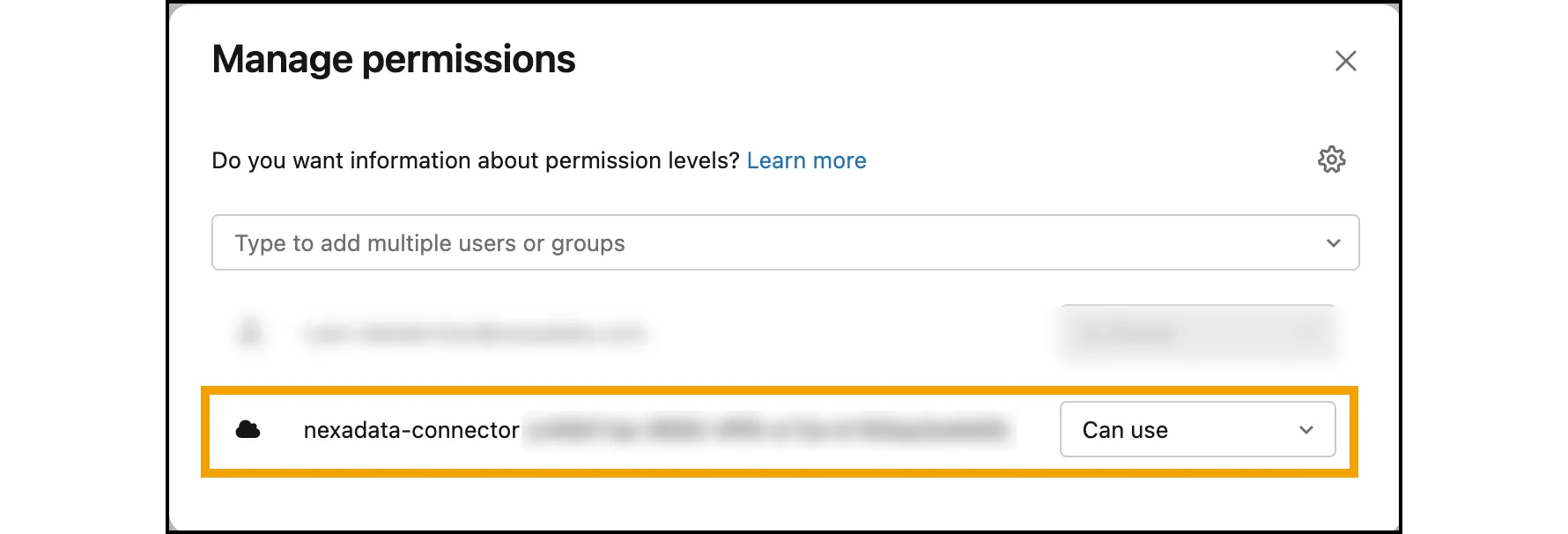
Grant the service principal Can use on each SQL warehouse Nexadata should run statements on. Open SQL Warehouses, click the warehouse name, then click Permissions.
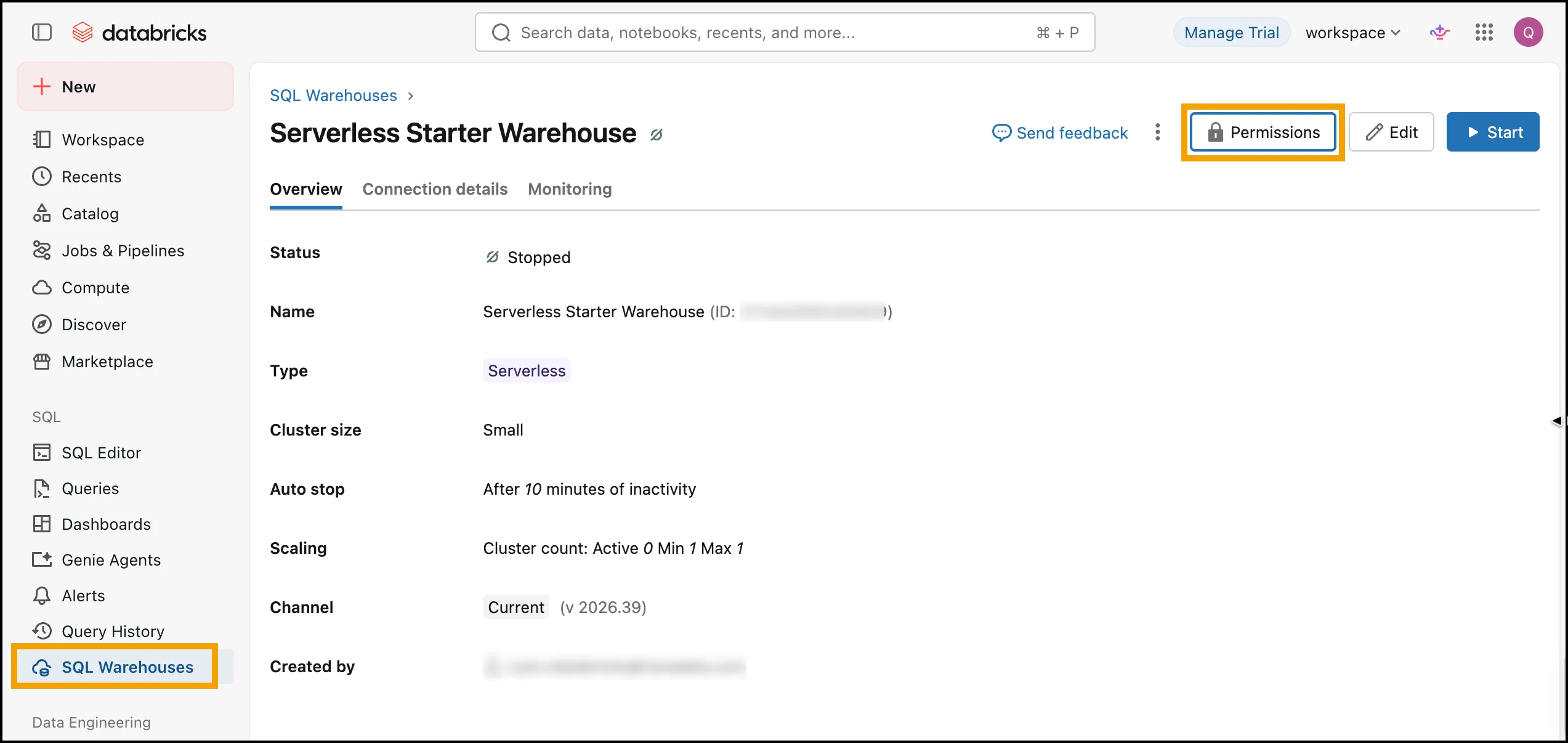
Select the service principal, choose Can use, and click Add.
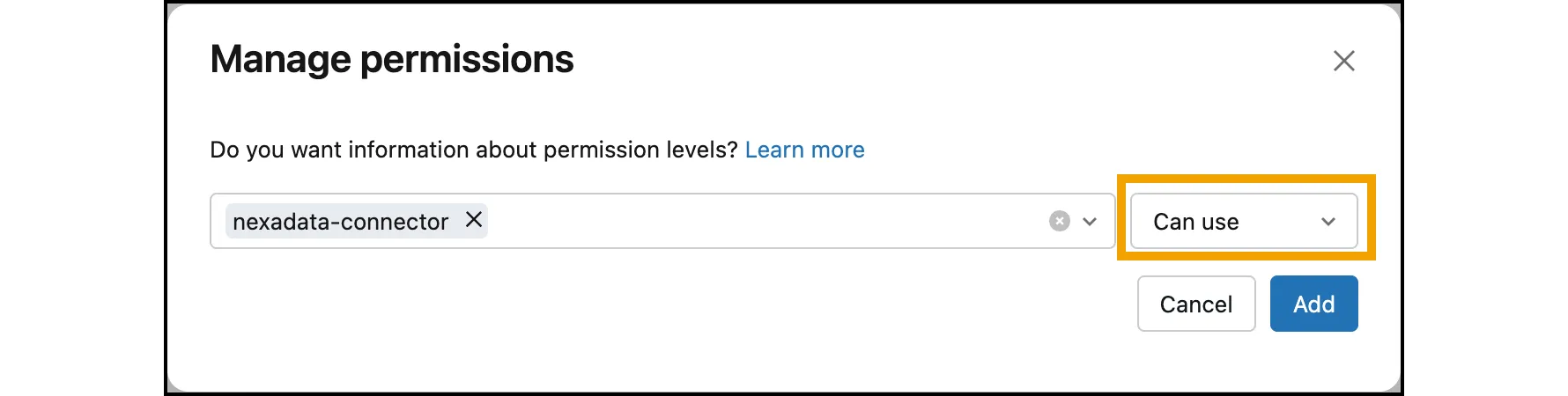
The service principal then appears in the warehouse’s permission list with Can use.
-
In Catalog Explorer, grant the service principal the Unity Catalog privileges in Unity Catalog Privileges below.
Option B: Register an App Connection
Section titled “Option B: Register an App Connection”App connections are created in the Databricks account console, which manages your whole Databricks account rather than one workspace. These steps require a Databricks account admin.
-
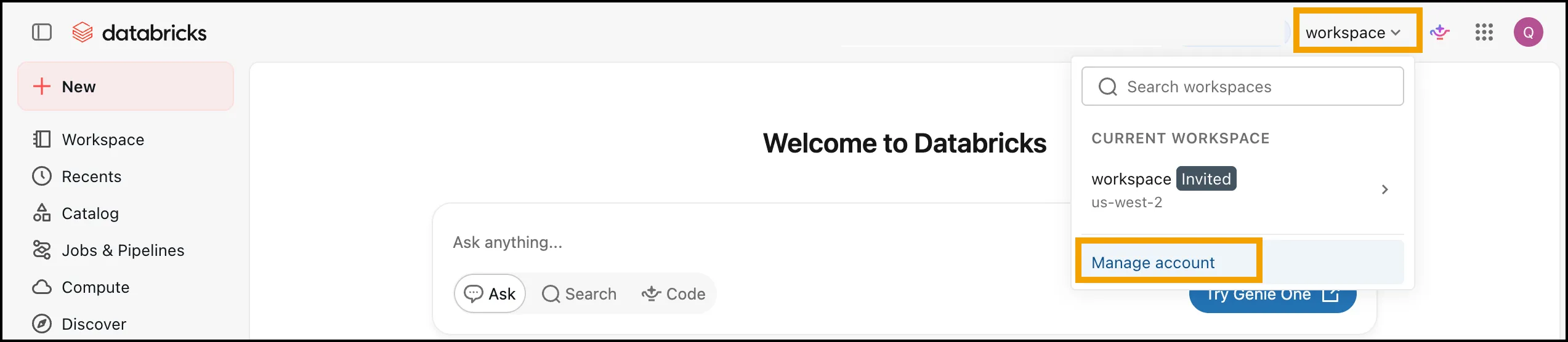
In your Databricks workspace, click the workspace name at the top right, then click Manage account. The account console opens.
-
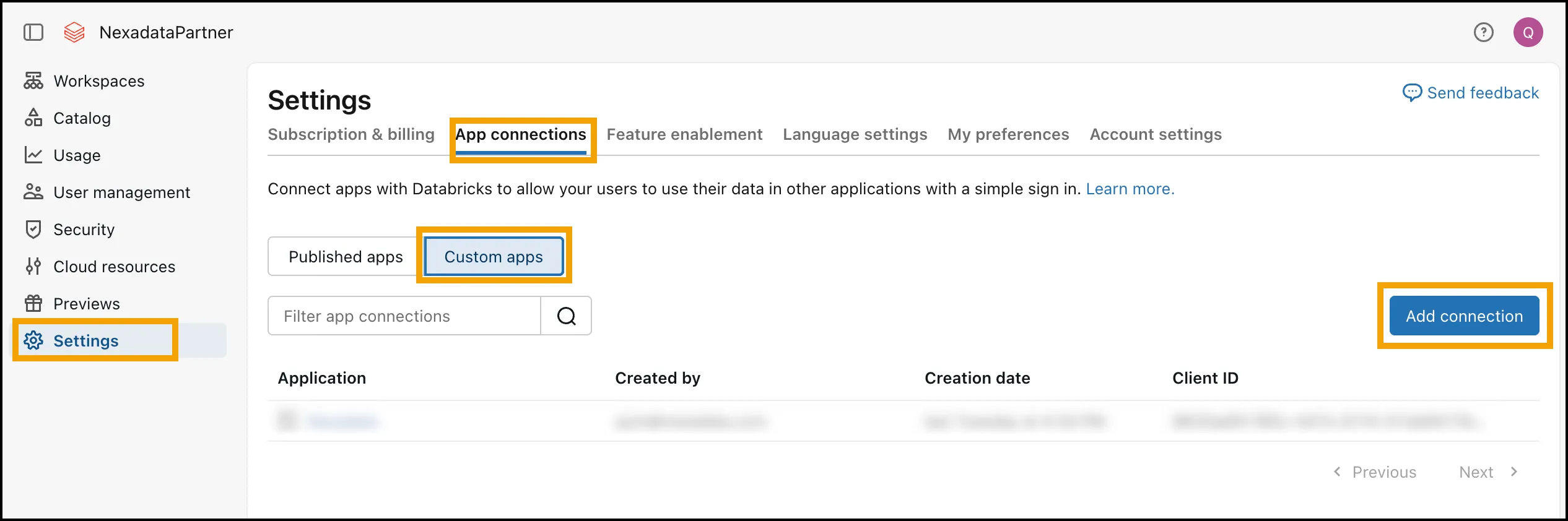
In the account console, open Settings → App connections, select Custom apps, and click Add connection on the right.
-
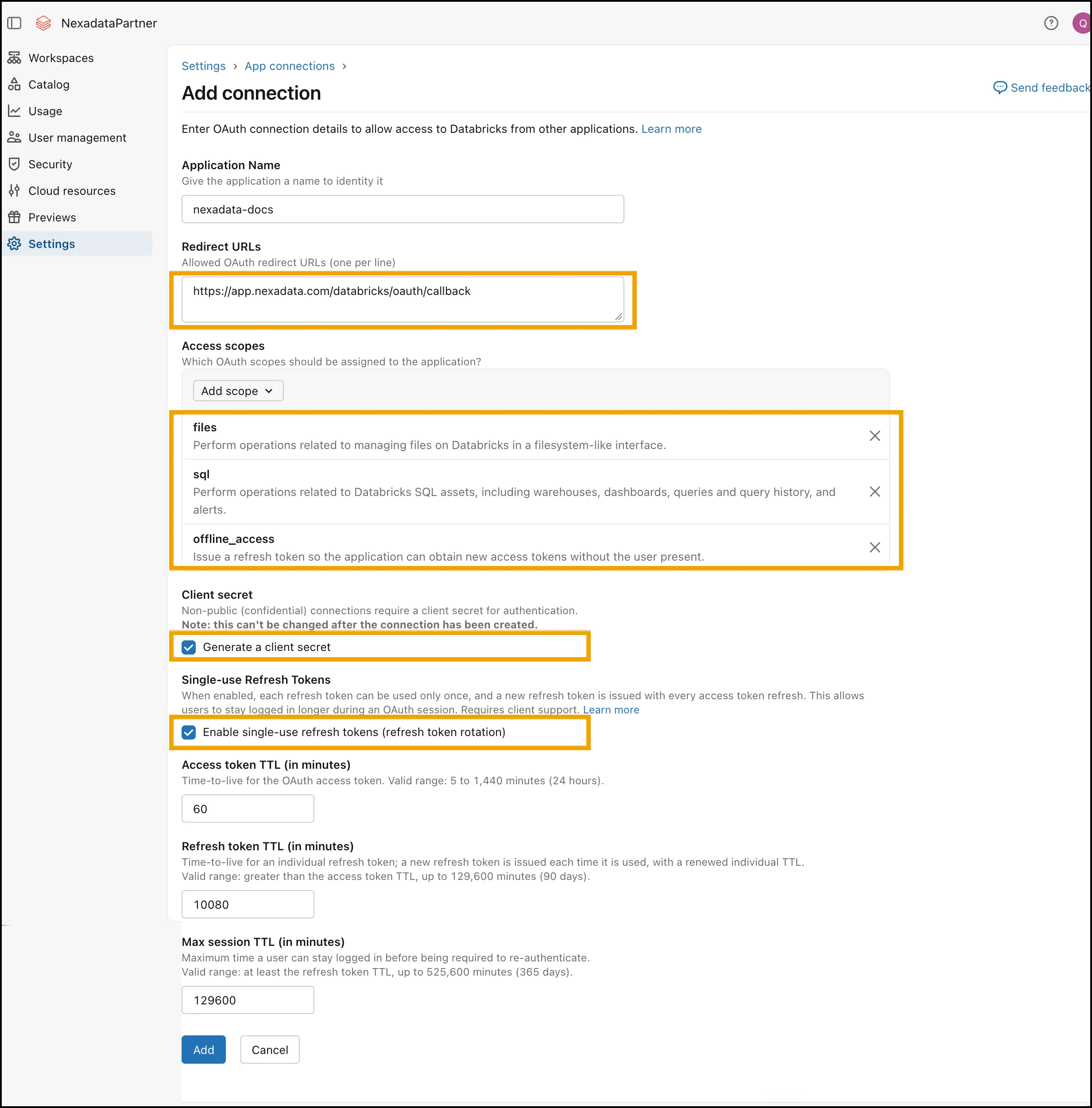
Fill in the connection:
-
Application Name: A name for Nexadata, for example
nexadata. -
Redirect URLs: Enter the Nexadata callback URL exactly as shown:
https://app.nexadata.com/databricks/oauth/callbackIf the URL does not match exactly, Databricks rejects the sign-in and the connection cannot be authorized. Copy the URL above rather than typing it.
-
Access scopes: Use Add scope to add
files,sql, andoffline_access. Theoffline_accessscope lets Nexadata refresh its access without asking you to sign in again. -
Generate a client secret: Leave this checked. This setting cannot be changed after the connection is created.
-
Enable single-use refresh tokens (refresh token rotation): Check this. Databricks then issues a new refresh token each time Nexadata refreshes its access, and Nexadata saves it, so a connection that is in regular use stays signed in. Checking it adds a Max session TTL field.
Leave the three time limits at their defaults. Nexadata renews its access automatically within them:
-
Access token TTL (60 minutes): How long each access token lasts. Nexadata gets a new one as needed.
-
Refresh token TTL (10,080 minutes, or 7 days): How long a connection can go unused. If nothing in Nexadata uses the connection for 7 days, the person must sign in again.
-
Max session TTL (129,600 minutes, or 90 days): The longest a sign-in can last, however often the connection is used. After 90 days, the person must sign in again.
-
-
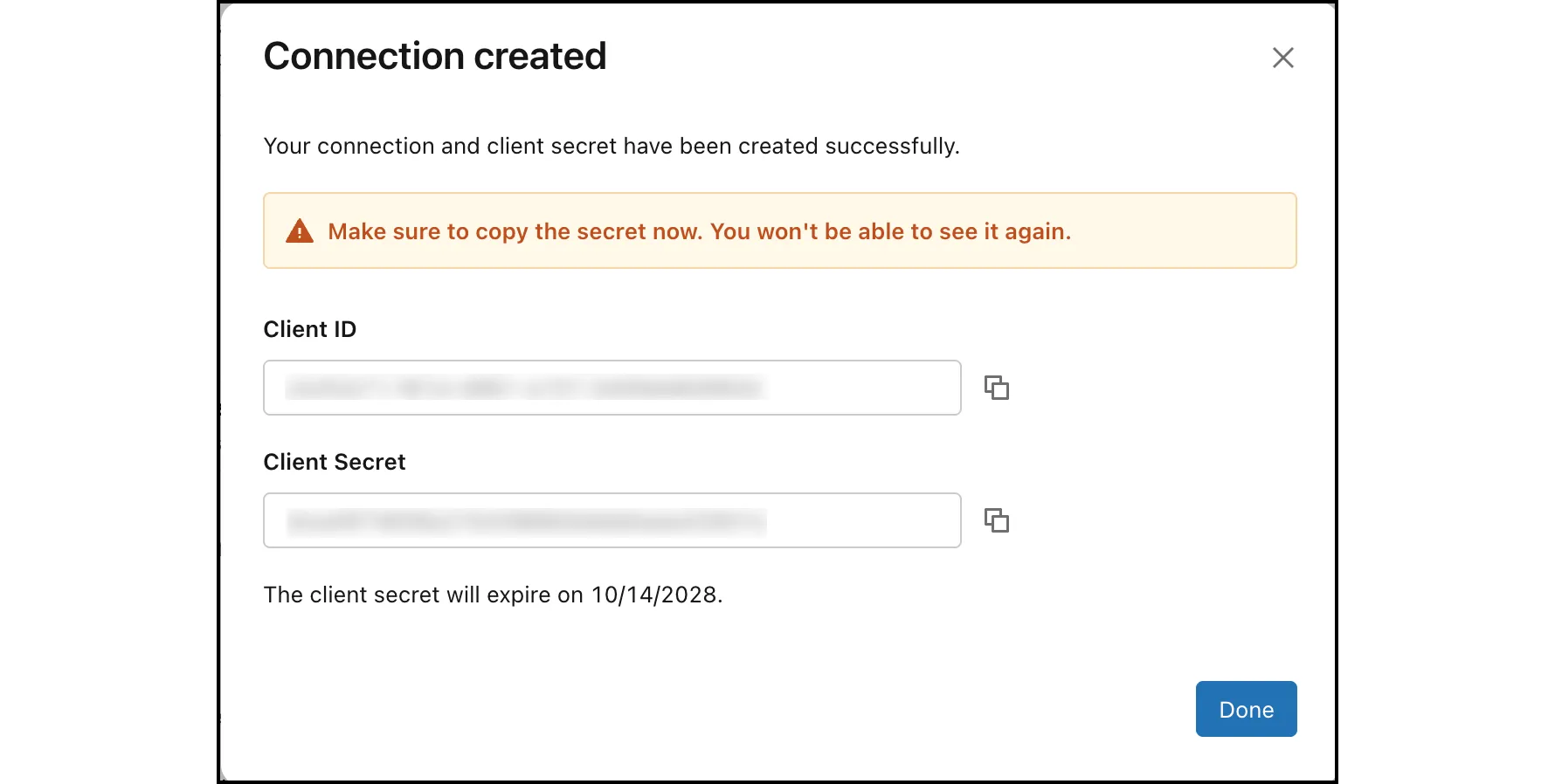
Click Add. In the Connection created dialog, copy the Client ID and Client Secret before you click Done; the secret is shown only once. The dialog also shows when the client secret expires. Note the date, since the connection must be given a new secret before then.
-
Make sure each person who will sign in has Can use on the SQL warehouse, granted as in Option A, step 3, and the Unity Catalog privileges below. Grant them to the person, or to a group they belong to, instead of the service principal.
Option C: Create a Share and a Recipient for OpenSharing
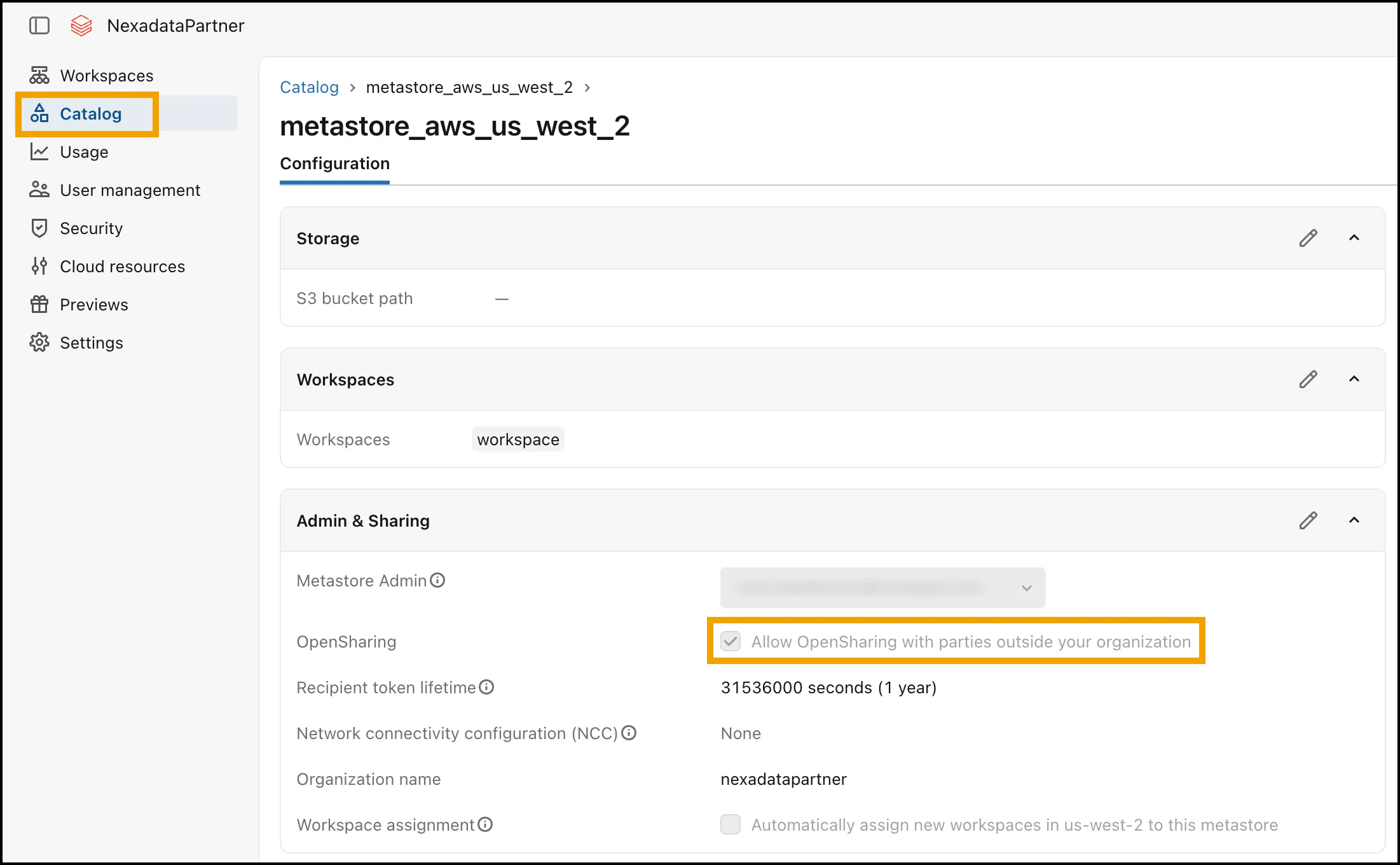
Section titled “Option C: Create a Share and a Recipient for OpenSharing”Before you start, OpenSharing with recipients outside your organization must be turned on for your Databricks metastore. This is a one-time setting that requires a Databricks account admin. If it is off, the Share data page shows the warning “External sharing is currently disabled in metastore configuration.”
To turn it on, open the account console (click the workspace name at the top right, then Manage account, as in Option B). Click Catalog, then click your metastore. In the Admin & Sharing section, click the pencil icon, check Allow OpenSharing with parties outside your organization, set the Recipient token lifetime according to your security policy, and save. The credential file Nexadata uses stops working when its token reaches this lifetime.
Then create the share and the recipient in your workspace:
-
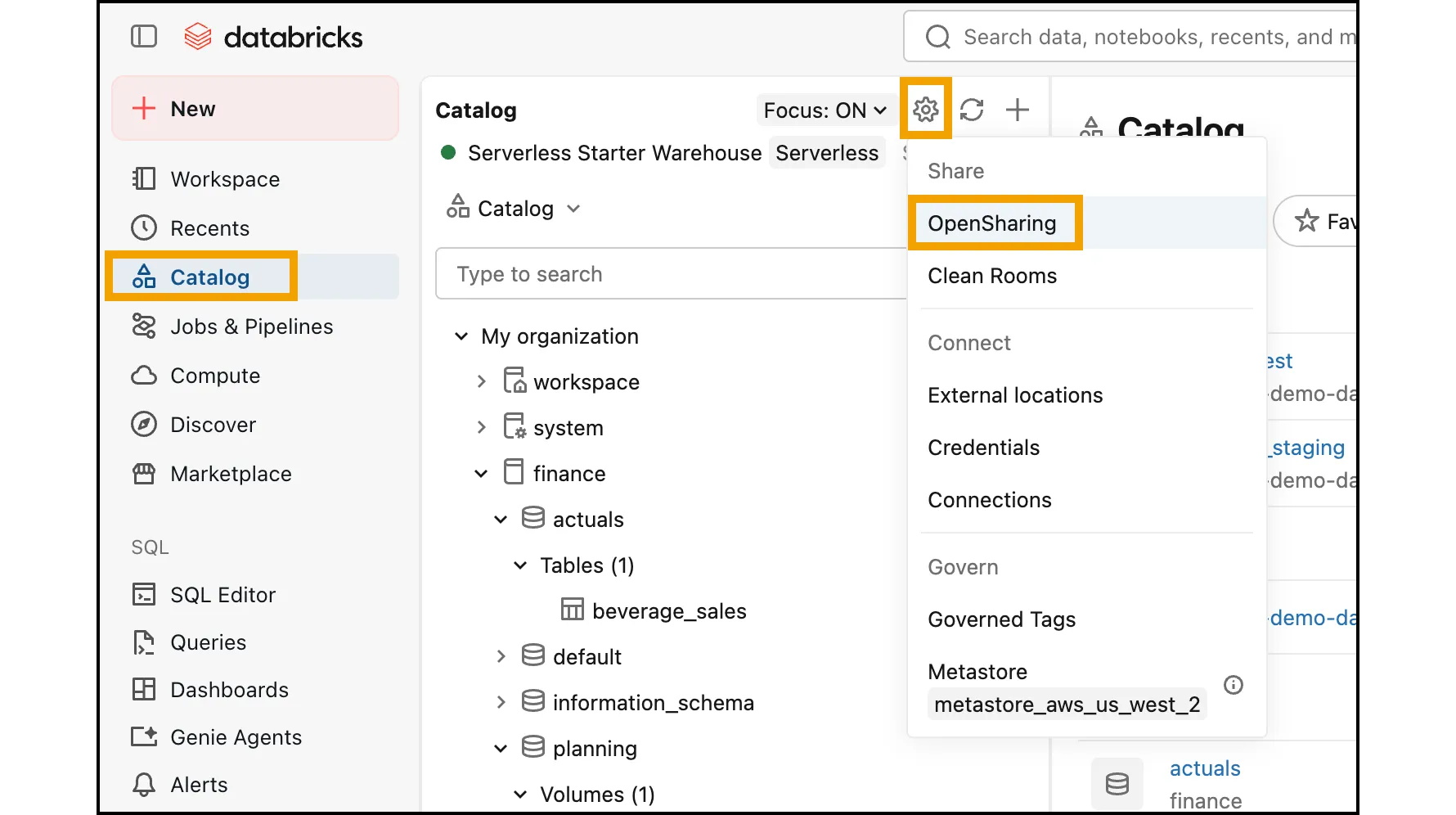
In Databricks, click Catalog in the sidebar. At the top of the catalog pane, click the gear icon, then click OpenSharing under Share.
-
On the Shared by me tab, click Share data. Enter a Share name, for example
nexadata_share, and click Save and continue. -
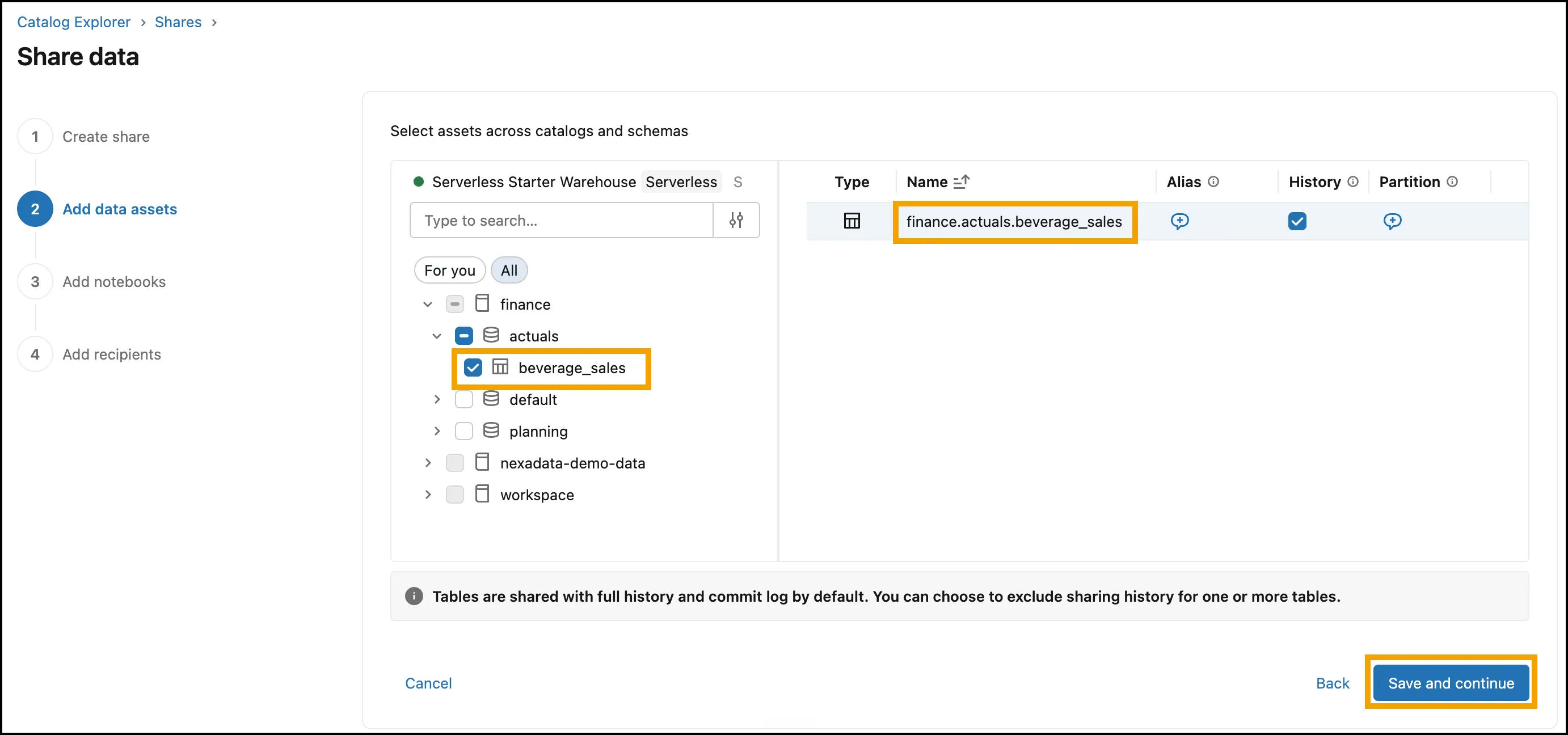
On Add data assets, expand the catalog and schema, and check each table or view Nexadata should read. You need
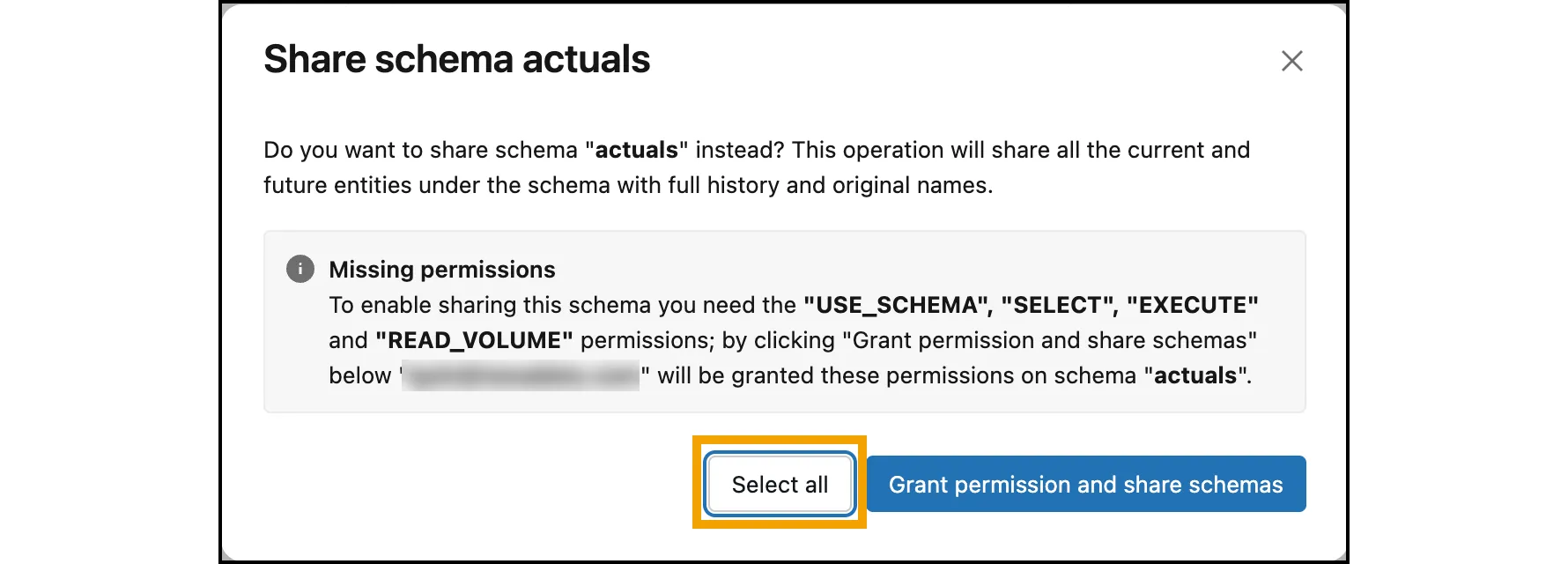
SELECTon a table to add it to a share, which you already have if you own the table.If you check every table in a schema, Databricks asks whether to share the whole schema instead, which would also share any table added to it later. Click Select all to share only the tables you checked.
Each table you checked appears on the right by its full name. Leave History at its default and click Save and continue. On Add notebooks, click Save and continue without adding any.
-
On Add recipients, create a recipient for Nexadata. In Create a new recipient, change the following, since the defaults do not fit Nexadata:
-
Select Share manually, not Share using email. Nexadata takes the credential file directly, so no invitation is needed.
-
Enter a Recipient name, for example
nexadata. -
Under Recipient type, select Open, not Databricks. Nexadata is not a Databricks workspace.
-
Under How will the recipient be authenticated?, select Token. Nexadata connects with the token in the credential file.
-
Leave Token lifetime blank to use the Recipient token lifetime set on the metastore, or enter a shorter one.
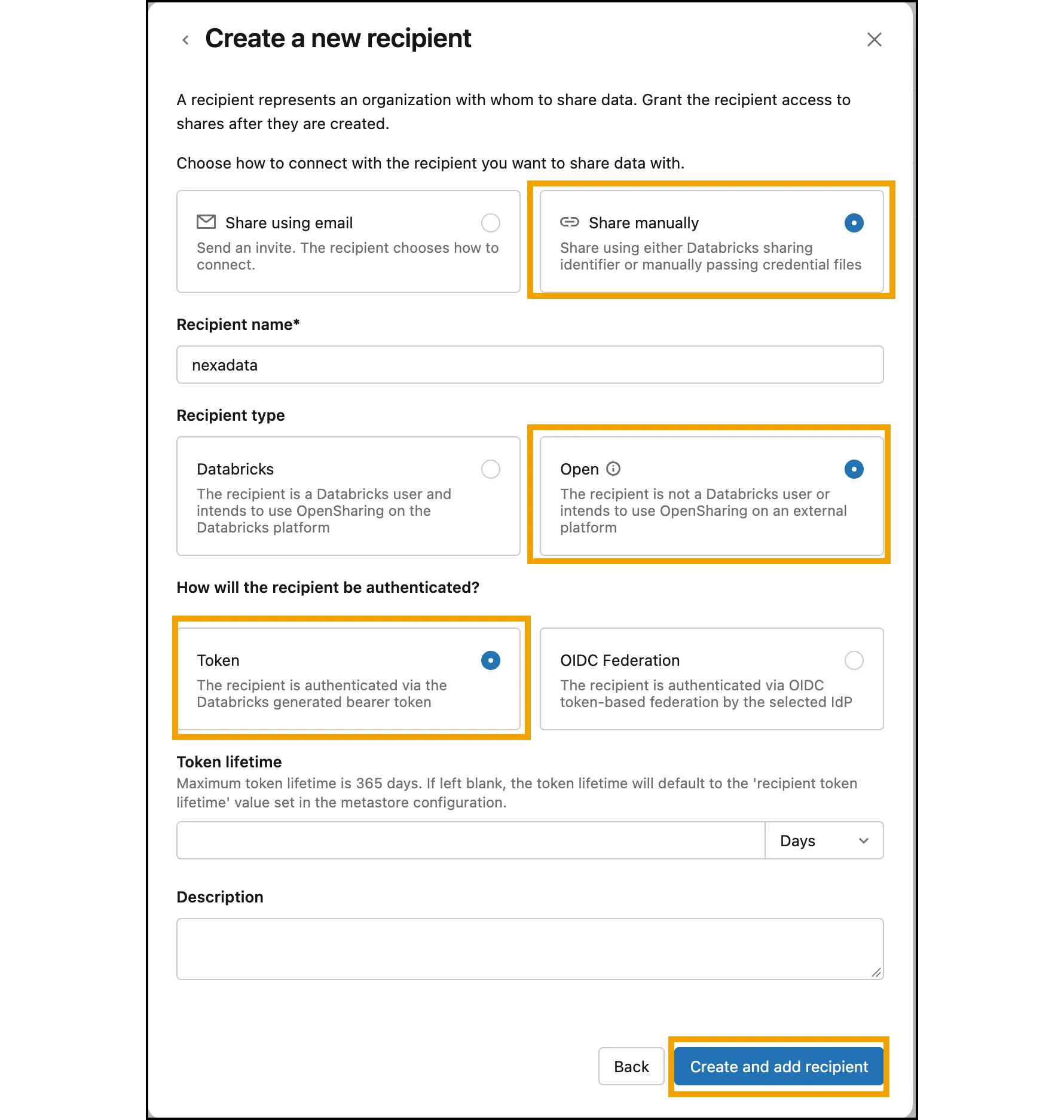
Click Create and add recipient. The recipient is created, given access to the share, and listed with the authentication type TOKEN.
-
-
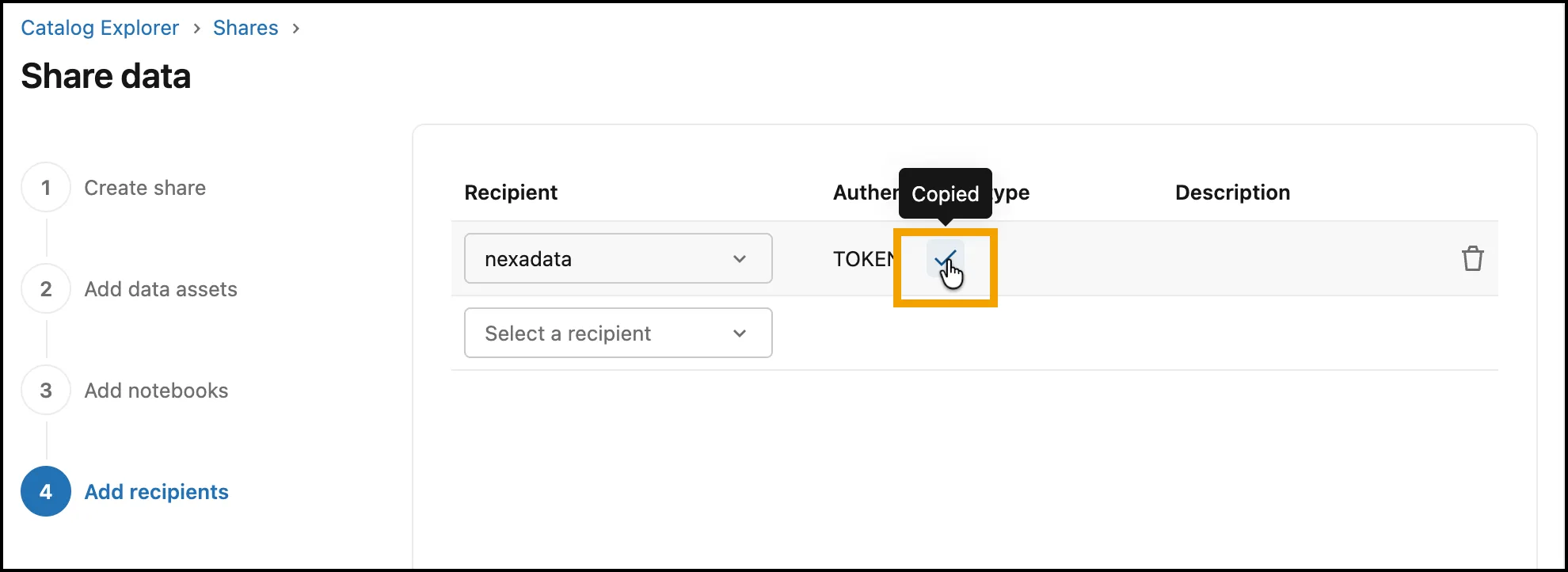
Click the copy icon next to TOKEN to copy the recipient’s activation link, then click Share data to finish. Clicking Share data is what saves the share and gives the recipient access to it; if you close the wizard before this, neither is saved.
-
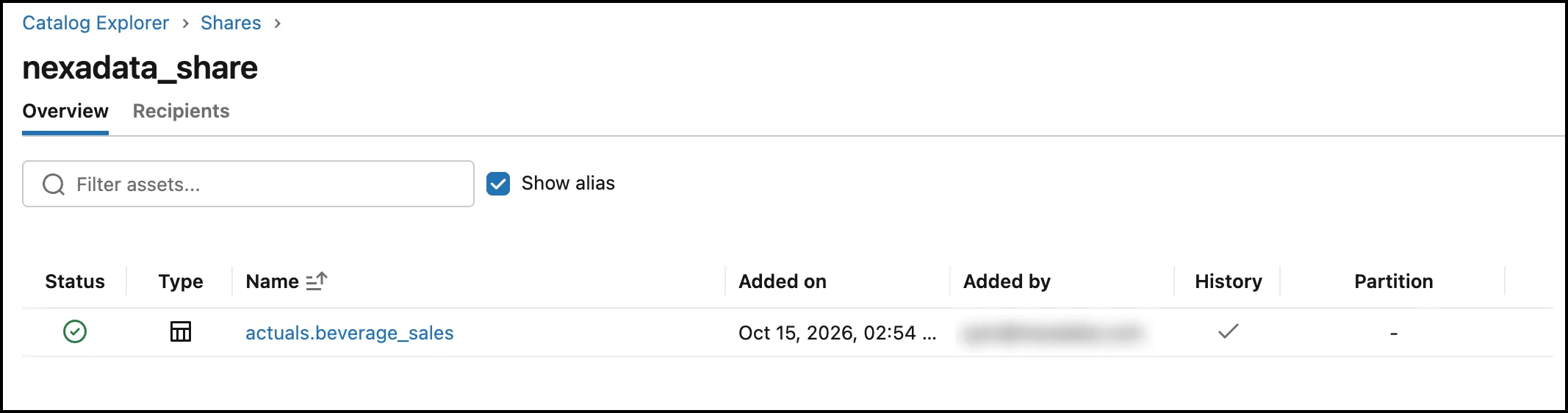
Confirm the share is saved. Open Shared by me and click your share. The Overview tab lists each table with a green status check, and the Recipients tab lists the Nexadata recipient.
If the recipient is missing, open Recipients, click the recipient, click Grant share, and choose your share. Nexadata can verify an OpenSharing connection only when the recipient has access to at least one share.
-
Paste the activation link into your browser. On the page that opens, click Download credential file. The file is usually named
config.share. It holds everything Nexadata needs to read the share: the share’s address and the access token. You paste its contents into Nexadata when you create the connection.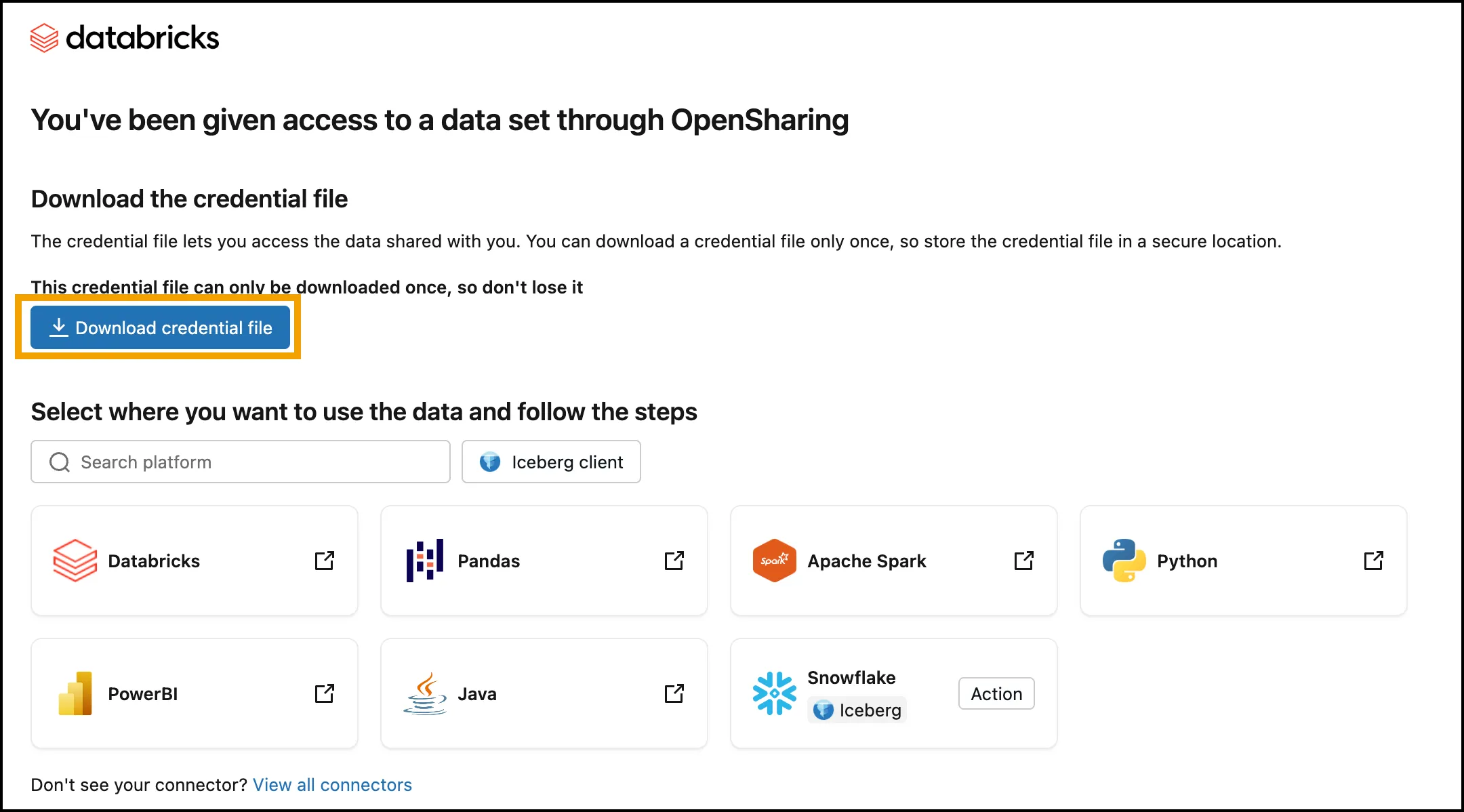
Unity Catalog Privileges
Section titled “Unity Catalog Privileges”Unity Catalog is how Databricks organizes data and controls who can access it. It arranges data in three levels:
-
A catalog is the top-level container, often one per business area or environment, for example
finance. -
A schema sits inside a catalog and groups related data, for example
finance.actualsfor source data andfinance.planningfor results. -
Tables, views, and volumes sit inside a schema. Tables and views hold rows of data. A volume holds files, and Nexadata uses one to stage data before loading it into a table.
Access is granted with privileges, and a privilege granted at one level applies to everything beneath it. A privilege on a catalog covers every schema in it, and a privilege on a schema covers every table and volume in it. To reach a table, a user or service principal needs access at every level: USE CATALOG on the catalog, USE SCHEMA on the schema, and a privilege such as SELECT on the table or its schema.
This is why the steps below grant most privileges on a schema rather than on the whole catalog: Nexadata gets exactly the access it needs where it needs it, and nothing elsewhere in the catalog.
For Service Principal and App Connection, grant the following to the service principal, or to the user who signs in. These are the minimum privileges for Nexadata to both read from and write to a schema:
| Grant on | Privileges |
|---|---|
| The catalog | USE CATALOG |
| The schema | USE SCHEMA, SELECT, MODIFY, READ VOLUME, WRITE VOLUME, CREATE TABLE, CREATE VOLUME |
Privileges granted on a schema apply to every table, view, and volume in it. Your Databricks admin can narrow them to fit your setup: for read-only access, USE SCHEMA and SELECT are enough, and access can be limited to specific tables instead of the whole schema. If Nexadata has a catalog of its own, the admin can instead grant all of these privileges on the catalog, and they then apply to every schema in it, including schemas added later.
To grant the schema privileges in Databricks:
-
In Catalog, expand the catalog and click the schema Nexadata will use.
-
Open the Permissions tab and click Grant.
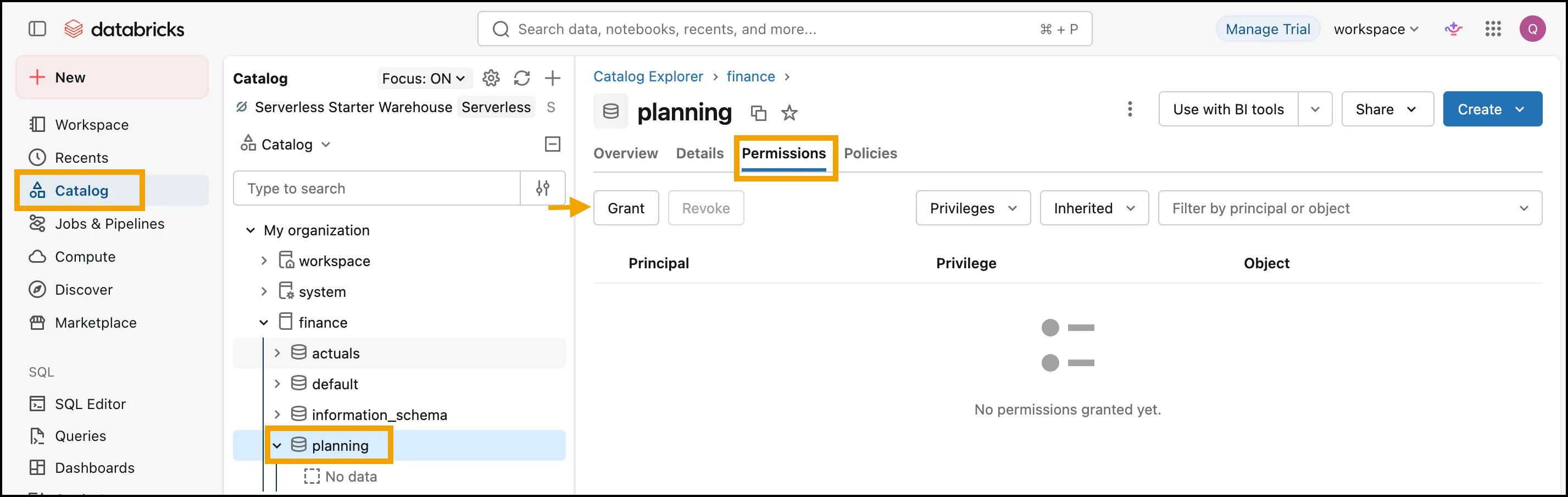
-
Under Principals, select the service principal. Check MODIFY, WRITE VOLUME, CREATE TABLE, and CREATE VOLUME; Databricks includes USE SCHEMA, SELECT, and READ VOLUME automatically, since the others depend on them. Click Confirm.
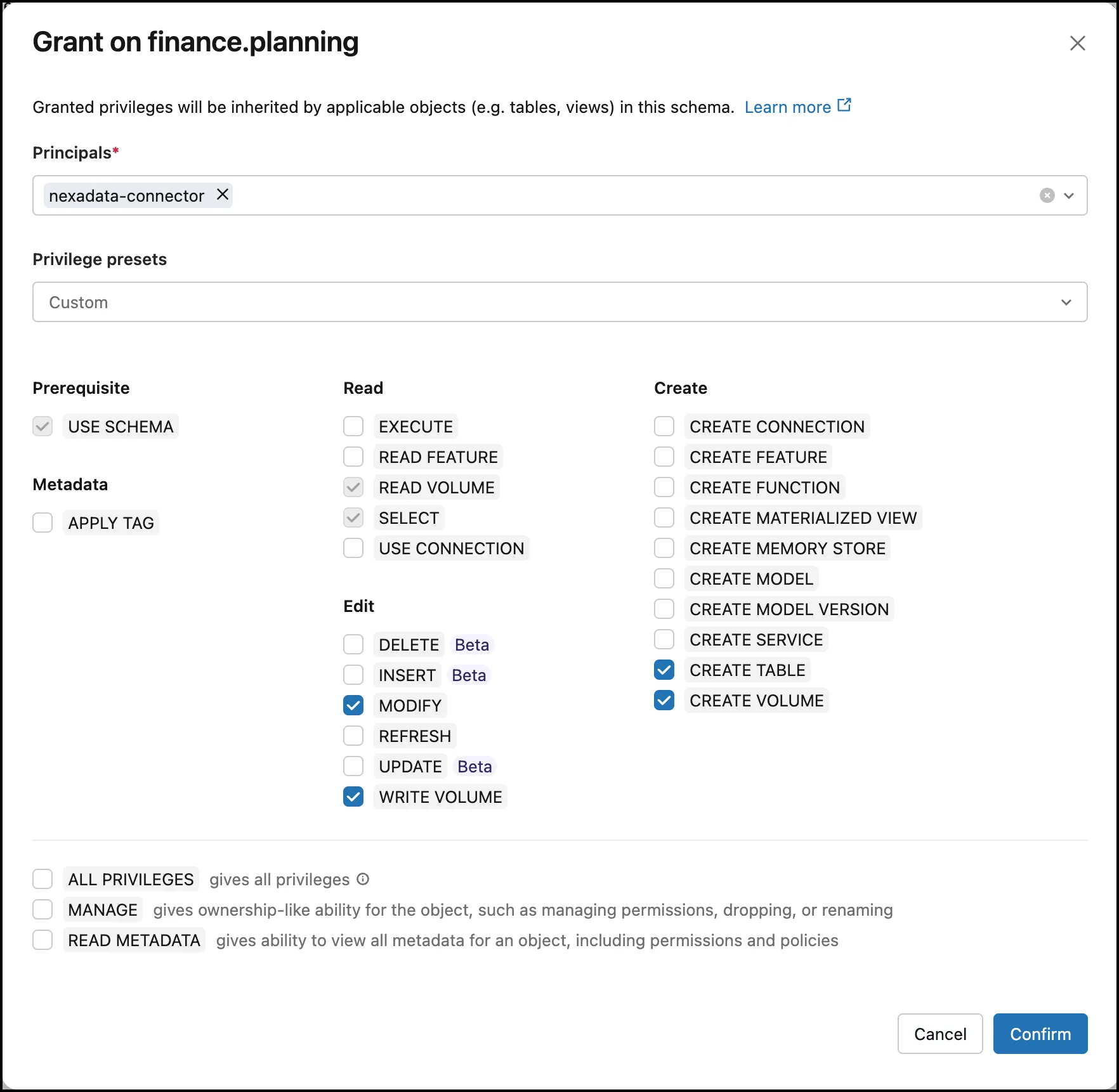
Grant USE CATALOG the same way, from the catalog’s own Permissions tab.
Part 3: Create the Connection in Nexadata
Section titled “Part 3: Create the Connection in Nexadata”Step 1: Add a Connection
Section titled “Step 1: Add a Connection”-
From the Nexadata home screen, click the Create a Connection tile, or go to Setup → Connections and click Create Connection in the upper-right corner.
-
In the Create New Connection form:
-
Enter a unique Name for your Databricks connection.
-
Select Databricks as the Connection Type.
-
-
Under Authentication Type, select Service Principal, App Connection (User Sign-In), or OpenSharing Profile.
Step 2: Enter the Credentials
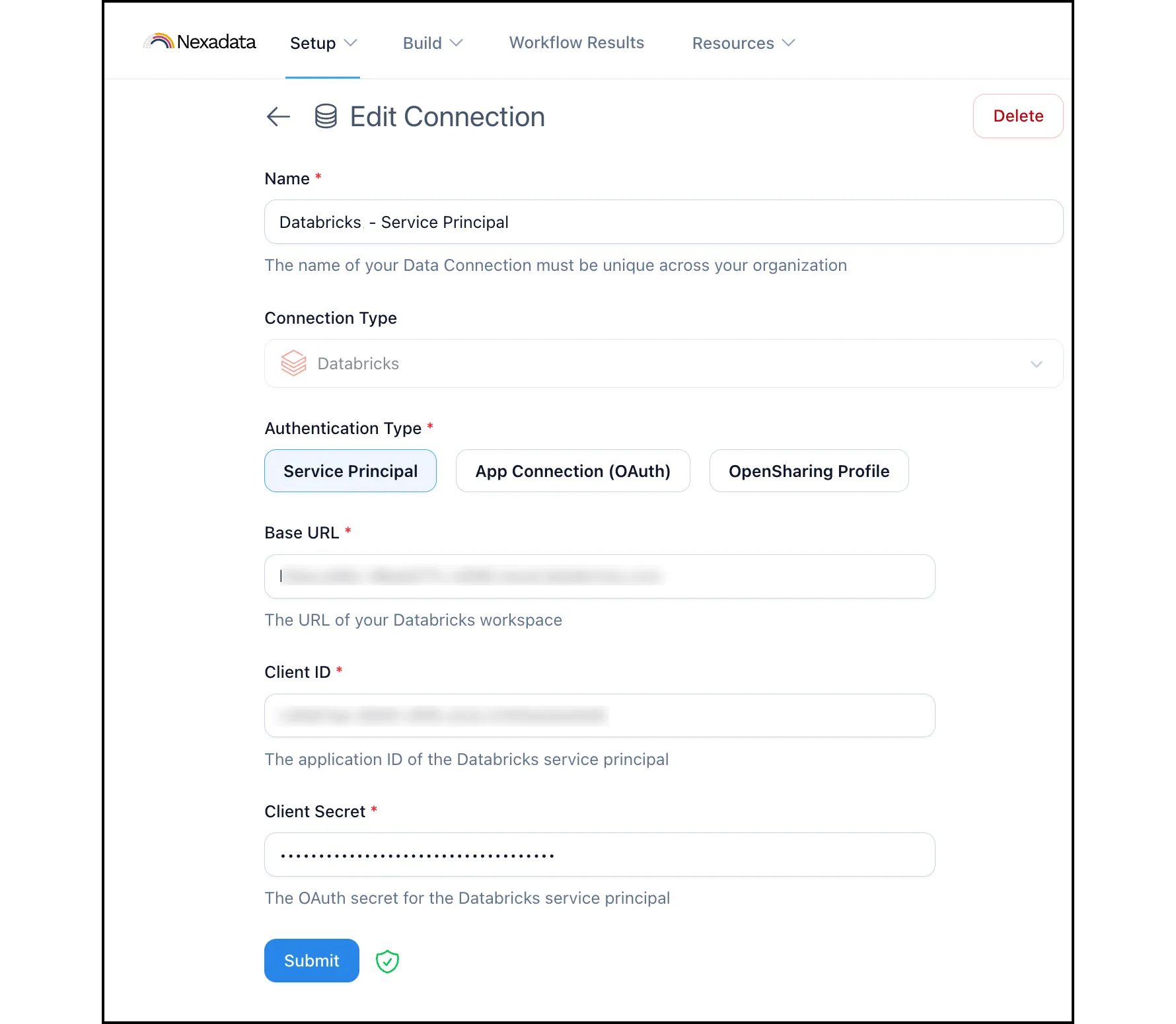
Section titled “Step 2: Enter the Credentials”For Service Principal, enter the details from Option A:
-
Base URL: The URL of your Databricks workspace, for example
https://dbc-a1b2c3d4-e5f6.cloud.databricks.com. -
Client ID: The application ID of the service principal.
-
Client Secret: The OAuth secret you generated for the service principal.
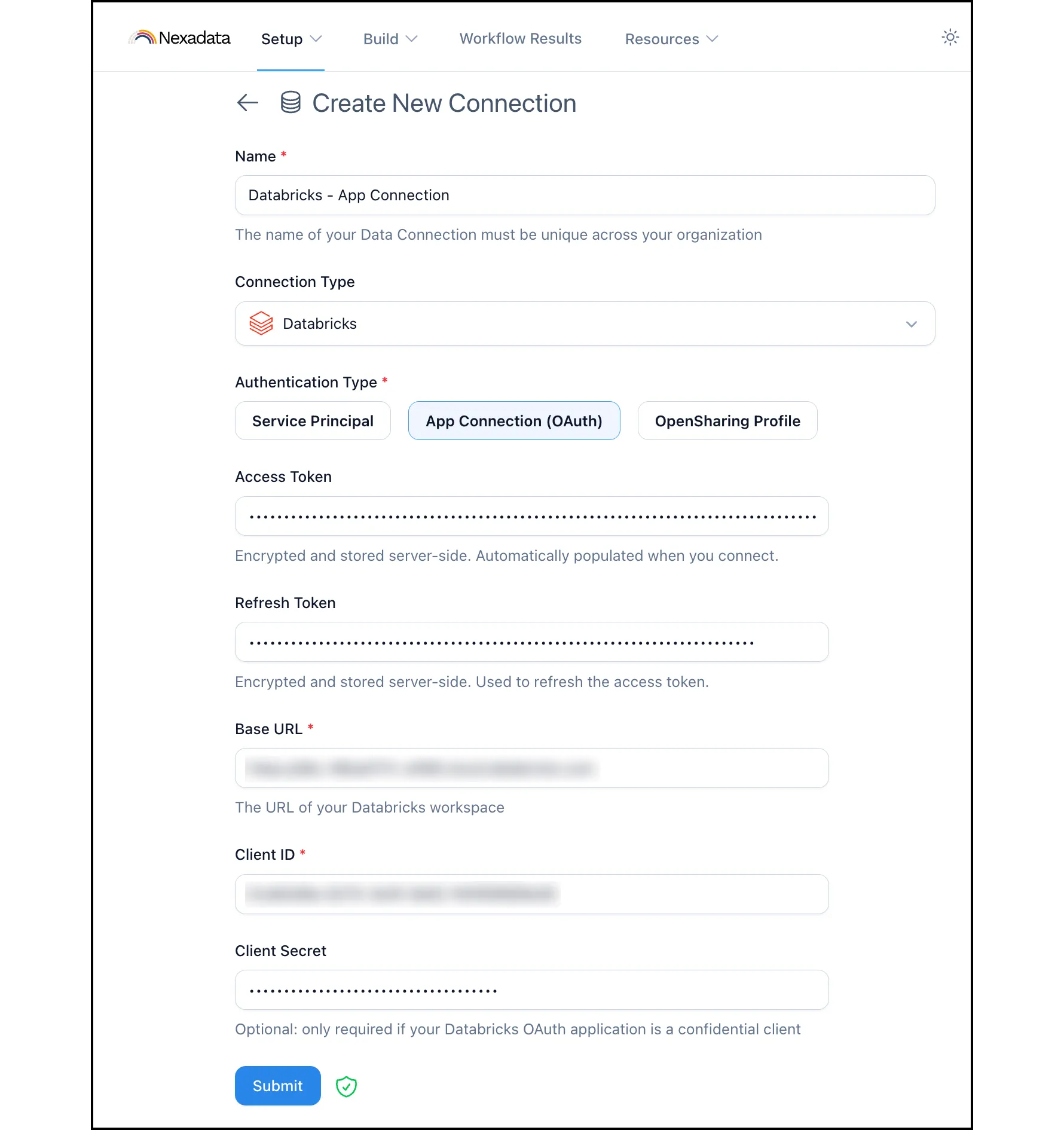
For App Connection (User Sign-In), enter the details from Option B:
-
Base URL: The URL of your Databricks workspace.
-
Client ID: The client ID of the App connection.
-
Client Secret: Only required if the App connection is a confidential client.
Then click Connect to Databricks and sign in to Databricks in the tab that opens. Databricks shows the Permission Requested page, which lists what Nexadata is asking for: Allow longer-running access (the offline_access scope), Databricks SQL (sql), and File Management (files). Click Authorize.
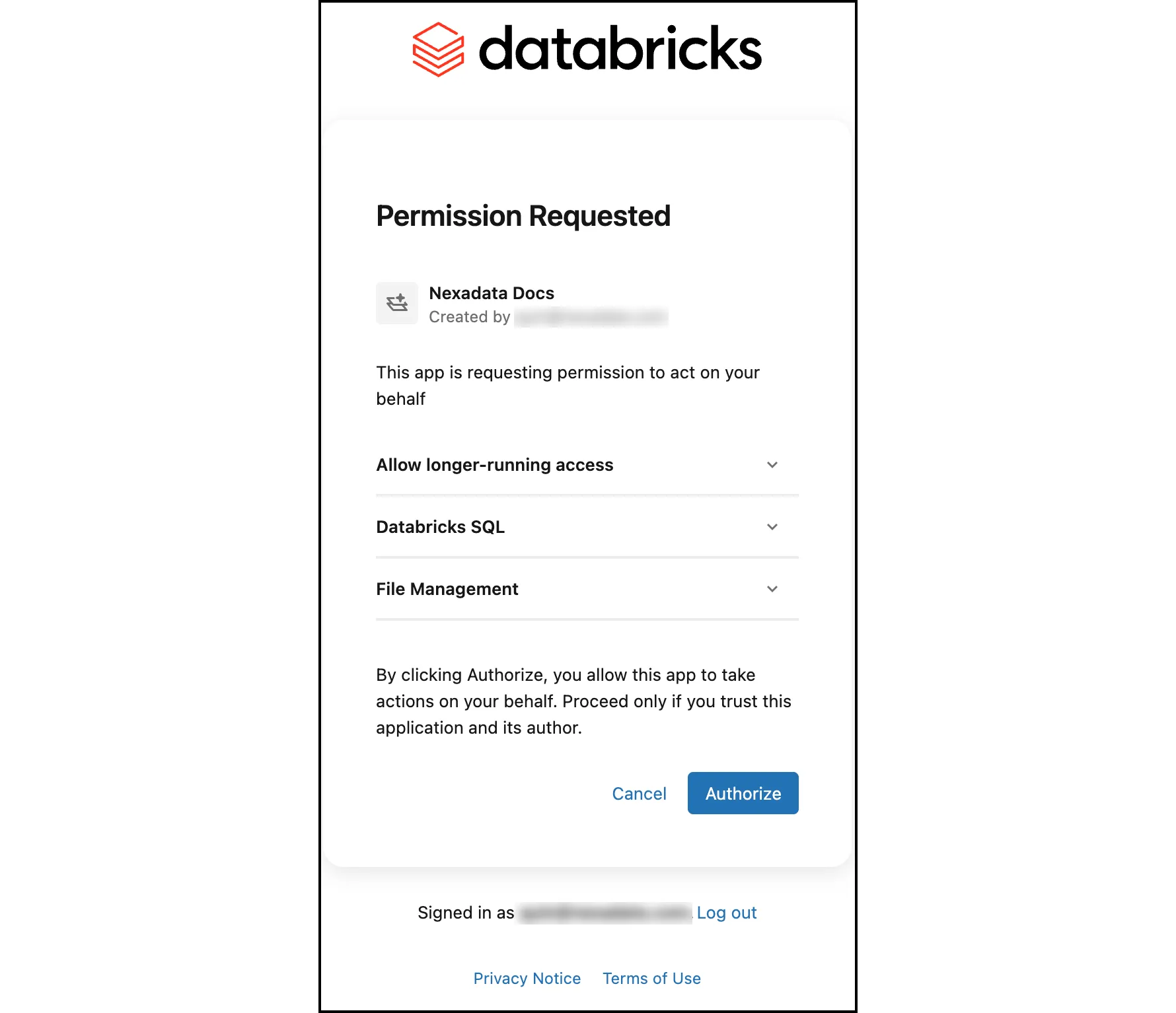
The tab then shows a success message. Close it and return to Nexadata. The Access Token and Refresh Token fields are now filled in. Nexadata stores both tokens encrypted and renews the access token automatically.

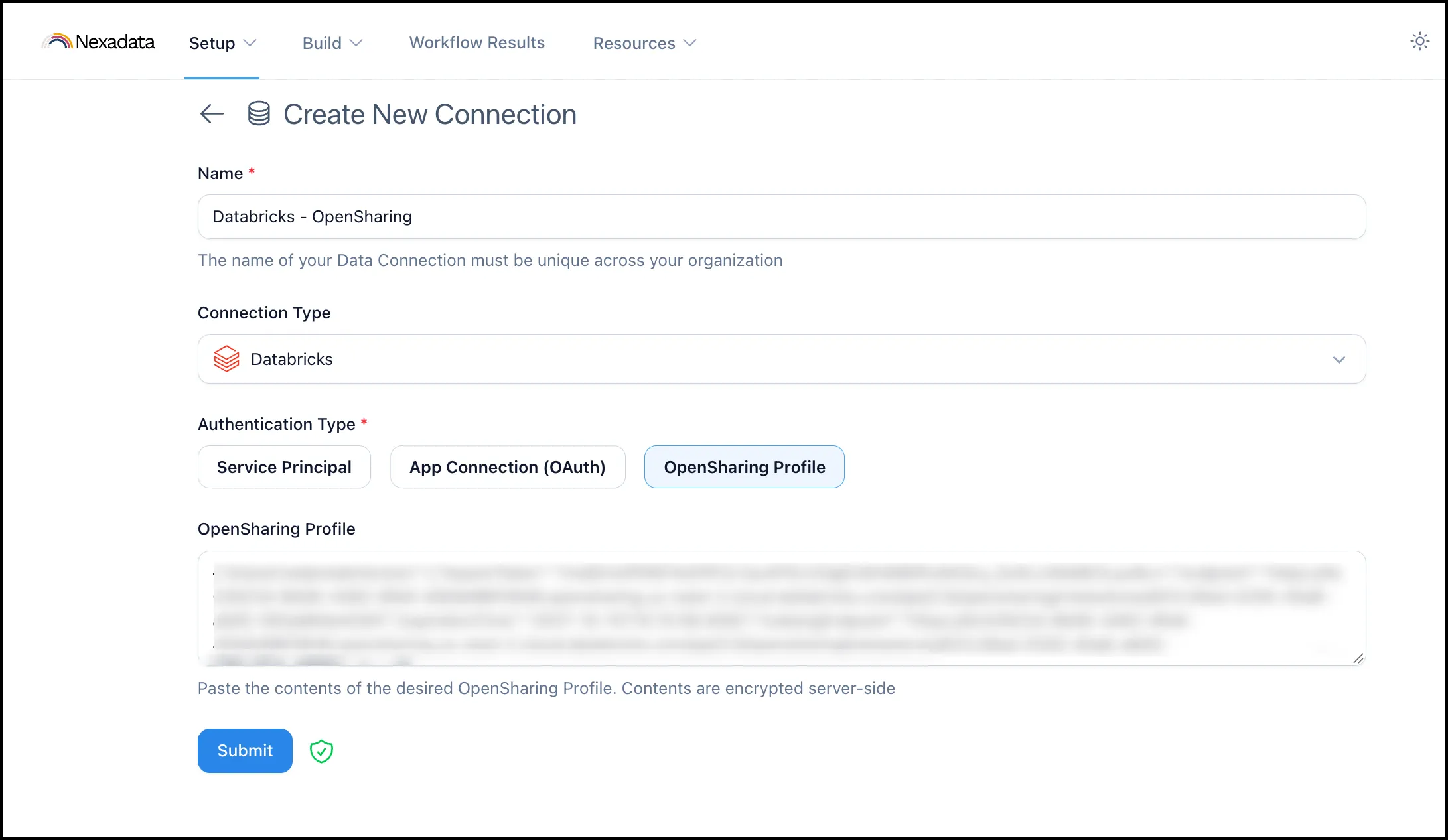
For OpenSharing Profile, open the config.share file in a text editor, copy its entire contents, and paste them into OpenSharing Profile. Nexadata checks that the profile is valid and shows an error if it cannot be parsed.
Step 3: Verify and Submit
Section titled “Step 3: Verify and Submit”-
Click Verify Credentials. Nexadata connects to Databricks with the credentials you entered: it requests an access token for a service principal or an App connection, and lists the available shares for an OpenSharing profile.
-
When verification succeeds, a green shield with a check mark appears next to Submit. For a Service Principal connection, the verified form looks like this:
For an App Connection, the form also shows the Access Token and Refresh Token filled in by signing in.
For an OpenSharing Profile connection, the form shows only the pasted profile.
-
Click Submit to save the connection.
Troubleshooting Tips
Section titled “Troubleshooting Tips”-
Verification fails for a service principal? Check that the Base URL is your workspace URL and that the Client Secret has not expired. Generate a new secret on the service principal if it has.
-
Lost the
config.sharefile? The activation link works only once. Ask your Databricks admin to rotate the recipient’s token, which issues a new activation link. -
No SQL warehouses to choose from later? Grant the service principal, or the signed-in user, Can use on the warehouse. Workspace entitlements alone are not enough.