Step 2 - Create a Pigment Connection
🔍 What You’re Doing
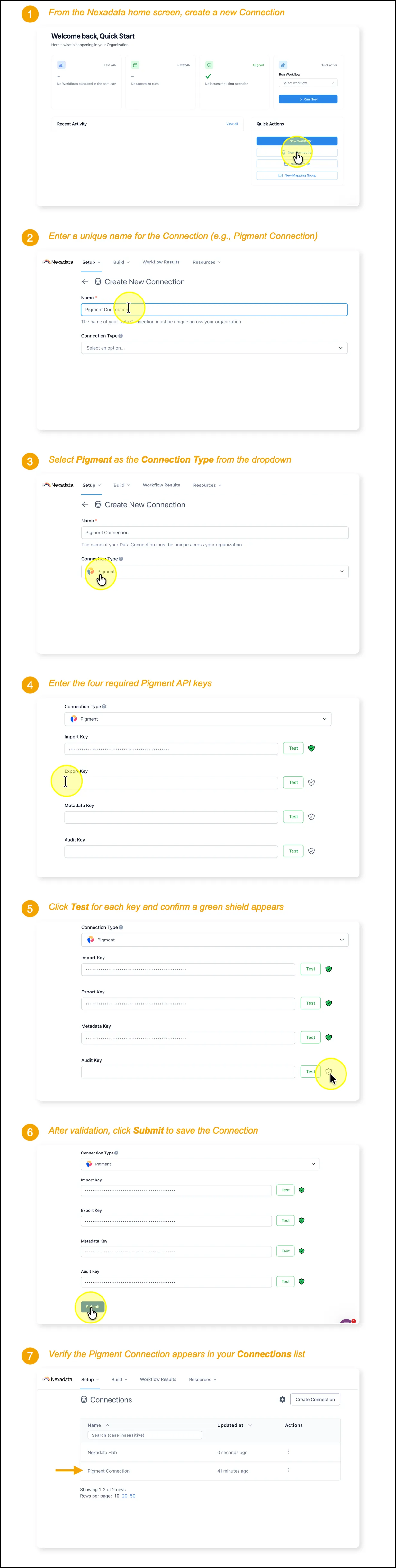
Section titled “🔍 What You’re Doing”In this step, you’ll connect Nexadata to the Pigment platform by using your Pigment API key. This secure connection enables you to access and work with your Pigment data in future workflows. Once created, the Pigment Connection will be available in your Connections list for use across Datasets and Pipelines.
✅ Summary of Steps
Section titled “✅ Summary of Steps”-
Retrieve your Pigment API Key from the Pigment platform. One key carries the Import, Export, and Metadata scopes. (Need help? See Access the Pigment API Keys help article.)
-
From the Nexadata home screen, click Create a Connection.
-
Enter a unique name for the new Connection (e.g.,
Pigment Connection). -
Select Pigment as the Connection Type.
-
Paste the key into the API Key field.
-
Click Test, confirm a green shield appears, and check the scopes listed under Pigment API Scopes Enabled.
-
Once all three scopes show, Submit becomes active. Click it to save the Connection. If Submit stays greyed out, the key is missing one of the three scopes.
-
Confirm the Pigment Connection appears in your Connections list.