

Setting up a Pigment Integration
How to Set Up a Pigment Connection
Pigment is a modern business planning platform that allows teams to collaborate on financial modeling, forecasting, and reporting. Nexadata supports direct integration with Pigment, enabling users to seamlessly move data between Nexadata and Pigment. For a summary of everything the connector supports, see the Pigment integration page.
Here are the key features:
-
Single API Key: One key covers every operation. Pigment now issues a single key carrying the Import, Export, and Metadata scopes.
-
Automatic Scope Detection: Nexadata reads the scopes on your key and stores them with the connection, so you can see what the key can actually do.
-
Connection Testing: Validate the key before finalizing the setup. Submit does not unlock until all three scopes come back, so an under-scoped key is caught at configuration time rather than in the middle of a run.
Follow the steps below to create your Pigment connection.
Step-by-Step Instructions
Section titled “Step-by-Step Instructions”Step 1: Add a Connection
Section titled “Step 1: Add a Connection”From the Nexadata home screen, click the Create a Connection tile or navigate to Setup → Connections → and select the ⨁ button in the upper right-hand corner.
The Create New Connection form will display.
-
Provide a unique Name for your Pigment connection. This name should clearly identify the connection within your organization.
-
Select Pigment as the Connection Type from the dropdown menu.
Step 2: Enter Your Pigment API Key
Section titled “Step 2: Enter Your Pigment API Key”Paste your Pigment API key into the API Key field. This one key covers importing, exporting, and metadata access.
Step 3: Test the Key
Section titled “Step 3: Test the Key”Click the Test button next to the API Key field to verify that the key is valid.
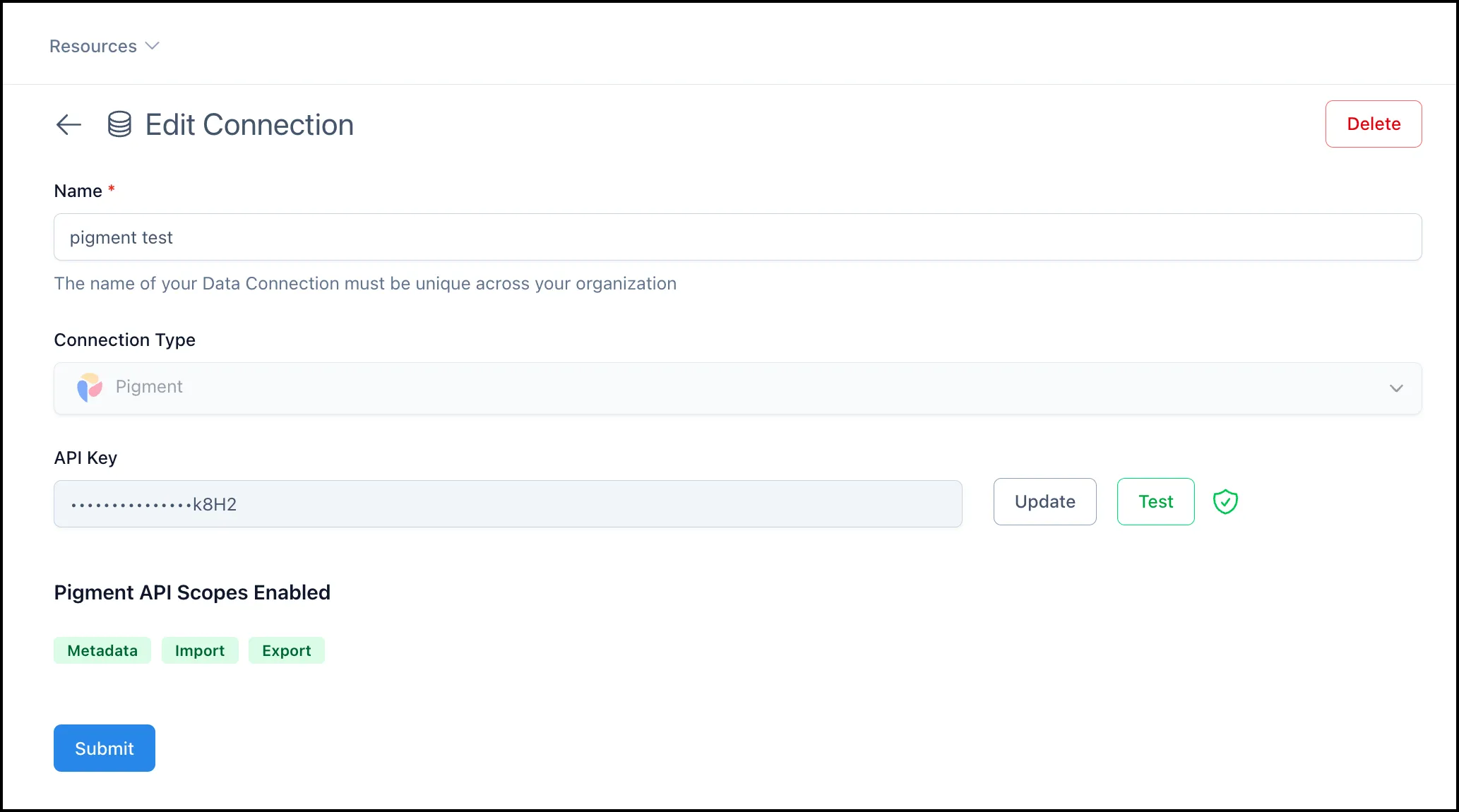
On a successful test, a green shield appears next to the button, and Nexadata displays the scopes it detected on the key under Pigment API Scopes Enabled: Metadata, Import, and Export.
If the test fails, double-check that you copied the whole key and that it is active in Pigment.
Testing before you submit is what catches an under-scoped key at configuration time rather than partway through a workflow run.
Step 4: Submit the Connection
Section titled “Step 4: Submit the Connection”Once all three scopes are shown, Submit becomes active. Click it to finalize your Pigment connection.
Updating an Existing Key
Section titled “Updating an Existing Key”On a saved connection, the API Key field shows only the last few characters of the stored key. Click Update to replace it, then Test to revalidate and refresh the detected scopes.
Your Pigment connection should now be active and ready to use within your Nexadata data workflows! Now learn how to use the Pigment Connection.
Important Notes
Section titled “Important Notes”-
API keys should be kept secure and rotated periodically according to your organization’s security policies.
-
If your Pigment keys are updated or revoked, you will need to update the connection settings in Nexadata accordingly.
-
A single key carries the scopes for every operation. If an operation fails with a permissions error, check the Pigment API Scopes Enabled list on the connection before assuming the key itself is wrong.
-
If issues arise, please refer to the Pigment Troubleshooting Guide.