

Using Variables in Transformations
Using Variables in Transformations
Section titled “Using Variables in Transformations”Once you have created variables in your workspace, you can reference them across all pipelines and transformations to create dynamic, reusable workflows. Variables can be used in any transformation input field that accepts dynamic values.
Fields That Accept Variables
Section titled “Fields That Accept Variables”Not all fields support variables. Fields that accept variables are marked with a small blue (x) indicator to the right of the field name. This indicator signals that you can insert a variable reference at that location.
How to Insert a Variable
Section titled “How to Insert a Variable”To use a variable in a supported field:
-
Click on the transformation input field that displays the blue (x) indicator
-
Type
@varin the field -
A dropdown menu will appear showing all available variables in your workspace
-
Select the variable you want to use from the list
The variable value will be substituted automatically when the pipeline executes.
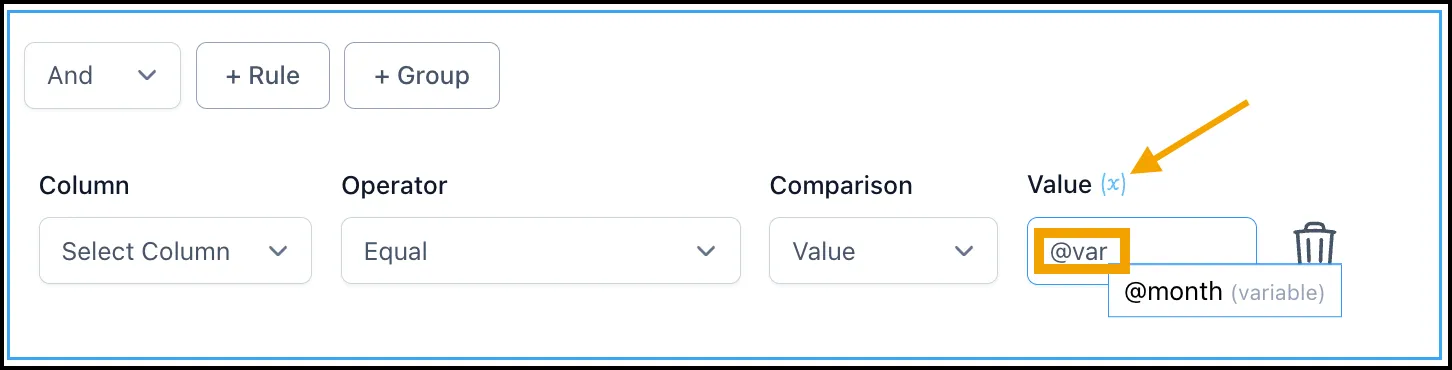
An example of a transformation field with the blue (x) indicator showing variable support
Transformation Use Cases
Section titled “Transformation Use Cases”Variables can be used across many transformation types to create dynamic behavior:
Column Operations
-
Dynamically specify output column names in Copy, Insert Column, and Rename transformations
-
Use variables like
@outputColumnNameto name results across different pipelines
Data Filtering
-
Dynamically specify filter conditions and thresholds in Filter and Flip Sign transformations
-
Use variables like
@filterThresholdto control which records are included
Data Transformation
-
Dynamically specify output column names in Group By, Split, Math, and other transformations
-
Use variables in Replace transformations to specify find patterns and replacement values
-
Dynamically set input date formats and output column names in Parse Date transformations
ID and Utility
-
Dynamically specify column names in Generate Unique ID and Insert Row Numbers transformations
-
Use variables like
@rowNumberColumnto name row number output columns
Data Merging
- Dynamically specify output column names in Merge transformations
Variable Resolution at Runtime
Section titled “Variable Resolution at Runtime”When a pipeline executes, Nexadata resolves all variable references with their current values from the workspace. This means you can change a variable value and the next pipeline execution will use the updated value without modifying the transformation itself.
Type Compatibility
Section titled “Type Compatibility”Ensure that the variable type matches what the transformation expects. For example, numeric transformations require numeric variables, and text operations require text variables. Nexadata will validate type compatibility before pipeline execution.
Note: Variables are local to the workspace where they are created. Each workspace maintains its own separate set of variables that cannot be accessed from other workspaces.